

Beacons & Tags
Use Bluetooth beacons, iButtons, and temperature sensors with Yipii IoT for driver identification, portable asset tracking, and cold chain monitoring.
Beacons & Tags
Beacons and tags extend your fleet tracking beyond vehicles. By pairing small wireless devices with your GPS trackers, you can automatically identify which driver is behind the wheel, track portable equipment that moves between vehicles, and monitor temperature inside refrigerated compartments — all without any manual input.
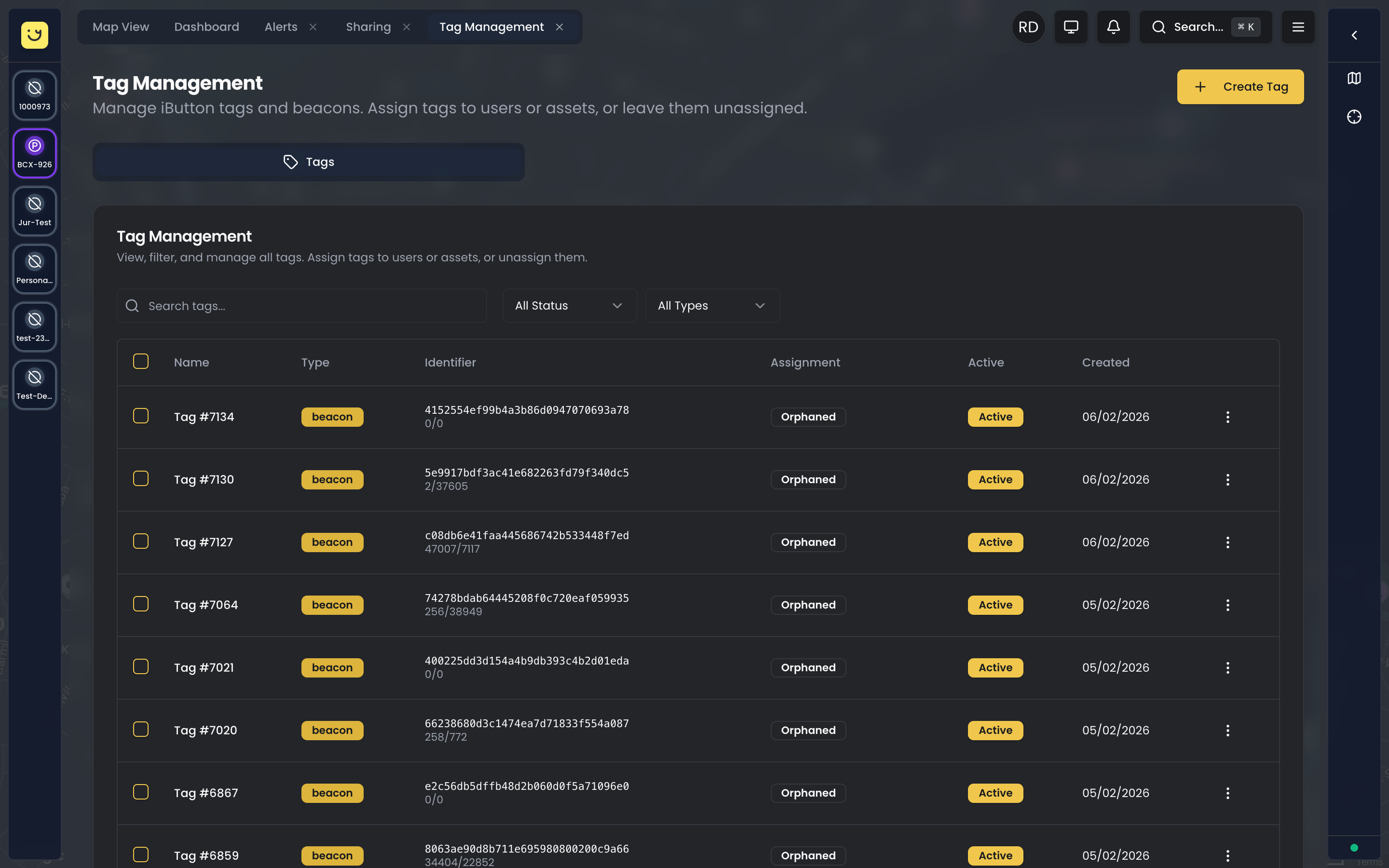
Tag Types
Yipii IoT supports several types of identification and sensing tags. Each serves a different purpose, so choosing the right one depends on what you need to track.
iButton
An iButton is a small, coin-sized metal tag used for driver identification. The driver touches it to a reader connected to the GPS tracker, and the system instantly knows who is driving. This makes driver scoring accurate (each trip is attributed to the correct person) and enables per-driver behavior reports.
iButtons are extremely durable — waterproof, shockproof, and rated for years of daily use. They're the simplest way to implement driver ID if you want a deliberate "tap to identify" action.
Bluetooth Beacon
A Bluetooth beacon is a small wireless device that broadcasts a unique identifier using either the iBeacon or Eddystone protocol. When a GPS tracker detects a beacon within range (up to 10 meters), it automatically logs which beacon is nearby. This works passively — the driver or asset doesn't need to do anything.
Beacons are ideal for two use cases. For driver identification, a driver simply carries the beacon (on a keychain, in a pocket, or clipped to a lanyard), and they're automatically identified whenever they're near the vehicle. For portable asset tracking, attach a beacon to a piece of equipment (a generator, toolbox, or trailer), and the system tracks which vehicle it's closest to, giving you location data for items that don't have their own GPS tracker.
Beacon batteries last 1-2 years and are easily replaceable.
Eye Sensor
Eye Sensors are Bluetooth-based temperature and humidity monitors designed for cold chain operations. They pair with your GPS tracker just like beacons, but instead of identification, they continuously measure environmental conditions inside your vehicle's cargo area.
If you transport food, pharmaceuticals, or other temperature-sensitive goods, Eye Sensors give you real-time readings, threshold-based alerts, and exportable compliance logs.
Smart Sensor
Smart Sensors are advanced Bluetooth sensors that go beyond temperature and humidity. In addition to environmental readings, they can detect magnetic fields, measure pitch and roll angles, and count magnet trigger events. These are useful for monitoring door open/close states (via magnet detection) or tracking the orientation of cargo and equipment.
The Beacons Tab
When you select an asset on the Live Map, a detail sidebar opens on the right with several tabs: Details, Diagnostics, Beacons, and Photos.
The Beacons tab only appears when the asset's GPS tracker has Bluetooth (BLE) enabled. If you don't see the Beacons tab, check the tracker's device settings in the Diagnostics tab and enable BLE scanning.
The Beacons tab shows every beacon and tag currently detected by this asset's tracker, along with search, filtering, and management tools.
Search and Filter
At the top of the Beacons tab you will find:
- Search field — type to filter beacons by UUID, name, or type. For example, searching "Eddystone" shows only Eddystone-protocol beacons, while searching a driver's name finds their assigned beacon.
- Filter button — opens a dropdown with additional filtering options:
- Status filters: All, Connected, Disconnected, Registered, Unregistered
- Sort options: ID, Signal strength, Battery level
Status Tabs
Below the search bar, four status tabs let you quickly narrow the list by proximity:
| Tab | What it shows |
|---|---|
| All | Every beacon detected by this tracker |
| Near | Beacons with strong signal (above -60 dBm) — physically close to the vehicle |
| Away | Beacons with moderate signal (-60 to -80 dBm) — nearby but not adjacent |
| Lost | Beacons with weak signal (below -80 dBm) — out of reliable range |
A count indicator (e.g., "2 of 5") shows how many beacons match your current filters out of the total detected. Two additional counters show the number of registered (green checkmark) and unregistered (gray X) beacons.
Beacon Cards
Each detected beacon is displayed as a card with the following information:
- Name — the tag's registered name (e.g., a driver's name or equipment label), or a fallback like "Beacon #123" for unregistered beacons. A green checkmark icon indicates the beacon is registered in your account; a gray X means it is unregistered.
- Assignment badge — shows the beacon's role: Driver (green), Staff (violet), Passenger (sky blue), Asset (blue), or Orphaned (gray).
- Proximity status — a colored dot and label: Near (green), Away (amber), or Lost (red).
- Protocol badge — the Bluetooth protocol: iBeacon, Eddystone, Eye Sensor, Smart Sensor, or Tag.
- Time since last detection — a relative timestamp like "6 mins ago" showing when the tracker last saw this beacon.
- Detected by — the name of the asset whose tracker detected this beacon (e.g., "BCX-926"). This resolves the tracker's IMEI to a human-readable asset name.
- UUID — the beacon's full unique identifier displayed in monospace font, with a copy button to copy it to your clipboard.
- Signal strength — the received signal strength in dBm (e.g., "-45 dBm"), with a colored bar indicator: green for strong, amber for moderate, red for weak.
- Battery — the beacon's battery voltage (e.g., "3V"), with a colored bar: green above 2.8V, amber above 2.0V, red below.
- Temperature — if the beacon reports temperature data (Eye Sensors and Smart Sensors), shown in degrees Celsius.
- Humidity — if available, shown as a percentage.
For Smart Sensors, additional readings may appear:
- Magnetic sensor — whether a magnetic field is detected (Triggered or Normal)
- Magnet trigger count — how many times the magnet sensor has been triggered
- Pitch and Roll — the sensor's orientation angles in degrees
Context Menu Actions
Each beacon card has a three-dot menu button in the top-right corner. The available actions depend on the beacon's registration state:
| Beacon State | Available Actions |
|---|---|
| Unregistered | Register — opens the tag creation dialog to add this beacon to your account |
| Registered, unassigned | Re-assign — opens the assignment dialog to link it to a user or asset |
| Registered, assigned | Re-assign, Unassign — reassign to a different user/asset, or remove the current assignment |
Adding a Tag
Using the QR Scanner
The fastest way to register a new tag:
- Go to the Tag Management tab
- Click Create Tag
- Scan the QR code printed on the beacon, iButton, or sensor packaging
- Fill in the details:
- Name — a descriptive identifier (e.g., "John Smith" for a driver iButton, or "Forklift 01" for a beacon)
- Type — select Beacon, iButton, or Eye Sensor
- Click Create
Manual Entry
If you don't have the QR code available:
- Go to the Tag Management tab
- Click Create Tag
- Enter the UUID/ID printed on the device label
- Complete the details and click Create
Registering from the Beacons Tab
When your tracker detects an unregistered beacon, it appears in the Beacons tab with a gray X icon. You can register it directly:
- Select the asset on the Live Map to open the sidebar
- Go to the Beacons tab
- Find the unregistered beacon in the list
- Click the three-dot menu and select Register
- Complete the tag creation form
Assigning and Reassigning Tags
Tags can be assigned to users (for driver identification) or assets (for vehicle-mounted or portable tracking). The assignment dialog provides four options:
- Assign to User — select a user from your account's user list. The beacon will identify that person whenever it is detected near a vehicle.
- Assign to Asset (Vehicle Mounted) — permanently link the beacon to a specific asset. Vehicle-mounted tags stay associated with that asset and are not auto-assigned by proximity.
- Set as Portable — mark the beacon as a portable tag that roams between assets. The system will automatically assign it based on proximity detection.
- Unassign (Orphan) — remove the current assignment without deleting the tag.
Reassigning from the Beacons Tab
To reassign a beacon directly from the asset sidebar:
- Select the asset on the Live Map
- Go to the Beacons tab
- Find the beacon you want to reassign
- Click the three-dot menu and select Re-assign
- In the assignment dialog, choose the new assignment type and target
- Optionally update the tag's name
- Click Save
Unassigning from the Beacons Tab
To remove a beacon's current assignment:
- Find the beacon in the Beacons tab
- Click the three-dot menu and select Unassign
- The beacon will be unlinked from its current user or asset
Historical data stays associated with the tag, so you will still be able to see its full detection history regardless of reassignment.
Driver Identification
Linking a tag to a driver is one of the most valuable things you can do with beacons and iButtons. When the system knows who's driving, you unlock per-driver scoring, accurate driver behavior reports, and the ability to attribute trips, harsh events, and fuel consumption to individual people rather than just vehicles.
Setting Up Driver ID
- Create the tag and name it after the driver
- Go to User Management
- Open the driver's user profile
- Click Assign Tag and select the tag you created
Alternatively, use the Beacons tab assignment flow: register the beacon, then re-assign it to the driver's user account.
From that point on, whenever the driver touches their iButton to the reader (or is within Bluetooth range with their beacon), their name appears on the asset card and all subsequent trip data is linked to them.
What Happens When a Driver Identifies
- Their name immediately appears on the vehicle's entry in the Live Map sidebar
- All trips during their session are attributed to them in reports
- Driver scoring begins calculating based on their driving behavior
- If a different driver takes over later (by touching a different iButton), the system automatically switches attribution
Portable Asset Tracking
For equipment that moves between vehicles — trailers, generators, tools, or anything that doesn't have its own GPS tracker — Bluetooth beacons provide a practical tracking solution.
Setting Up Portable Tracking
- Create the tag with the equipment's name (e.g., "Generator A" or "Cold Trailer 7")
- Attach the beacon securely to the equipment
- In the assignment dialog, choose Set as Portable
Whenever the equipment is near a vehicle with a GPS tracker, the system updates the beacon's position to match the tracker's location. This gives you a location history for the equipment even though it doesn't have its own GPS.
You can configure alerts to notify you when a beacon moves out of expected range — useful for detecting when equipment is moved without authorization.
How Detection Works
The detection process is fully automatic:
- Your GPS tracker periodically scans for Bluetooth signals (every 10-60 seconds, depending on configuration)
- When it detects a beacon, iButton touch, or sensor in range, it captures the device's unique ID
- The tracker sends this ID along with its GPS position data to the Yipii IoT server
- The system matches the ID against your registered tags
- The tag's location and assignment are updated in real time
Detection Ranges
The detection range varies by tag type:
- iButton — must physically touch the reader. There's no wireless range; it's a deliberate contact action
- Bluetooth Beacon — detected up to 10 meters from the tracker, through walls and partitions. Effective range may be shorter in metal-heavy environments
- Eye Sensor — detected up to 5 meters. Best placed within the cargo compartment near the tracker antenna
Proximity Classification
The Beacons tab classifies each beacon's proximity based on its received signal strength:
| Signal Strength | Proximity | Meaning |
|---|---|---|
| Above -60 dBm | Near | Beacon is physically close to the tracker |
| -60 to -80 dBm | Away | Beacon is within range but at a distance |
| Below -80 dBm | Lost | Beacon signal is too weak for reliable detection |
Update Frequency
Detection checks happen on every scan cycle, which is typically every 10-60 seconds depending on your tracker's configuration. For driver identification with iButtons, detection is instantaneous on contact.
Eye Sensor Configuration
For cold chain monitoring, configure your Eye Sensors with specific thresholds:
- Open the Eye Sensor tag in the Tag Management tab
- Set temperature thresholds:
- Min Temperature — alert when temperature drops below this value (e.g., 0 degrees C for freeze protection)
- Max Temperature — alert when temperature exceeds this value (e.g., 8 degrees C for fresh produce)
- Set humidity thresholds (if applicable):
- Min Humidity — alert below this level
- Max Humidity — alert above this level
- Assign to the relevant asset (e.g., a refrigerated truck)
Viewing Readings
Once configured, you can view temperature and humidity data from the tag's detail page:
- Current reading — the latest temperature and humidity values
- Historical graph — a chart showing readings over time, making it easy to spot trends or excursions
- Export data — download readings as CSV for compliance documentation and audit trails
Temperature data from Eye Sensors and Smart Sensors also appears directly on each beacon card in the Beacons tab, so you can monitor conditions at a glance without leaving the Live Map.
Removing Tags
To delete a tag from your account:
- Open the tag's detail page
- Click Delete
- Confirm removal
If the deleted tag is detected again by a tracker, it will appear as an unregistered beacon in the Beacons tab where you can re-register it if needed.
Unknown and Unregistered Tags
When a tracker detects a Bluetooth device that isn't registered in your account, it appears in the Beacons tab as an unregistered beacon (shown with a gray X icon). This can happen when:
- A new beacon hasn't been registered yet
- A beacon from a nearby vehicle or business is within range
- A new driver's iButton was assigned but not yet added to the system
From the Beacons tab, you can quickly register any unrecognized device using the three-dot context menu. Alternatively, unregistered beacons also appear in the Unknown Tags list in the Tag Management section.
What's Next?
- GPS Trackers — Set up the GPS trackers that detect your beacons and tags
- Driver Scoring — Understand how driver identification enables scoring and behavior analysis
- Assets — Manage the vehicles your tags are associated with
- Alerts — Configure notifications for temperature thresholds and beacon detection events
Frequently Asked Questions
How long do beacon batteries last?
Most Bluetooth beacons have a battery life of 1-2 years with standard advertising intervals. Eye Sensors typically last 12-18 months depending on reporting frequency. iButtons don't have batteries — they're powered by contact with the reader.
Can one tracker detect multiple beacons at the same time?
Yes. A GPS tracker can detect multiple beacons simultaneously within its scanning range. This is useful when a vehicle carries multiple pieces of beacon-tagged equipment, or when you want to identify both the driver (via beacon) and the trailer (via another beacon).
What happens if a beacon goes out of range?
The last known location and timestamp are preserved. The beacon's status will show as "Lost" in the Beacons tab with the time it was last detected. If a tagged piece of equipment moves out of range of all trackers, it effectively goes "dark" until it's near a tracker again.
Do I need a beacon for every driver?
If you want per-driver scoring and behavior reports, yes — each driver needs their own tag (either a beacon or an iButton). Without identification, trips are attributed to the vehicle only, and driver-specific analytics aren't available.
Can beacons work without a GPS tracker nearby?
No. Beacons are passive Bluetooth devices that don't have their own internet connection or GPS. They rely entirely on being detected by a nearby GPS tracker to report their location.
Why don't I see the Beacons tab?
The Beacons tab only appears in the asset sidebar when the tracker has BLE (Bluetooth Low Energy) enabled. Go to the Diagnostics tab, find the Device Settings section, and enable BLE scanning. If your tracker hardware does not support BLE, the option will not be available.
What is the difference between iBeacon and Eddystone?
iBeacon and Eddystone are two Bluetooth broadcasting protocols. iBeacon is Apple's standard, while Eddystone is Google's. Both work with Yipii IoT — the protocol is shown on each beacon card so you can identify which type you have. From a fleet management perspective, both function identically for driver identification and asset tracking.
Was this page helpful?