

User Management
Add team members to your Yipii IoT account with role-based access control. Manage permissions, asset visibility, and activity logging.
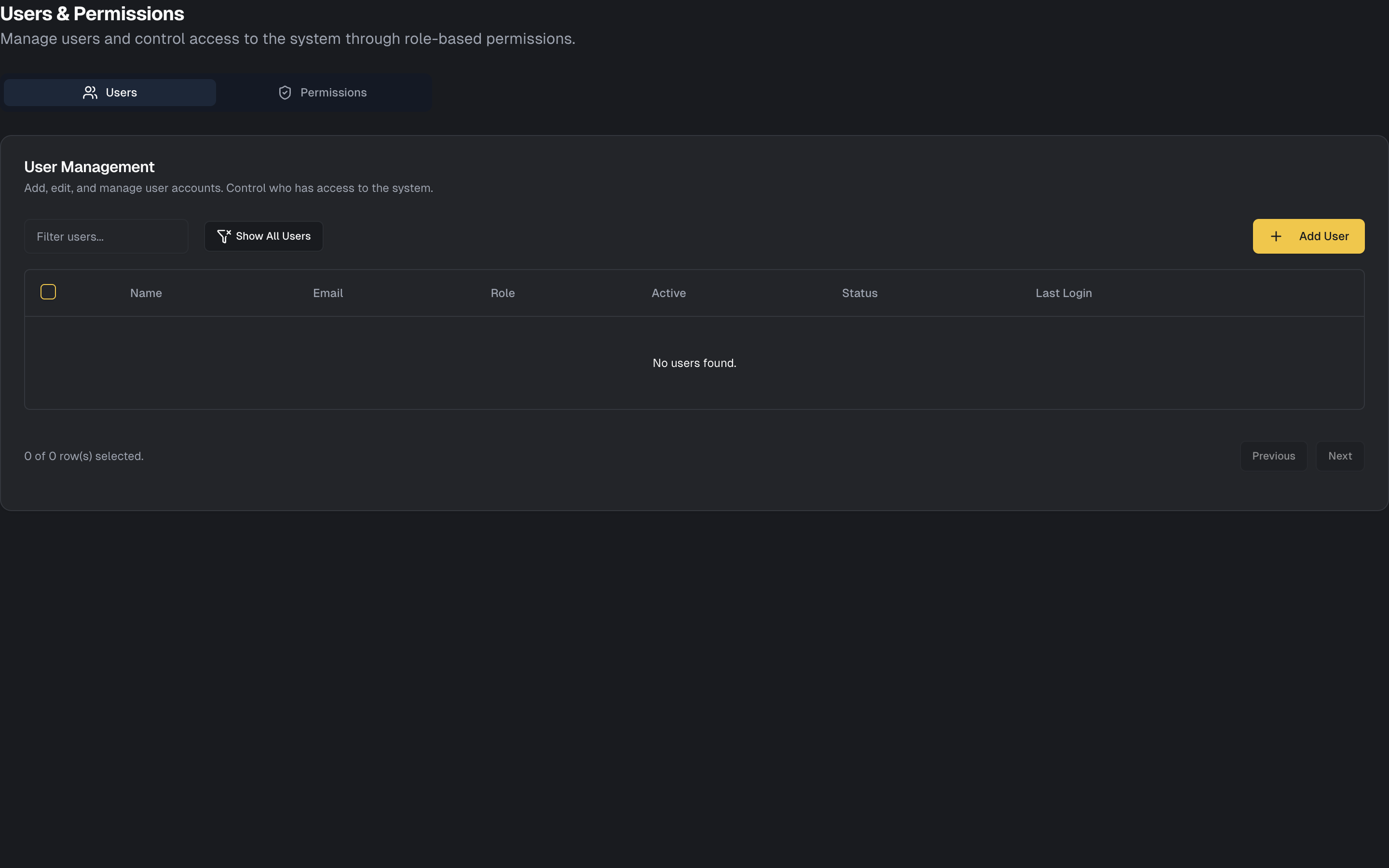
User Management
Fleet tracking is rarely a one-person job. Dispatchers need live vehicle positions, operations managers need reports, and drivers may need access to their own trip history. Yipii IoT's user management lets you invite team members, assign roles that control what each person can see and do, and restrict access to specific vehicles or groups.
User Roles
Every user in your account is assigned one of four roles. Each role grants a specific level of access, so you can give people exactly what they need without exposing sensitive information like billing or account-wide settings.
Admin
The Admin role provides full, unrestricted access to every feature in the platform. Admins can view and manage all assets, create and manage other users, access billing and account settings, configure alerts and geofences, and delete data.
Reserve the Admin role for business owners, fleet managers, and IT administrators — people who need full control. Most accounts should have only 2-3 Admins.
Manager
Managers have operational access to day-to-day fleet tools. They can view and manage all assets on the Live Map and Dashboard, generate reports, configure alerts, and manage geofences. They cannot access billing, manage users, or modify account-wide settings.
This is the right role for dispatchers, operations leads, and team supervisors who manage vehicles on a daily basis but don't need access to financial or administrative functions.
Viewer
Viewers have read-only access. They can see asset positions on the Live Map, view the Dashboard, and access reports that have already been generated. They cannot create alerts, modify geofences, or change any settings.
Use the Viewer role for stakeholders who need visibility without the ability to make changes — department heads, external partners, or compliance officers who need to review fleet data.
Driver
The Driver role provides limited mobile access focused on a single vehicle. Drivers can view their assigned vehicle's position, start and end trips manually, and access their own trip history and driver score.
This is designed for drivers who use the Yipii IoT PWA on their phones and only need to see their own vehicle.
Inviting Users
Adding a new team member to your account:
- Go to Users from the main navigation
- Click Invite User
- Enter the person's email address
- Select the appropriate role (Admin, Manager, Viewer, or Driver)
- Optionally, restrict their access to specific assets or asset groups (see Asset Access Control below)
- Click Send Invitation
The invited user receives an email with instructions to create their account and set a password. Once they accept the invitation, they can log in and see the data their role permits.
Pending Invitations
You can view and manage all outstanding invitations in the Users section:
- Resend invitation — if the recipient didn't receive or lost the email
- Cancel invitation — revokes the invite before it's accepted
- Change role — adjust the role before the user accepts
Managing Users
User List
The Users section displays all active team members with their name, email, assigned role, last active timestamp, and current status (active, invited, or disabled). Use this list to quickly audit who has access to your fleet data and when they last used the platform.
Edit a User
To modify an existing user's access:
- Click the user's name in the list
- Adjust their role, asset access, or notification preferences
- Click Save
Role changes take effect immediately. If you downgrade someone from Manager to Viewer, they'll lose the ability to create alerts or generate reports on their next page load.
Disable a User
When someone leaves your team temporarily (parental leave, sabbatical) or you want to revoke access without deleting their history:
- Click the user's name
- Click Disable Account
- Confirm
Disabled users cannot log in, but their profile and activity history are preserved. You can re-enable their account at any time, and they'll retain their previous role and settings.
Remove a User
To permanently revoke someone's access:
- Click the user's name
- Click Remove User
- Confirm deletion
This removes the user from your account entirely. Their historical activity (login events, changes they made) remains in the system for audit purposes.
Asset Access Control
By default, users can see every asset in the account. For larger fleets or organizations with multiple divisions, you can restrict users to see only specific vehicles.
All Assets
The default setting. The user sees every vehicle across the entire fleet on the Live Map, Dashboard, and in reports.
Asset Groups
Restrict the user to one or more asset groups. This is the most common approach for fleet segmentation:
- Edit the user
- Select Limited Access
- Choose the groups they should see (e.g., "Northern Region" or "Delivery Fleet")
- Save
The user will only see vehicles in those groups. This works well when teams are organized by region, department, or function.
Individual Assets
For fine-grained control — such as a Driver role who should see only their own vehicle:
- Edit the user
- Select Custom Access
- Pick the specific assets
- Save
Combine this with geofence-based alerting to create highly targeted access: a regional manager sees only their region's vehicles and receives alerts only for geofences in their territory.
Best Practices
Follow the principle of least privilege. Give each user the minimum access they need to do their job. A dispatcher needs the Manager role, not Admin. A stakeholder reviewing weekly reports needs Viewer, not Manager.
Use asset groups for natural fleet divisions. If your company has a delivery team and a sales team, create groups for each and restrict users accordingly. This keeps the Live Map and reports focused on each team's vehicles.
Review access quarterly. As people change roles or leave the organization, their platform access should change too. Audit the user list every few months to disable or remove accounts that are no longer needed.
Remove departed employees promptly. When someone leaves your organization, disable their account immediately. Don't wait — fleet data includes real-time vehicle locations, which is sensitive information.
What's Next?
- Account Settings — Configure your own profile, timezone, and notification preferences
- Assets — Organize the vehicles that users will access
- Alerts — Set up notifications that users receive based on their preferences
- Public Tracking Links — Share live tracking with external customers without giving them user accounts
Frequently Asked Questions
Can a user belong to multiple accounts?
Yes. If a person manages fleets for multiple organizations (e.g., a fleet management company), they can be invited to multiple Yipii IoT accounts using the same email address. They'll select which account to view when logging in.
What happens when I remove a user?
The user immediately loses access to the platform. Their historical activity remains in the activity log, and any reports they generated are preserved. Their email address can be re-invited later if needed.
Can I see what a specific user has done?
Activity tracking is available at the system level. Contact your account administrator or support@yipii.com for audit inquiries.
How many users can I add?
There's no fixed limit on the number of users for any plan. You can invite as many team members as your organization needs. Only the number of tracked assets counts toward your plan limit.
Can users see each other's activity?
Only Admins can view the Activity Log. Managers, Viewers, and Drivers cannot see other users' actions or even the list of users on the account.
Was this page helpful?