

Live Map
Track every vehicle on an interactive live map with real-time GPS updates, trail view, and status filtering in Yipii IoT.
Live Map
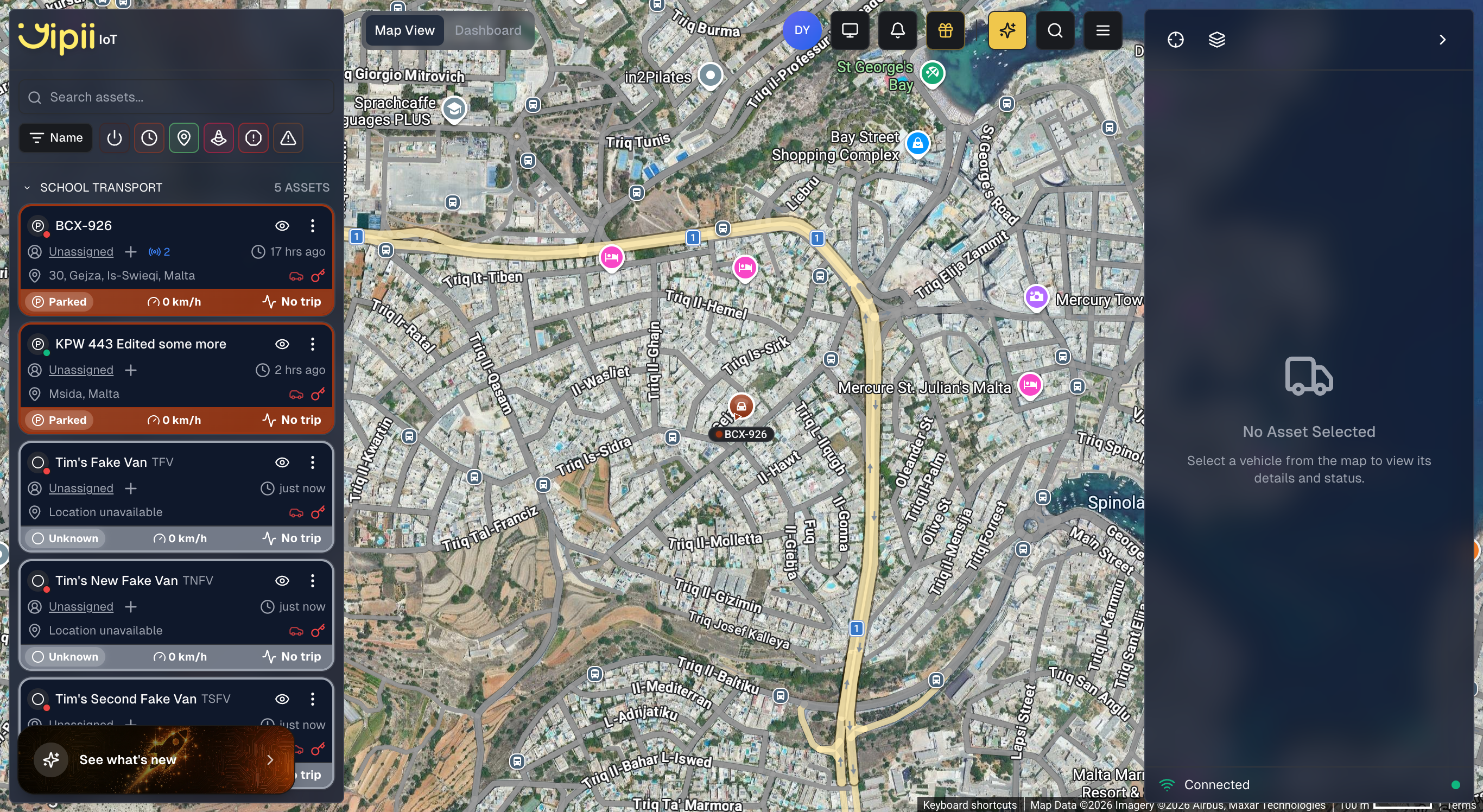
The Live Map is the default view when you open your fleet account. It appears as the Map View tab in the Operations page. The Live Map is the operational heart of Yipii IoT. It shows every vehicle in your fleet on an interactive map with real-time position updates, color-coded status indicators, and powerful filtering tools. While the Dashboard gives you numbers and charts, the map gives you spatial awareness — you can see exactly where each vehicle is, which direction it's heading, and how your fleet is distributed across your service area.
Fleet managers and dispatchers typically keep the map open throughout the day to monitor operations, respond to customer queries about vehicle locations, and coordinate routes on the fly.
Vehicle Markers
Each vehicle in your fleet appears as a marker on the map. The marker's color and shape tell you its current status at a glance, so you can scan the entire map without clicking on anything.
Green arrows represent vehicles that are actively moving. The arrow points in the direction of travel, so you can see not just where a vehicle is, but where it's heading. Yellow circles indicate idle vehicles — the engine is running but the vehicle isn't moving. This might mean a driver is at a loading dock, waiting for a passenger, or stuck in traffic. Gray circles mark stopped vehicles with the engine off.
For a full explanation of every status color and what it means, see Understanding Statuses.
Marker Information
Click any marker to open a detail popup. The popup displays:
- Vehicle name and current address
- Status badge indicating the vehicle's current state
- Driver assignment dropdown (shows "Unassigned" if no driver is linked)
- Timestamp of the last position update
- Speed (e.g., 0 km/h when stationary)
- Ignition, GPS, and voltage indicators showing device health at a glance
- Contact Driver button to quickly reach the assigned driver
- View Details button to jump to the full asset details page for trip history, maintenance information, and more
Map Controls
Zoom and Navigation
Use the +/− buttons in the corner or your scroll wheel to zoom in and out. Double-click any point on the map to quickly zoom into that location. On mobile devices, pinch to zoom and drag to pan.
The Fit All button automatically adjusts the zoom level and position to show every vehicle on screen at once. This is useful when you first open the map or after focusing on a specific area and want to return to the full fleet view.
Map Layers and Style
Open the map layers panel by clicking the Map layers and style button on the right sidebar. The panel is organized into three sections:
Map View
Toggle these overlays on or off to customize what appears on the map:
- Roadmap — the standard road map layer showing streets, labels, and points of interest
- Traffic — live traffic conditions overlaid on the map, where available. Helpful for understanding why a vehicle might be moving slowly or for planning alternative routes
- 3D Buildings — renders buildings in 3D with a tilted map perspective, giving you a more immersive view of urban environments
- Trail Breadcrumbs — displays a breadcrumb path behind moving vehicles, showing their recent position trail directly on the map. This can also be toggled from Settings > Preferences
- Home Locations — shows your fleet's home base locations (headquarters, offices, garages) as colored pin markers on the map. Click any home location marker to zoom into that area. This can also be toggled from Settings > Preferences
Map Style
Choose one of three map styles using the radio buttons:
- Classic — the default colored street map with a detailed overlay, offering a familiar and readable view for everyday use
- Minimal — a clean, minimal style that reduces visual clutter so vehicle markers and overlays stand out more clearly
- Detailed — a full-detail satellite/hybrid style showing aerial imagery with road labels, ideal for identifying terrain, buildings, and land features. Particularly useful when setting up geofences because you can see exact property boundaries
Hotspot Layers
Enable heatmap overlays to visualize fleet activity patterns over time:
- Traffic Hotspots — highlights areas where your vehicles frequently encounter traffic, helping you identify congestion-prone routes
- Idle Hotspots — shows locations where vehicles frequently idle, useful for spotting inefficiencies or common waiting points
- Visited Hotspots — displays the areas your fleet visits most often, giving you insight into your operational coverage and service density
Clustering
When you zoom out on a large fleet, nearby vehicles are automatically grouped into clusters showing a count (e.g., "12"). Zoom in to see individual vehicles. This keeps the map readable even with hundreds of tracked assets.
Asset List Sidebar
The left sidebar shows your complete asset list with live status information. Each entry displays the vehicle name, status icon, and current state.
This sidebar is especially useful for large fleets where scrolling through markers on the map would be impractical. You can scan the list to quickly find any vehicle, then click its name to center the map on that vehicle's position.
Filtering and Search
Use the search box at the top of the left sidebar to find vehicles by name or registration number. The status filter buttons let you narrow the list to specific categories — for example, show only Moving vehicles to focus on active operations, or only Offline vehicles to identify potential tracker issues. These filters apply to both the sidebar list and the markers visible on the map.
Quick Actions
When you open an asset's details (by clicking a marker or an entry in the sidebar), the right panel shows quick action buttons:
- Share Asset — create a public tracking link for this vehicle
- Reset Device — send a remote restart command to the GPS tracker
Trail View
The trail view lets you see where a vehicle has been, not just where it is now. This is valuable for verifying that a driver followed the expected route, investigating a customer complaint about a missed stop, or simply reviewing the day's activity.
To view a vehicle's trail:
- Click a vehicle marker on the map (or its entry in the sidebar)
- Click Show Trail
- The map displays the last 100 GPS positions as a connected path
- The trail is color-coded by speed — green sections indicate normal speeds, while red sections highlight where the vehicle was speeding
Click Hide Trail or select a different vehicle to clear the display. For more detailed historical data — including exact timestamps, stop durations, and distance calculations — generate a Trip Report.
Real-Time Updates
Vehicle positions update automatically as your GPS trackers send data. The update frequency depends on the vehicle's status:
- Moving vehicles send updates every 10–30 seconds, giving you near-real-time position tracking
- Idle vehicles report every 1–5 minutes, since their position isn't changing
- Stopped vehicles may update only every few hours to conserve tracker battery
The exact frequency depends on your tracker model and configuration. You never need to refresh the page — markers move smoothly across the map as new data arrives.
Geofences on the Map
If you've created geofences, they appear as shaded areas on the map. This gives you immediate visual context about which vehicles are inside designated zones — whether that's a customer site, your home depot, or a restricted area.
Geofence boundaries are color-coded to help you distinguish between different zone types. When a vehicle enters or exits a geofence, the event is logged and can trigger alerts via email, SMS, or WhatsApp.
Mobile Usage
Yipii IoT is a Progressive Web App (PWA), which means the Live Map works on any device with a web browser — no app store download required. On phones and tablets:
- Drag to pan the map
- Pinch to zoom in and out
- Tap a marker to view vehicle details
- Use the menu button to access the vehicle list sidebar
For the best mobile experience, install Yipii IoT as a PWA on your home screen. See the Login guide for step-by-step installation instructions for iOS and Android.
What's Next?
- Dashboard — View fleet-wide statistics, charts, and performance rankings
- Geofencing — Create virtual boundaries and get alerts when vehicles enter or exit
- Reports — Generate detailed trip, mileage, and driver behavior reports
- Alerts — Configure automatic notifications for speed, geofence, idle, and other events
Frequently Asked Questions
How accurate are the vehicle positions?
GPS accuracy is typically 3–10 meters in open conditions. In urban areas with tall buildings, accuracy may decrease to 15–30 meters due to signal reflection. The tracker displays the number of satellites it's connected to — 8 or more satellites generally means excellent positioning accuracy.
Why is my vehicle's marker not updating?
If a marker appears stale, the tracker may have lost cellular connectivity (common in underground parking, rural areas, or tunnels). Check the "last update" timestamp on the marker popup. If it's more than 30 minutes old, the vehicle will show as Offline. The tracker stores data locally and uploads it when connectivity returns, so you won't lose any position history.
Can I see historical positions on the map?
The trail view shows the last 100 positions for any vehicle. For longer history or specific date ranges, use the Trip Report which includes a route playback feature showing the exact path with timestamps, speeds, and stops.
How do I track just one vehicle?
Click the vehicle on the map or in the sidebar, then use the Follow button. The map will automatically pan to keep that vehicle centered as it moves. This is ideal for monitoring an in-progress delivery or tracking a service technician en route to a job.
Does the map work offline?
The map requires an internet connection to receive live vehicle positions. However, if you're using the PWA on a mobile device and temporarily lose connectivity, the last-known vehicle positions remain visible on screen until the connection is restored.
Was this page helpful?