

Branding
Customize Yipii IoT with your company logo and brand colors. White-label tracking links, email notifications, and PDF reports.
Branding
When your customers receive a tracking link or an email notification from your fleet operations, they should see your brand — not ours. The Branding settings let you upload your company logo, set your primary brand color, and configure default contact details so that every customer-facing touchpoint looks professional and consistent.
This is especially valuable for delivery companies, logistics operators, and service businesses that share public tracking links with their end customers. A branded tracking page builds trust and presents a polished image.
Accessing Branding Settings
Go to Settings and scroll down to the Branding & Default Contact section. Only Admin users can modify branding settings.
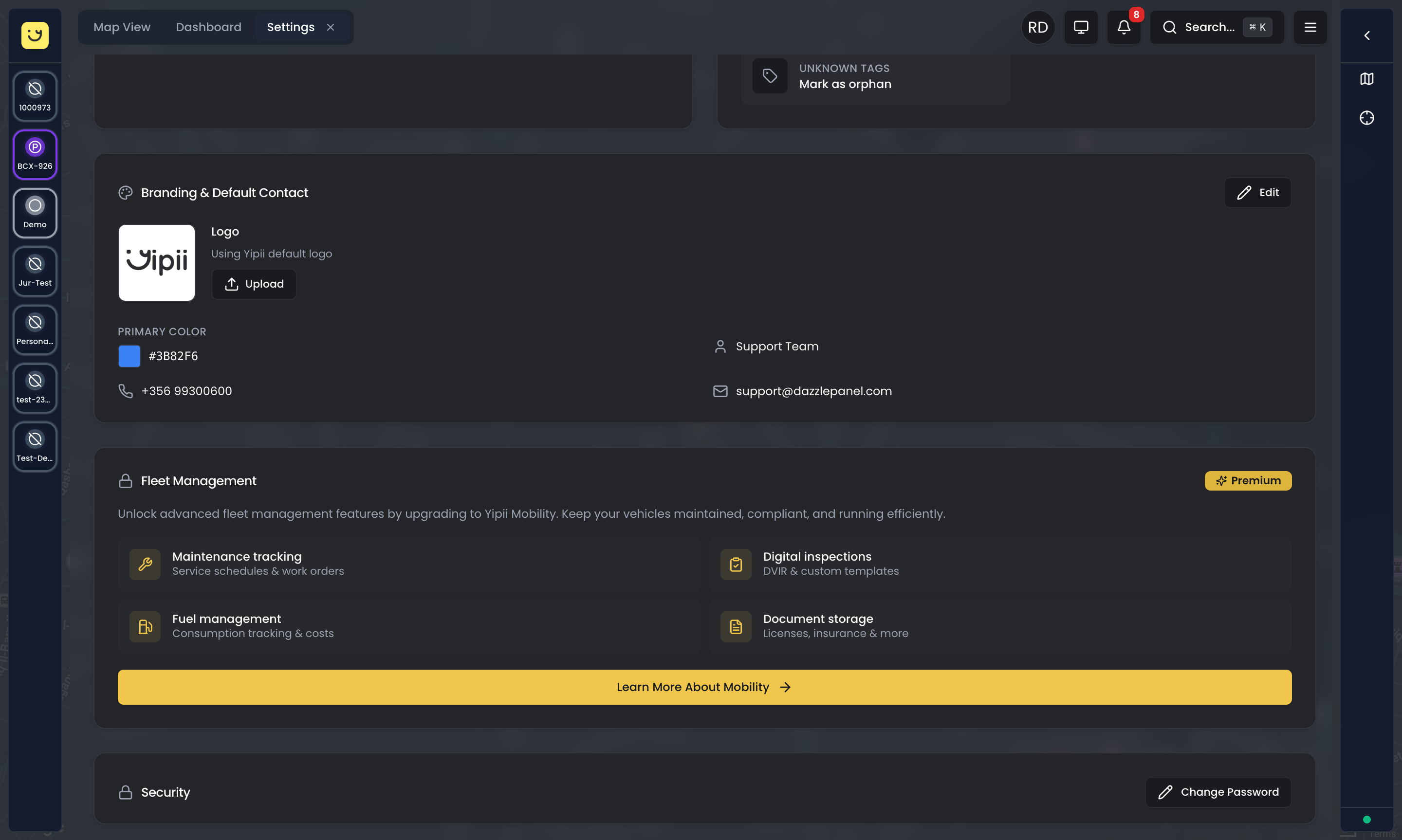
Logo Upload
Your company logo appears on public tracking links, email notifications (alert emails, scheduled reports), and PDF reports (if enabled). Uploading a logo replaces the default Yipii IoT branding with your own.
Logo Requirements
- Formats accepted: PNG, JPG, SVG, or WebP
- Maximum file size: 2MB
- Recommended dimensions: Square image, at least 200×200 pixels
- Best results: A PNG with a transparent background works best across both light and dark backgrounds
How to Upload
- Click Upload Logo
- Select your logo file from your computer
- A preview appears automatically so you can verify it looks correct
- Click Save to apply
Where Your Logo Appears
Once saved, your logo is used in three places:
- Public tracking links — customers see your logo prominently at the top of the tracking page when they follow a shared link
- Email notifications — alert emails and scheduled report emails display your logo in the header
- PDF reports — if enabled, exported PDF reports include your logo in the document header
To remove your logo and revert to the default Yipii branding, click Remove.
Primary Color
Your brand color is used as the accent color across customer-facing interfaces. It controls button colors, link highlights, and visual accents on tracking links and email templates.
Setting Your Color
- Click the color swatch next to the current color
- Use the color picker to select your brand color, or enter a hex code directly (e.g., #3B82F6 for blue)
- The preview updates immediately so you can see how it looks
- Click Save to apply
Where Your Color Appears
- Tracking link pages — buttons, progress indicators, and accent elements use your brand color
- Email templates — headers and highlighted text in alert and report emails
- Shared views — any customer-facing interface adopts your color scheme
Color Tips
Choose a color that has good contrast with white text — this ensures buttons and text remain readable. Avoid very light colors (pastels, light yellow) as they become invisible on white backgrounds. If your brand uses multiple colors, pick the primary one that's most recognizable to your customers.
Default Contact Information
Set default contact details that appear on public tracking links. When a customer is tracking their delivery, these details give them a way to reach you directly from the tracking page.
Available Contact Fields
- Name — the contact person or department name (e.g., "Dispatch Team" or "Customer Service")
- Phone — a clickable phone number that customers can tap to call
- WhatsApp — a WhatsApp number with country code (e.g., +356 1234 5678) that opens a WhatsApp chat
- Email — a clickable email address
How It Works
These details serve as defaults whenever you create a new tracking link. You can override any of these on a per-link basis if a specific delivery needs different contact information. If you leave a field blank, it won't appear on the tracking page.
Best Practices for Contact Info
Use a monitored number that someone will actually answer during business hours. For WhatsApp, include the full country code so it works internationally. Consider using a support email alias (like dispatch@yourcompany.com) rather than a personal email address, so coverage continues even when individual team members are unavailable.
What's Next?
- Public Tracking Links — Create shareable links that use your brand identity
- Account Settings — Configure your profile, preferences, and notification channels
- Billing — Manage your subscription (Enterprise plans include full white-label branding)
Frequently Asked Questions
Do my customers see Yipii IoT branding?
When you upload a logo, your logo replaces the Yipii branding on tracking links and email notifications. Enterprise accounts get fully white-labeled tracking pages with no Yipii IoT branding whatsoever. On Starter and Professional plans, a small "Powered by Yipii" notice may appear at the bottom of tracking pages.
Can I have different branding per tracking link?
The logo and color are account-wide and apply to all tracking links. However, contact information can be overridden per link — so you can show different phone numbers or contact names for different customers or delivery routes.
What logo format works best?
A square PNG with a transparent background is the most versatile. It works well against both light and dark backgrounds and scales cleanly to different sizes. Avoid logos with very fine text or detail, as they become hard to read at the small sizes used in email headers and mobile tracking pages.
Does branding affect reports?
Yes. When you upload a logo, PDF reports generated from the platform include your logo in the header instead of the Yipii IoT logo. This is particularly useful if you share reports with customers or include them in compliance documentation.
Was this page helpful?