

Understanding Statuses
Vehicle and tracker status indicators explained
Understanding Statuses
Yipii IoT uses color-coded status indicators to help you quickly understand the state of your fleet. This guide explains what each status means, where statuses appear across the platform, and what actions you might need to take.
All Vehicle Statuses
Here are all the status indicators used in the Yipii IoT platform:
Vehicle in motion
Moderate-speed driving
Low speed movement
Engine running
Stationary, engine on
Stopped, engine off
In designated area
Over speed limit
Significantly over limit
Issue detected
Service due
EV charging
Attention needed
No data received
Weak GPS/cellular
Lost connection
Status unknown
External power lost
Vehicle off
Not in use
Status Categories
Movement Statuses
| Status | Color | What It Means |
|---|---|---|
| Moving | Green | Vehicle in motion, speed above 2 km/h |
| In Traffic | Teal | Vehicle in traffic congestion, speed between 0-27 km/h with ignition on |
| Slow Moving | Light Green | Vehicle moving slowly, approximately 2-10 km/h |
| Active | Green | Vehicle active with data being received |
| Idle | Amber | Vehicle stationary but engine/ignition is on |
| Parked | Orange | Vehicle stationary, engine off, recently stopped |
| Garage | Violet | Vehicle is at a designated home or garage location |
| Offline | Slate Gray | No data received for 30+ minutes |
| Disconnected | Slate Gray | Lost connection to tracking server |
| Unavailable | Dark Slate | Cannot determine status |
Movement Statuses
Moving
Color: Green (#16a34a)
The vehicle is traveling at a speed above 2 km/h. You will see:
- Direction of travel indicated by the marker
- Real-time position updates on the map
In Traffic
Color: Teal (#0d9488)
The vehicle is in traffic congestion. This status is detected when the vehicle is traveling between 0 and 27 km/h with the ignition on, based on speed patterns that indicate stop-and-go or slow-flowing traffic conditions.
Slow Moving
Color: Light Green (#4ade80)
The vehicle is moving but at reduced speed, approximately 2-10 km/h. Typical scenarios include:
- Maneuvering in parking areas
- Navigating heavy traffic
- Moving through tight or confined spaces
Active
Color: Green (#16a34a)
The vehicle is active and the platform is receiving data from its tracker. This is a general operational status indicating the asset is online and communicating.
Idle
Color: Amber (#f59e0b)
The vehicle is stationary but the engine or ignition is on. Common scenarios:
- Waiting at a loading dock
- Driver taking a break with the engine running
- Warming up the engine
Why it matters: Extended idling wastes fuel and increases emissions. Configure an Idle alert to receive notifications when vehicles idle beyond a set threshold.
Parked
Color: Orange (#9a3412)
The vehicle is stopped with the ignition off. The tracker continues to send position updates periodically (typically every few hours when parked).
Garage
Color: Violet (#7c3aed)
The vehicle is at a designated home or garage location. This status is assigned when the vehicle is within a configured home location geofence, indicating it is parked at its base depot, garage, or assigned parking area.
Speed-Related Statuses
Speeding
Color: Dark Green (#166534)
The vehicle is exceeding the configured speed limit but within a warning threshold. Check your speed alert settings to configure these thresholds.
Over Speeding
Color: Dark Emerald (#022c22)
The vehicle is significantly exceeding speed limits. This triggers:
- Immediate speed alerts (if configured)
- Entries in driver behavior reports
- Impact on driver safety scores
Operational Statuses
Maintenance
Color: Orange (#ea580c)
A service reminder has been triggered for this vehicle. The vehicle may need:
- Scheduled service (based on date or odometer)
- Inspection
- Repair
Check the Reminders section to see what maintenance is due.
Charging
Color: Cyan (#06b6d4)
For electric vehicles or equipment, indicates the asset is currently charging.
Warning
Color: Orange (#f97316)
There is an issue that needs attention but is not critical. Examples:
- Low fuel
- Minor fault detected
- Sensor reading outside normal range
Error
Color: Red (#dc2626)
A significant issue has been detected:
- OBD fault code detected
- Sensor malfunction
- Communication error
Check the asset details for specific error information.
Connection Statuses
Offline
Color: Slate Gray (#64748b)
No data has been received from the tracker for 30 or more minutes. Possible causes:
- Tracker is powered off
- Vehicle is in an area without cellular coverage
- SIM card issue
Disconnected
Color: Slate Gray (#64748b)
The tracker has lost its connection to the tracking server. This is usually temporary and resolves when the vehicle moves to an area with better coverage.
Unavailable
Color: Dark Slate (#475569)
The system cannot determine the vehicle's status. This may occur when:
- The tracker is newly installed and has not sent data yet
- There is a system processing delay
- Historical data is being retrieved
Power Disconnected
Color: Gray (#6b7280)
The tracker's external power source has been disconnected. The tracker may be running on its internal battery. Check:
- Vehicle battery connection
- Power cable integrity
- Fuse status
Off
Color: Dark Slate (#334155)
The vehicle and tracker are completely off. No updates will be received until the vehicle is powered on.
Inactive
Color: Slate Gray (#64748b)
The device is not sending data. The asset has not been used for an extended period and is not actively being tracked.
Tracker Health Statuses
In addition to vehicle statuses, trackers have their own health indicators:
| Status | Meaning |
|---|---|
| OK | Tracker operating normally |
| Offline | Not communicating |
| Issue Detected | Problem found during health check |
| Location Unavailable | GPS cannot get position fix |
| Low Signal | Weak GPS or cellular signal |
| Not Used | Tracker not assigned to asset |
| No Movement | Asset stationary for extended time |
| Power Low | Low battery or external power issue |
Where Statuses Appear
Dashboard
The dashboard displays fleet status as a pie chart that breaks down your entire fleet by status category. Each slice of the chart represents the proportion of vehicles in a given state -- Moving, Idle, Parked, Offline, and so on -- giving you an at-a-glance view of fleet activity.
A separate Fleet Alerts card highlights device health issues, showing counts for conditions such as Weak Signal and Offline devices that may need attention.
Live Map
On the live map, each vehicle is represented by a color-coded marker that matches its current status. The marker color updates in real time as the vehicle's state changes.
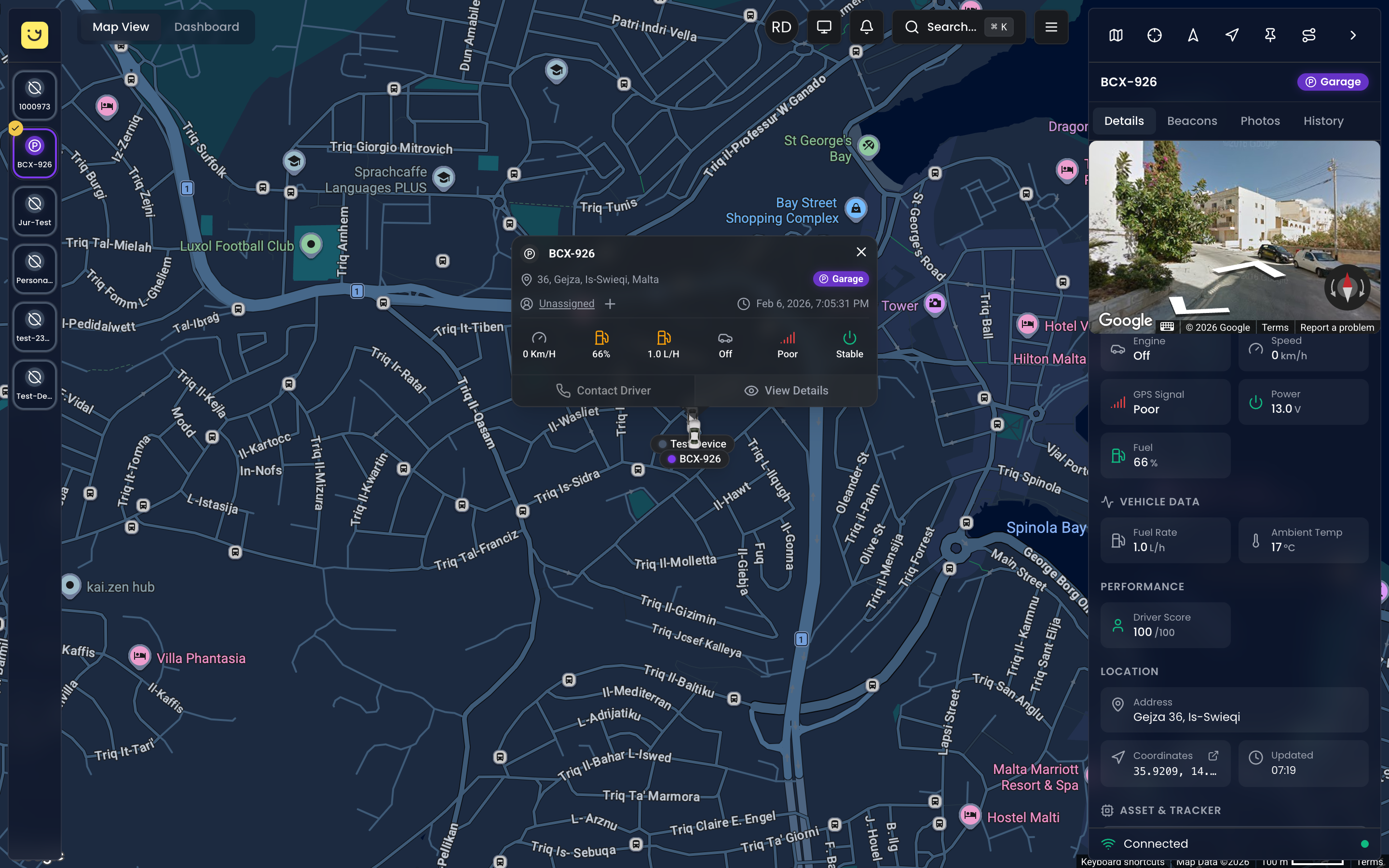
Tap or click a vehicle marker to open the asset info popup, which displays the full status badge alongside key details such as location and last update time. The status badge also appears in the right-hand sidebar when an asset is selected.
Sidebar
When you select an asset, the sidebar shows a colored status badge next to the asset name. The Details tab includes a Live Status section with real-time telemetry:
- Engine -- On or Off
- Speed -- Current speed reading
- GPS Signal -- Good or Poor
- Power -- External voltage level
Status in Reports
Reports include status information:
- Activity Report -- Shows status changes throughout the day
- Idle Report -- Highlights idle time and duration
- Trip Summary -- Moving vs stopped time breakdown
Status Alerts
Configure alerts based on status changes:
- Go to Alerts in the main menu
- Create a new alert
- Choose status-based triggers:
- Movement started
- Movement stopped
- Idle for more than X minutes
- Offline for more than X minutes
- Speed exceeded
Frequently Asked Questions
Why does my vehicle show "Offline" when it is parked?
When a vehicle is parked for a long time, the tracker enters sleep mode to save battery. It sends periodic updates (every few hours) but may show as Offline between updates. This is normal behavior.
What is the difference between "Parked" and "Idle"?
- Parked: Engine is off, vehicle is stationary
- Idle: Engine is running, vehicle is stationary
What is the difference between "Garage" and "Parked"?
- Garage: The vehicle is within a designated home or garage location geofence
- Parked: The vehicle is stopped with the engine off at any location
A vehicle at its home location will show as Garage rather than Parked, making it easy to see which vehicles have returned to base.
How often does the status update?
- Moving vehicles: Every 10-30 seconds
- Idle vehicles: Every 1-5 minutes
- Parked vehicles: Every 1-6 hours (varies by configuration)
Can I customize status colors?
Status colors are standardized across the platform to ensure consistency. However, you can use asset groups and labels to add additional visual organization to your fleet.
What's Next?
- Dashboard -- See fleet-wide status breakdowns and key metrics updated in real time
- Live Map -- View vehicle statuses as color-coded markers on the map
- Alerts -- Configure notifications based on status changes like ignition on/off or idle time
- GPS Trackers -- Understand how tracker hardware reports the data that drives vehicle statuses
Was this page helpful?