

Service Schedules
Automate preventive maintenance based on time, mileage, or engine hours
Service Schedules
Service schedules automate your preventive maintenance program. Define how often a task should be performed — by time, by mileage, or by engine hours — and the system tracks when each asset is next due, notifies the right people, and resets automatically once the work is completed via a linked work order.
Access service schedules from the sidebar: Fleet Management > Service Library > Service Schedules.
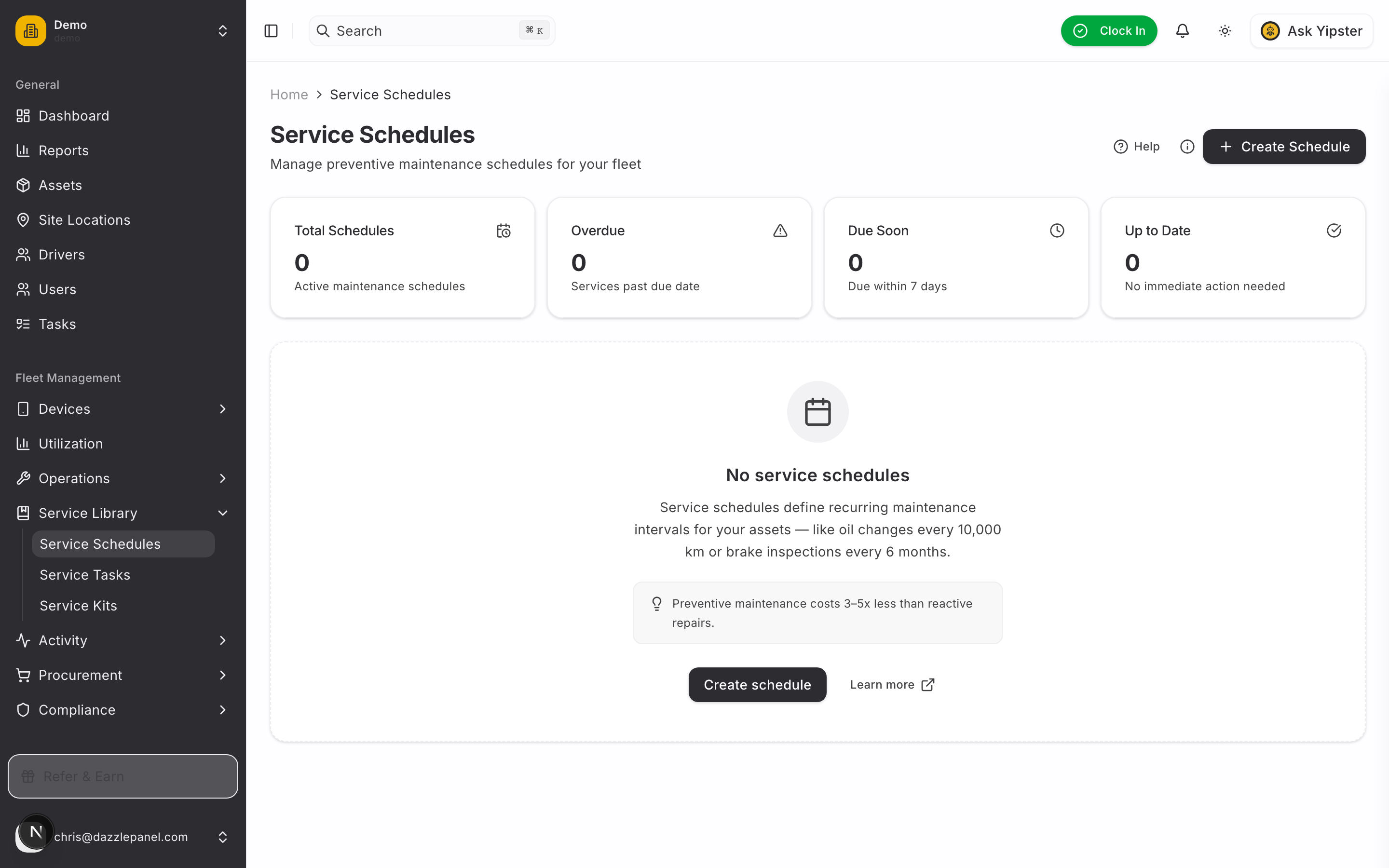
List View
The Service Schedules page gives you a single place to see every recurring maintenance task across your fleet.
Columns
| Column | Description |
|---|---|
| Name | The descriptive name of the schedule (e.g., "Oil Change", "Brake Inspection"). |
| Asset | The vehicle or piece of equipment this schedule applies to. Fleet-wide schedules show "All Assets". |
| Type | Preventive, Corrective, Inspection, Routine, or Other. |
| Interval | How often the service recurs (e.g., "Every 5,000 km", "Every 6 months"). |
| Last Service | The date the task was most recently completed. |
| Next Due | When the task is next due. Auto-calculated from the interval and last service. |
| Status | Up-to-date, Due Soon, or Overdue. |
Status Indicators
- Up-to-date — No action needed. The next due date is outside the "due soon" threshold.
- Due Soon — The schedule is approaching its next due date or mileage. Shown in amber.
- Overdue — The schedule is past due. Shown in red and escalated on the dashboard.
Filters and Statistics
- Filter by asset — Narrow the list to a single vehicle or piece of equipment.
- Filter by type — Preventive, Corrective, Inspection, Routine, Other.
- Filter by status — Up-to-date, Due Soon, Overdue.
- Statistics cards — Total schedules, Due Soon count, Overdue count.
Use the Add Schedule button in the top-right corner to create a new schedule.
Creating a Schedule
Click Add Schedule and fill in the following fields:
| Field | Required | Description |
|---|---|---|
| Name | Yes | Descriptive name, e.g., "Oil Change" or "Annual Brake Inspection". |
| Type | Yes | Preventive, Corrective, Inspection, Routine, or Other. |
| Asset | No | Leave blank to apply fleet-wide. Select a specific asset for vehicle-specific maintenance. |
| Interval Value | Yes | The numeric value, e.g., 5000 or 6. |
| Interval Unit | Yes | Days, Weeks, Months, Years, KM, Miles, or Engine Hours. |
| Last Service Date | Recommended | When the task was last completed. Used to calculate the next due date. |
| Next Due Date | No | Auto-calculated from the interval and last service — override only if needed. |
| Notes | No | Parts required, service procedure, torque specs, reference to manufacturer docs. |
Tips When Creating a Schedule
- Record an accurate Last Service Date — everything downstream depends on it.
- Leave Asset blank for fleet-wide schedules like annual licensing or monthly washes.
- Use Notes to capture anything a mechanic would need to know, like part numbers or torque values.
Schedule Types and Examples
Schedules fall into three triggering categories, depending on the interval unit you choose.
Time-based
Triggered purely by the calendar. Works for every asset, even those without telemetry.
- Every 30 days — monthly fleet wash
- Every 3 months — quarterly safety inspections
- Every 6 months — brake check
- Every year — annual certification or licensing renewal
Mileage-based
Triggered when an asset's odometer crosses a threshold. Requires odometer entries (manual or via IoT device).
- Every 5,000 km — oil and filter change
- Every 10,000 km — tire rotation
- Every 50,000 km — transmission service
Engine hours-based
Triggered when engine run-time crosses a threshold. Best for heavy equipment and generators where time on the road is a poor proxy for wear.
- Every 250 hours — routine service
- Every 500 hours — major service
Engine hours are pulled automatically from connected IoT devices when available.
How Schedules Work
- You create a schedule with an interval and (ideally) a last service date.
- The system calculates the next due date based on that interval.
- The schedule appears in the dashboard "Upcoming Services" widget once it is within the due-soon threshold.
- Mileage-based schedules watch odometer entries — the schedule becomes due the moment the asset hits the mileage threshold.
- Engine hours are pulled from the IoT device if the asset is connected.
- Once due, a notification is sent based on user preferences, and the schedule is flagged on the dashboard.
- Complete the service by creating a linked work order directly from the schedule.
- On work order completion, the schedule updates automatically — the Last Service date becomes today and the Next Due date rolls forward by one interval.
Due Soon Threshold
The "Due Soon" threshold controls how far in advance a schedule is flagged.
- Configurable per schedule when you need tighter or looser warnings for specific tasks.
- Default thresholds — 7 days for time-based schedules, 500 km for mileage-based.
- Fleet-wide defaults can be changed under Settings > General.
Set realistic thresholds to avoid alert fatigue. A 30-day advance warning on every oil change creates noise; a 7-day warning on an annual inspection is too tight.
Linking to Work Orders
Work orders are how service schedules get executed and closed out.
- Click a due schedule to open it, then use Create Work Order to pre-fill a new work order with the asset, type, and notes already populated.
- The work order type is inherited from the schedule (Preventive, Inspection, etc.).
- When the work order is marked complete, the linked schedule resets automatically:
- Last Service becomes the work order's completion date.
- Next Due rolls forward by one interval.
- Schedule history keeps a record of every past service for audit and warranty purposes.
Fleet-wide vs Asset-specific Schedules
Choose the right scope when creating a schedule.
Fleet-wide (no asset selected)
Applies uniformly to every qualifying asset in the fleet.
- Good for fleet-wide safety inspections, licensing renewals, periodic cleaning, and compliance tasks that happen on a shared calendar.
- Uses the same due date across the fleet regardless of individual mileage.
Asset-specific
Tied to one asset and driven by that asset's mileage or engine hours.
- Good for oil changes, major services, transmission fluid, tire rotations, and anything that depends on actual use.
- Each asset has its own Next Due date based on its own telemetry.
Dashboard Integration
Service schedules surface on the main dashboard so nothing slips through.
- Upcoming Services widget — Shows the next 5 schedules coming due.
- Overdue indicator — Overdue schedules are flagged in red.
- Click-through — Clicking any entry takes you straight to the schedule detail page.
Notifications
Notifications help your team stay ahead of maintenance without having to check the dashboard every day.
- Due Soon — Email and/or push notification based on each user's preferences.
- Overdue — Escalated to the fleet manager for visibility.
- Configuration — Users can tune channels and frequency under Settings > Notifications.
Permissions
| Role | Capabilities |
|---|---|
| Admin | Full create, read, update, delete. |
| Fleet Manager | Full create, read, update, delete. |
| Mechanic | View schedules. Mark complete by closing the linked work order. |
| Office Staff | View only. |
| Reports Only | View only. |
| Driver | View schedules for their assigned vehicles. |
Best Practices
- Base schedules on manufacturer recommendations — use the owner's manual as the starting point.
- Use both time AND mileage for most mechanical services — create two schedules and let whichever comes first trigger the work order.
- Set realistic "Due Soon" thresholds to prevent alert fatigue. Short for short intervals, longer for annual tasks.
- Record an accurate Last Service Date when creating a new schedule — the whole system is anchored to that date.
- Review schedules quarterly to ensure intervals still match real usage. High-use assets may need tighter intervals than the default.
FAQ
How do I handle vehicles with different service intervals?
Create asset-specific schedules for each vehicle (or class of vehicle) and set its own interval. A delivery van driven 30,000 km a year should not share an oil-change schedule with a truck driven 5,000 km a year. For fleets of similar vehicles, create one fleet-wide schedule and override individual vehicles only where needed.
What happens if a vehicle's odometer is not being tracked?
Mileage-based schedules need odometer data to fire. If an asset has no connected IoT device and no manual odometer entries, a mileage-based schedule will never become due. Either add manual odometer readings periodically, or use a time-based schedule as a backup.
Can I schedule recurring annual inspections?
Yes. Create a schedule with Interval = 1 and Interval Unit = Years (or 12 Months). Set the last service date to the most recent inspection, and the system will calculate the next due date automatically and continue to roll it forward each year as you complete the work order.
How do I pause a schedule during long-term storage?
Edit the schedule and adjust the Next Due Date manually to a later date once the asset returns to service. For indefinite pauses, you can also detach the asset from the schedule until it is back in use. Deleting a schedule will remove its history, so prefer editing over deleting.
Can I import schedules from a spreadsheet?
Bulk import is available for assets and a limited set of related records. Schedule bulk import is on the roadmap. In the meantime, use the Add Schedule form — or contact support if you have a large one-time migration.
Related Links
- Work Orders — Create work orders from due schedules and close the loop.
- Managing Assets — View per-asset service history.
- Dashboard Overview — Monitor upcoming and overdue services at a glance.
- Notifications — Configure how and when you are alerted.