

Inspections
Conduct digital vehicle inspections with reusable templates, photo evidence, and automatic work order creation
Inspections
Inspections keep your fleet safe, compliant, and audit-ready. Build reusable checklists once, then run them against any vehicle — pre-trip walkarounds, DOT inspections, quarterly safety checks, or any custom workflow your team requires.
Overview
Inspections ensure vehicles are safe and compliant. Use templates to create reusable checklists for pre-trip inspections, DOT inspections, quarterly safety checks, and custom workflows.
Access: Sidebar → Fleet Management → Operations → Inspections.
Key capabilities:
- Reusable templates — build checklists once, use them on any asset.
- Pass / Fail / N/A responses — quick, consistent scoring on every item.
- Photo evidence — attach photos per item, especially for failures.
- Automatic work orders — failed items can auto-generate maintenance work.
- Scheduled inspections — recurring cadences with reminders.
- Mobile-first flow — optimized for inspectors working in the field.
- Compliance-ready — digital signatures, timestamps, and exportable PDF records.
List View
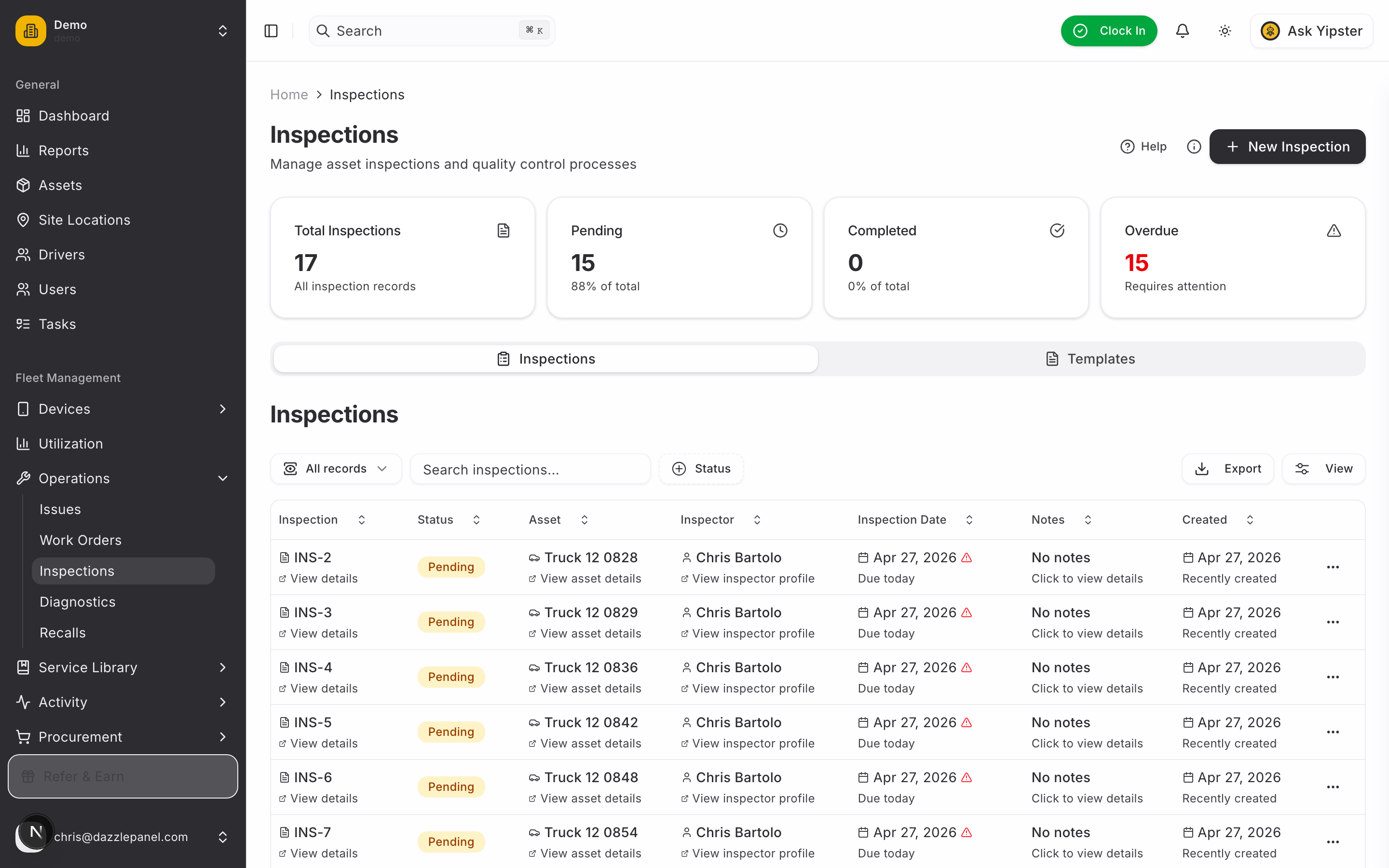
The Inspections page is the central hub for all inspection activity.
Columns:
- Inspection ID
- Asset
- Inspector
- Inspection Date
- Status
- Template
- Created Date
Filters and search:
- Filter by Status: Pending, In Progress, Completed, Failed, Cancelled
- Search by asset, inspector, or template name
Statistics dashboard (top of page):
- Total inspections
- Completed
- Failed
- Pending
Primary actions:
- Start Inspection or + Add Inspection — begin a new inspection
- Templates — navigate to the template management section
Creating an Inspection
Click Start Inspection or + Add Inspection to open the tabbed creation form.
Tab 1 — Details
- Asset (searchable select, required) — the vehicle being inspected.
- Inspector (searchable select, required) — the user performing the inspection.
- Template (searchable select, optional) — the predefined checklist to follow. Leaving this blank creates an ad-hoc inspection.
Click Save to create the inspection. It appears in the list and is ready to conduct.
Inspection Template Builder
Templates are the heart of a consistent inspection program. Build them once, reuse them forever.
Navigate to Inspections → Templates to manage templates.
Creating a Template
- Click New Template or + Create Template.
- Enter a template name — for example, "Pre-Trip Inspection", "Quarterly Safety Check", or "DOT Annual Inspection".
- Enter a description — explain the template's purpose so teammates know when to use it.
- Build the checklist:
- Type the checklist item name in the input field (e.g., "Check tire pressure").
- Press Enter or click Add to append it to the list.
- Each item automatically receives Pass / Fail / N/A response options.
- Reorder items with the up / down arrow buttons — numbering updates automatically.
- Delete items with the trash icon — remaining items renumber automatically.
- Click Save to persist the template and its checklist together.
Template Features
- Visual checklist builder with drag-and-drop style reordering.
- Sequential numbering auto-updates on reorder or delete.
- Edit existing templates — the builder loads current items so you can modify them.
- Category organization — Pre-Trip, Post-Trip, Quarterly, Custom, and more.
- Duplicate templates to create variations (e.g., "Pre-Trip — Truck" vs "Pre-Trip — Van").
- Archive templates you no longer use without deleting history.
Tip: Start with a small, focused template (10–20 items). Long checklists cause inspector fatigue and reduce data quality.
DVIR Mode
Templates can be flagged as DVIR (Driver Vehicle Inspection Report) for US-DOT compliance. DVIR templates show with an amber DVIR badge in the templates list and surface the pre-trip / post-trip designation alongside it.
| Field | Notes |
|---|---|
| DVIR Compliant | Boolean — toggle on to mark this template as DVIR |
| DVIR Type | Pre-trip or Post-trip — required when DVIR is enabled |
Marking a template as DVIR is the first step toward stricter sign-off rules:
- Defects must be recorded
- A mechanic must certify any corrections
- The vehicle's safe-to-operate state must be explicitly affirmed
The full sign-off workflow (driver signature, mechanic certification, defect tracking) is delivered in a follow-on phase. For now, the flag persists and surfaces in the UI so you can plan and pilot DVIR templates ahead of the full enforcement layer.
Conducting an Inspection
Desktop flow:
- Click an asset or inspection in the list to open the detail view.
- The template's checklist items display as a list.
- For each item, select Pass, Fail, or N/A.
- Add per-item notes if needed.
- Attach photos per item — strongly recommended for any failure.
- Add the inspector signature at the bottom of the form.
- Click Submit. Status changes to Completed or Failed depending on item results.
Pass / Fail / N/A
- Pass — item meets requirements, no action needed.
- Fail — item requires attention. Consider creating a work order immediately.
- N/A — item not applicable to this asset or inspection context.
Failed Inspections
When an item fails, the platform helps you document and resolve the issue quickly.
- Automatic work order creation — automations can spin up a work order the moment a failed item is submitted.
- Severity tracking — classify failures as Critical, Major, or Minor.
- Photo documentation required for failures (enforceable via template rules).
- Notes section to describe the issue in detail.
- Linked work order appears in the inspection detail, closing the loop between inspector and technician.
Warning: A failed inspection with no attached photo is hard to defend during an audit. Treat photos as mandatory for any failure, even minor ones.
Scheduled Inspections
Set up recurring inspections to stay ahead of regulatory deadlines.
- Recurring schedules — daily, weekly, or monthly cadences.
- Auto-assign to rotating inspectors so the workload spreads evenly.
- Reminder notifications before each due date.
- Overdue indicators on the dashboard surface missed inspections immediately.
Common recurring patterns:
- Daily pre-trip inspections for drivers
- Weekly walkarounds for high-use assets
- Monthly equipment safety checks
- Quarterly DOT or regulatory inspections
Inspection History
Every inspection is preserved as a permanent record.
- Full audit trail per asset — open any asset to see its inspection history.
- Chronological listing of previous inspections.
- Filters: by template, inspector, pass/fail status, or date range.
- Export as PDF for compliance records, insurance audits, or legal requests.
Compliance Features
Inspections are designed to hold up under regulatory scrutiny.
- DOT inspection templates covering standard regulatory checkpoints.
- Regulatory timestamp tracking on every item and submission.
- Inspector certifications tracking — record which inspectors are qualified for which inspection types.
- Digital signatures with timestamp on every completed inspection.
- Tamper-evident records — completed inspections are locked and cannot be edited silently.
Permissions
| Role | Permissions |
|---|---|
| Admin | Full CRUD on inspections and templates, manage schedules, view reports |
| Fleet Manager | Full CRUD on inspections and templates, manage schedules |
| Inspector | Create and conduct inspections, view all inspections |
| Mechanic | View inspections; create work orders from failed inspections |
| Driver | Conduct pre-trip inspections assigned to them |
| Reports Only | View inspections and export reports (read-only) |
Best Practices
- Start with pre-built templates and customize as you learn what matters for your fleet.
- Require photos for any failed item — no exceptions.
- Use scheduled inspections for anything tied to regulatory compliance.
- Review failed items weekly in team meetings to identify repeat issues and training gaps.
- Export completed inspections monthly or quarterly for your audit archive.
- Keep templates focused — split long checklists into multiple smaller templates rather than one monolithic form.
- Update templates as regulations or internal standards change; archive outdated versions rather than editing historical data.
FAQ
Can I use the same template for multiple assets? Yes. Templates are asset-agnostic by default. Assign any template to any asset when creating an inspection. You can also restrict templates to specific asset types if you want tighter guardrails.
What happens when an inspection fails? The inspection status is set to Failed. Depending on your automations, a work order may be created automatically for each failed item, complete with the inspector's photos and notes. A linked work order appears in the inspection detail.
Can drivers conduct their own pre-trip inspections? Yes. Drivers have permission to conduct pre-trip inspections assigned to them. They can complete the checklist, capture photos, and sign on their mobile device.
How do I export inspection records? Open any completed inspection and use the Export as PDF action. For bulk exports, use the filter and export tools in the Inspections list view.
Can I make inspection items required? Items built into a template are expected to be answered (Pass / Fail / N/A). Photo requirements and signature requirements are enforced at submission — an inspector cannot submit until all mandatory evidence is attached.
Related Features
- Assets — link inspections to specific assets
- Work Orders — auto-create maintenance tasks from failed inspections
- Automations — trigger work orders, notifications, and alerts from inspection events
- Reports — analyze inspection trends, pass rates, and overdue items
Need Help?
Contact your organization administrator or the Yipii support team for assistance configuring templates, schedules, or permissions.