

Parts & Inventory
Manage your parts catalog, track stock levels across work orders, and keep reorder points under control
Parts & Inventory
Parts & Inventory is the centralised catalogue for every component, consumable, fluid, and tool your fleet relies on. It tracks stock in real time, flags low-stock items before they stall a job, captures cost history for accurate work order pricing, and records exactly where each part has been used.
Accessing Parts
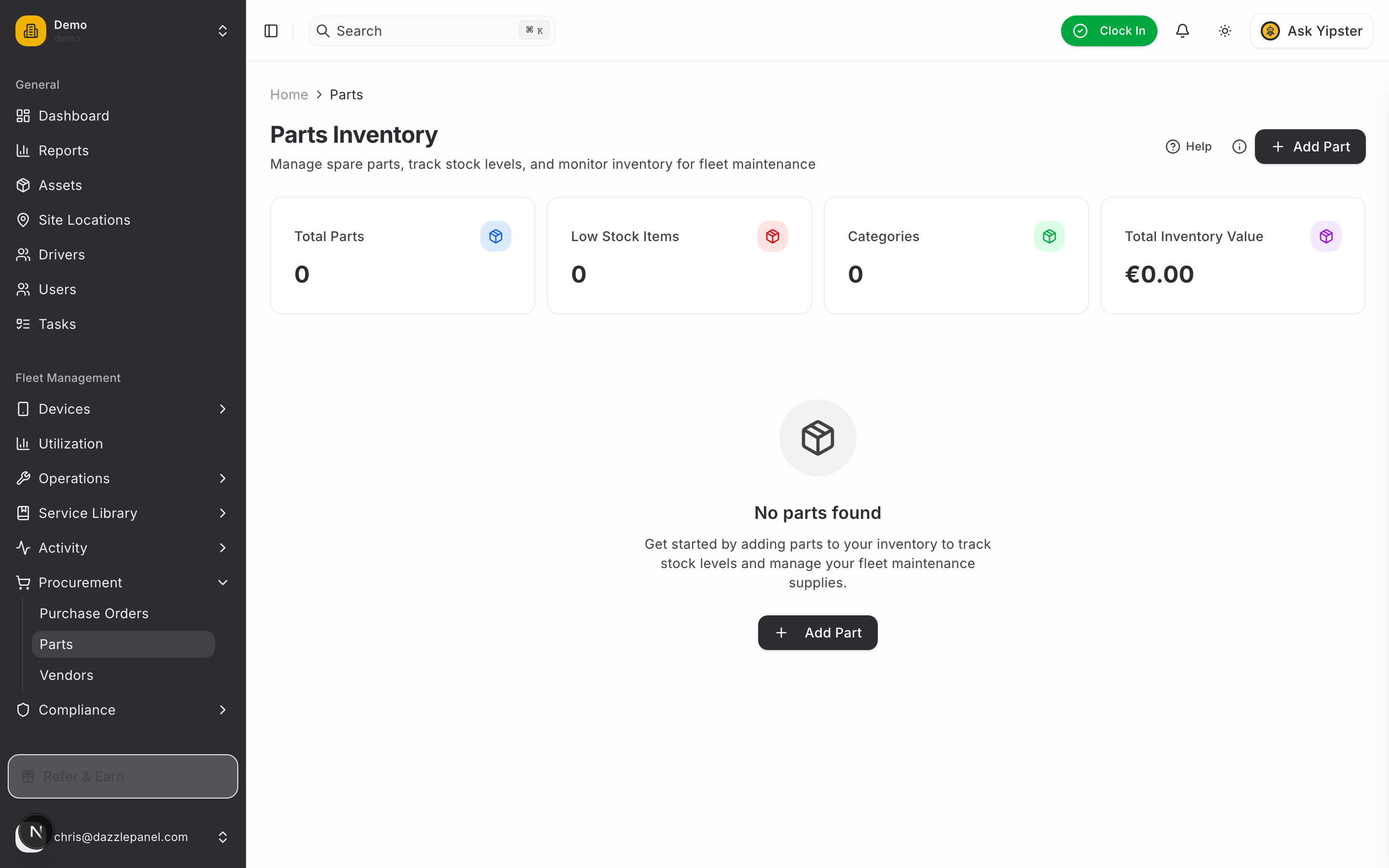
Navigate to Fleet Management > Procurement > Parts in the sidebar.
List View
The Parts page displays your full catalogue in a sortable, filterable table.
Columns
| Column | Description |
|---|---|
| Part Number | SKU or manufacturer code used to uniquely identify the part |
| Barcode | Scannable UPC/EAN/Code-128 sticker on the package (mobile-hidden) |
| Name | Descriptive part name |
| Category | Functional grouping (Engine, Brakes, Filters, etc.) |
| Stock | Current quantity on hand, with a coloured indicator |
| Min Stock | Reorder threshold |
| Unit Price | Current unit cost |
| Vendor | Preferred supplier |
| Location | Shelf or bin reference in your stockroom |
Stock Indicators
Each row shows a coloured pill reflecting stock health:
| Indicator | Meaning |
|---|---|
| Low | Current stock is at or below the Min Stock threshold |
| OK | Stock is between the min and a comfortable upper level |
| Overstocked | Stock is significantly above normal consumption patterns |
Filtering
Use the table toolbar to narrow the list:
- Search — find parts by name or part number
- Filter by category — Engine, Brakes, Tires, Electrical, and so on
- Filter by vendor — show parts sourced from a specific supplier
- Filter by stock status — Low, OK, or Overstocked
- Refresh — reload the latest data from the server
Stats Cards
Four summary cards sit above the table:
- Total Parts — how many SKUs are in the catalogue
- Low Stock Count — parts below their minimum threshold
- Total Inventory Value — sum of (current stock × unit price) across all parts
- Monthly Consumption — value of parts used in the last 30 days
Creating a Part
Click Create Part in the top right. The form opens with three tabs.
Tab 1 — Identification
| Field | Type | Notes |
|---|---|---|
| Part Number | Text, required | SKU or manufacturer part code |
| Barcode | Text, optional, ≤ 64 chars | Scannable UPC / EAN / Code-128 sticker on the package — distinct from Part Number; indexed for fast scanner lookups during stock-take and pick-up |
| Name | Text, required | Descriptive name, e.g. "Oil Filter — Toyota Hilux 2.8 D4D" |
| Description | Textarea | Detailed specifications, compatibility notes |
| Category | Select | Engine, Brakes, Tires, Electrical, Transmission, Suspension, Body, Interior, Fluids, Filters, Tools, Other |
| Manufacturer | Text | Brand or OEM name |
Tab 2 — Stock
| Field | Type | Notes |
|---|---|---|
| Current Stock | Numeric | Units on hand at the time of creation |
| Minimum Stock | Numeric | Threshold that triggers a low-stock alert and reorder suggestion |
| Location | Text | Shelf, bin, or rack reference (e.g. "A3-12") |
| Unit Price | Numeric, required | Cost per unit — used in work order costing and inventory valuation |
Tab 3 — Supplier
| Field | Type | Notes |
|---|---|---|
| Vendor | Searchable select | Preferred supplier for reordering |
| Weight | Numeric | Per-unit weight for shipping calculations |
| Dimensions | Text | LxWxH for storage and shipping |
| Warranty Months | Numeric | Manufacturer warranty period |
Click Create to save the part. To discard, click Cancel.
Stock Movements
Every change to on-hand quantity is tracked as a stock movement — you always know what changed, when, and why.
Automatic Movements
Stock decreases automatically when parts are consumed in a work order. Each time a mechanic adds a part to a job, the work order pulls from inventory and the movement is recorded against that job.
Manual Adjustments
Click Adjust Stock on the part detail page to record a manual change. A reason is required:
| Reason | When to use |
|---|---|
| Received | Stock arrived from a supplier (outside of a tracked PO) |
| Damaged | Write off damaged or expired inventory |
| Counted | Correct discrepancies from a physical stock count |
Manual adjustments appear in the part's history alongside work order consumption.
Low Stock Alerts
When stock reaches the minimum threshold, Mobility surfaces it in three ways:
- Dashboard widget — a Low Stock card highlights the parts needing attention
- Email notification — admins and fleet managers are notified automatically
- Reorder suggestion — the system estimates a recommended reorder quantity based on your monthly consumption so you do not overorder or leave a gap
From the alert, jump straight into Purchase Orders to create a PO with the suggested quantity pre-filled.
Usage History
Click any part to open its detail page. The Usage tab shows every work order that has consumed this part — quantities, dates, vehicle, and cost. Use it to:
- Spot parts being replaced more often than expected
- Confirm warranty claims with exact dates and vehicles
- Review cost trends as unit prices change over time
Editing and Deleting
From the part detail page:
- Edit — update identification, stock levels, or supplier details
- Adjust Stock — record a manual quantity change with a reason
- Delete — remove the part from the catalogue. Parts referenced in historical work orders cannot be deleted, only archived
Permissions
| Role | Permissions |
|---|---|
| Admin | Full CRUD, stock adjustments, delete |
| Fleet Manager | Full CRUD, stock adjustments, delete |
| Office Staff | Create, update, stock adjustments |
| Mechanic | View, consume parts through work orders |
| Reports Only | View |
Best Practices
- Always record a manufacturer part number — it speeds up reorders and prevents duplicate entries for the same item
- Set realistic minimum stock levels based on lead time from your supplier and typical monthly consumption
- Use the Location field consistently so anyone can find a part on the shelf without asking
- Review the Low Stock widget weekly and turn alerts into POs before jobs are blocked
- Keep unit prices up to date — outdated prices cascade into inaccurate work order quotes and inventory valuations
- Link each part to its preferred vendor so POs can be generated with one click
FAQ
What happens if I delete a part that is on an open work order? Deletion is blocked. Remove the part from the work order first, or archive the part instead.
Can stock go negative? No. If a mechanic tries to consume more than is available, the work order surfaces a warning and asks whether to back-order or adjust quantities.
How is Total Inventory Value calculated? It is the sum of (Current Stock × Unit Price) for every active part. It updates in real time as stock moves and prices change.
Does receiving a Purchase Order update stock automatically? Yes. When a PO is marked as received, every line item that references a part in the catalogue increments that part's stock. See Purchase Orders for the full flow.
How do I track parts that are not stocked but still purchased for a specific job? Create the part in the catalogue with Current Stock = 0 and Minimum Stock = 0, or add it as a free-text line item on the work order.
Can I import parts in bulk? Bulk CSV import is available from the list view's action menu. Match your columns to the catalogue fields and validate the preview before committing.
Related Links
- Work Orders — consume parts on maintenance jobs
- Purchase Orders — order parts from vendors and auto-update stock
- Vendors — manage the suppliers behind your parts catalogue
- Expenses — track parts purchases against fleet cost budgets