

User Management
Manage team members, send invitations, assign roles, and convert users to drivers
User Management
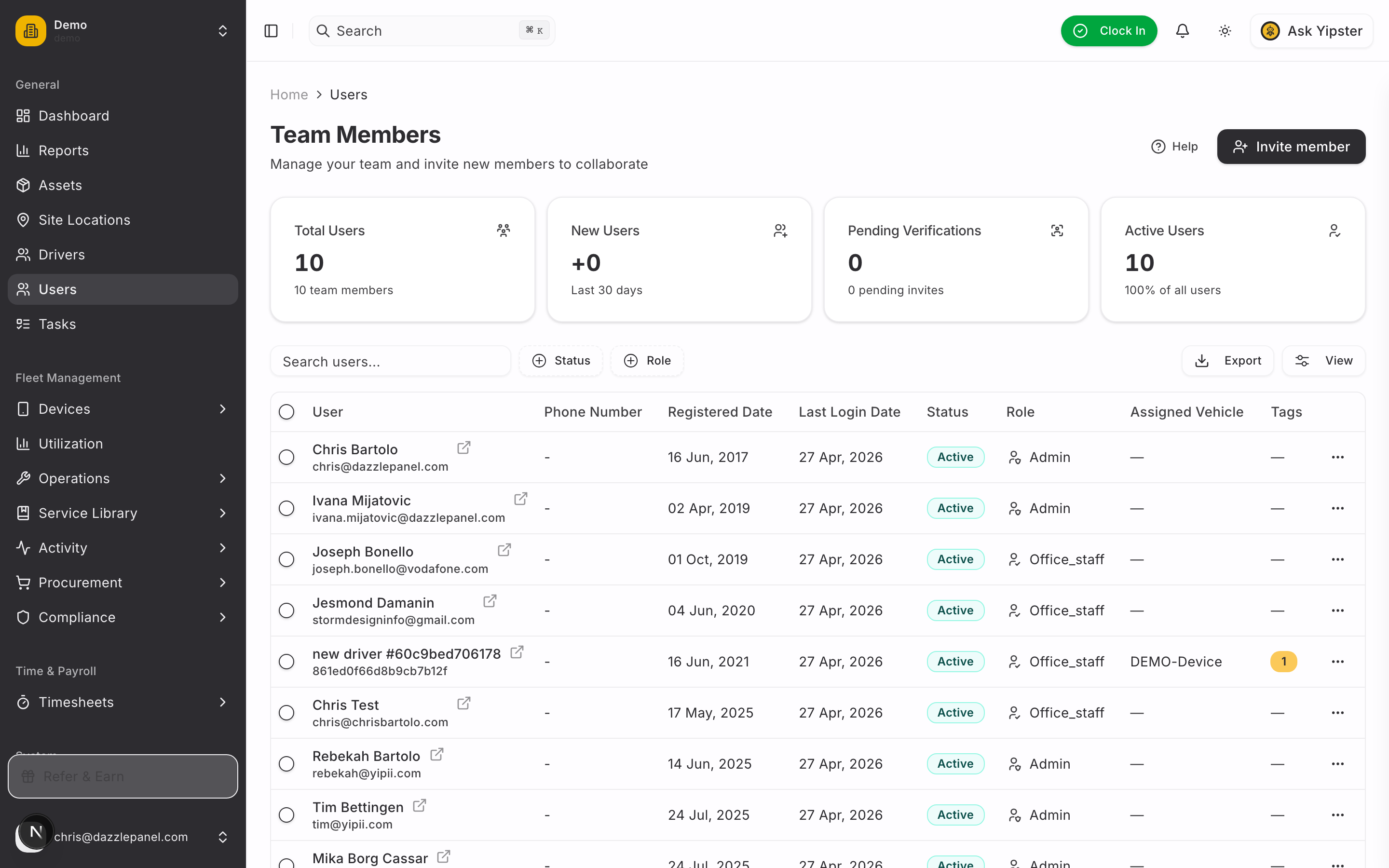
The Users page lets administrators manage team members within their organization. Add new members via email invitation, assign roles, manage existing user accounts, and convert users to driver profiles.
Accessing Users
Navigate to Users in the sidebar under the General section. This page is available to Admin users only.
User List
The Users page displays all team members in a data table with:
- Name -- Full name of the user
- Email -- User's email address
- Role -- Assigned role (Admin, Fleet Manager, Office Staff, Reports Only, Mechanic, Inspector, Driver)
- Status -- Account status (Active, Inactive, Invited, Suspended)
- Last Login -- Timestamp of the user's most recent sign-in
Stats Cards
Summary statistics at the top of the page show:
- Total team members
- Active users
- Pending invitations
- Users by role breakdown
Inviting a New Team Member
-
Click "Invite member" in the top right corner of the Users page.
-
Fill in the Invitation Form
- Email -- The email address of the person to invite
- First Name -- Their first name
- Last Name -- Their last name
- Role -- Select the role to assign:
- Admin -- Full access to all features and settings
- Fleet Manager -- Broad operational access for supervisors
- Office Staff -- Standard administrative access for day-to-day tasks
- Reports Only -- Read-only access to reports and fleet data
- Mechanic -- Maintenance-focused access for workshop staff
- Inspector -- Access tailored for conducting inspections
- Driver -- Simplified access for driver-specific tasks
-
Send Invitation -- Click "Invite" to send the invitation email.
The invited user will receive an email with a link to set up their account and join the organization. Until they accept, their status shows as "Invited."
User Status
| Status | Description |
|---|---|
| Active | User has accepted their invitation and has full access based on their role |
| Inactive | User account is disabled; they cannot log in |
| Invited | Invitation has been sent but not yet accepted |
| Suspended | User account is temporarily suspended |
Managing Existing Users
Viewing User Details
Click a user's name in the table to view their full profile, including:
- Contact information
- Role and permissions
- Activity history
- Assigned assets (for Driver role)
- Convert to Driver option (see below)
Changing a User's Role
- Navigate to the user's detail page
- Update the role assignment
- Save changes
Role changes take effect immediately. The user's sidebar navigation and feature access update on their next page load.
Deleting a User
From the user list, use the row actions menu to delete a user. Deleted users lose access immediately.
Warning: Deleting a user removes their access but preserves their historical activity records (work orders, inspections, time entries) for audit purposes.
Convert to Driver
Users can be converted to drivers, which creates a driver profile linked to their user account. This is useful when a team member who already has a user account also needs to be tracked as a driver in the system.
Converting a Single User
- Navigate to the user's detail page
- Select the Convert to Driver option
- Confirm the conversion
A driver profile is created and linked to the user account. The user retains their existing role and access.
Bulk Converting Users to Drivers
- From the Users list, select multiple users using the checkboxes
- Open the bulk actions menu
- Select Convert to Driver
- Confirm the bulk conversion
All selected users will have driver profiles created and linked to their accounts.
Note: Converting a user to a driver does not change their role. If you also want to change a user's role to Driver, update the role separately.
Filtering and Search
Use the table toolbar to:
- Search -- Find users by name
- Filter by status -- Show only Active, Inactive, Invited, or Suspended users
- Filter by role -- Show only users with specific roles
- Refresh -- Reload the latest data
Permissions
| Role | Permissions |
|---|---|
| Admin | Full CRUD, invite users, change roles, delete users, convert to drivers |
| Other roles | No access to user management |
Best Practices
- Assign the minimum role necessary for each user's responsibilities
- Use the Fleet Manager role for supervisors who need broad access but should not manage system settings
- Use Office Staff for administrative team members handling day-to-day fleet tasks
- Use Reports Only for stakeholders who need visibility without edit access
- Use Mechanic for workshop and field technicians focused on maintenance
- Use Inspector for team members whose primary task is conducting inspections
- Use Driver for users who need to log fuel, complete inspections, and track time
- Convert existing users to drivers rather than creating separate driver profiles when the person already has a user account
- Review user accounts quarterly to deactivate former employees
- Keep the number of Admin accounts limited to reduce security risk
- Send invitations promptly when new team members join
- Communicate role assignments clearly so users understand their access level
Related Links
- Roles and Permissions -- Understand what each role can access
- Settings -- Configure organization-level settings
- Drivers -- Manage driver profiles (separate from user accounts)