

Purchase Orders
Create and manage vendor orders from draft through approval, receipt, and automatic stock updates
Purchase Orders
Purchase Orders (POs) formalise every procurement request your fleet makes. Each PO captures what you ordered, from whom, at what price, when it is expected, and what was actually received — then feeds that information back into your parts inventory automatically. A proper PO trail means no more lost orders, no more "did we already buy that?" and no more guesswork about stock levels.
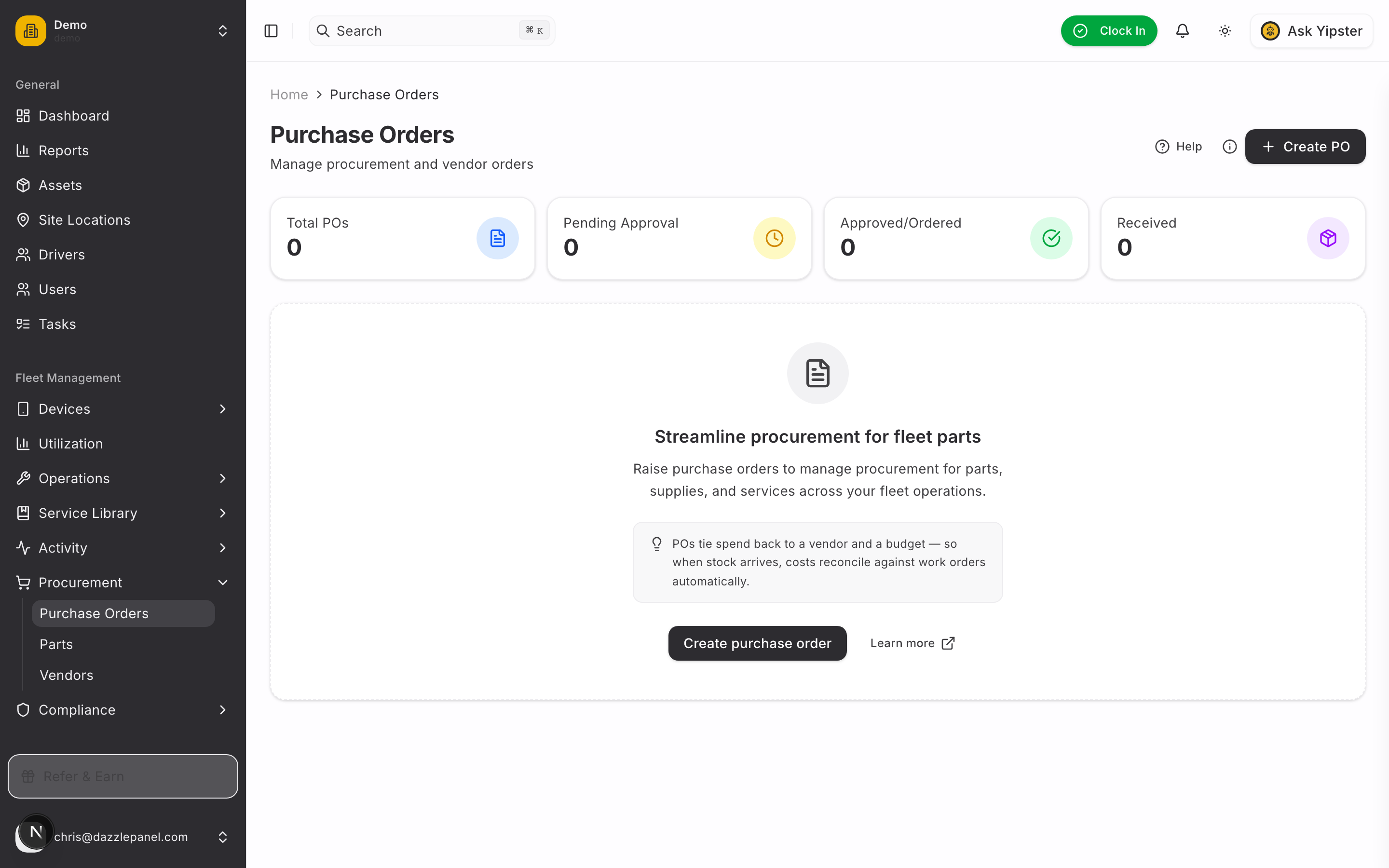
Accessing Purchase Orders
Navigate to Fleet Management > Procurement > Purchase Orders in the sidebar.
List View
The PO table shows every purchase order with its current position in the procurement pipeline.
Columns
| Column | Description |
|---|---|
| PO Number | Unique identifier, auto-generated when the PO is created |
| Vendor | Supplier the order was placed with |
| Total Amount | Sum of line items plus tax and shipping, minus discounts |
| Status | Current lifecycle stage (colour-coded badge) |
| Expected Delivery | The date the vendor committed to deliver by |
Filtering
- Search — by PO number or vendor name
- Filter by status — Draft, Pending, Confirmed, Received, Cancelled
- Filter by priority — Low, Normal, High, Urgent
- Filter by vendor — scope to a specific supplier
- Refresh — reload the latest data
Stats Cards
Four summary cards sit above the table:
- Pending POs — awaiting approval or vendor confirmation
- In Transit — confirmed with the vendor, not yet received
- Monthly Spend — total value of POs placed in the last 30 days
- Top Vendors — suppliers with the highest spend this month
Creating a Purchase Order
Click Create PO in the top right. The form is divided into four tabs.
Tab 1 — Header
| Field | Type | Notes |
|---|---|---|
| PO Number | Auto-generated, editable | A unique identifier. You can override the default if you follow a custom numbering scheme |
| Vendor | Searchable select, required | Pulled from your Vendors directory |
| Work Order | Optional link | Associate the PO with a specific job so parts can be traced directly to the work |
| Priority | Select | Low, Normal, High, Urgent — affects sort order and notifications |
| Expected Delivery Date | Date picker | When you need the order to arrive |
Tab 2 — Line Items
A dynamic table — add and remove rows as needed:
| Column | Notes |
|---|---|
| Part | Searchable select from your parts catalogue. Optional — leave blank for non-catalogue items |
| Description | Required. Auto-filled when a part is selected, editable for custom items |
| Quantity | Numeric, minimum 1 |
| Unit Price | Numeric. Auto-filled from catalogue, editable for negotiated pricing |
| Unit of Measure | Defaults to "each". Supports litre, kilogram, metre, box, case, etc. |
| Line Total | Auto-calculated (quantity × unit price) |
At the bottom of the tab, totals update live as you edit line items:
- Subtotal — sum of all line totals
- Tax — calculated from the tax rate in the Billing tab
- Shipping — shipping cost from the Shipping tab
- Total — subtotal + tax + shipping − discount
Tab 3 — Shipping
| Field | Type | Notes |
|---|---|---|
| Shipping Address | Textarea | Defaults to your organisation's primary address, editable per PO |
| Shipping Method | Select | Standard, Express, Overnight, Freight, Will Call |
| Shipping Cost | Numeric | Added to the PO total |
Tab 4 — Billing
| Field | Type | Notes |
|---|---|---|
| Payment Terms | Select | Due on Receipt, Net 15, Net 30, Net 45, Net 60, Prepaid |
| Payment Method | Select | Bank Transfer, Credit Card, Check, Cash |
| Tax Rate (%) | Numeric | Applied to the subtotal |
| Discount Amount | Numeric | Flat discount subtracted from the total |
| Notes | Textarea | Instructions for the vendor or internal context for approvers |
Click Create to save. By default the PO starts in Draft status.
PO Workflow
Every PO progresses through a defined lifecycle:
| Status | Description | Who acts |
|---|---|---|
| Draft | PO is being prepared. Fully editable, no commitment yet | Creator |
| Pending | Submitted for approval. Locked from edits while under review | Approver |
| Confirmed | Approved and sent to the vendor. Awaiting delivery | Vendor |
| Received | Parts delivered and booked into stock (full or partial) | Receiver |
| Cancelled | Order cancelled. No stock changes applied | Creator or approver |
1. Draft
Create the PO, refine line items, adjust shipping and billing. Nothing is locked — save as many times as needed.
2. Pending
When ready, submit for approval. The PO is now visible to approvers and cannot be edited until approved or kicked back to Draft.
3. Confirmed
Once approved, mark the PO as Confirmed when you have sent it to the vendor. This is the commitment point — changes from here require a new PO or a cancellation.
4. Received
When the goods arrive, open the PO and mark the line items as received. See Partial Receiving below.
5. Cancelled
A PO can be cancelled at any point before it is fully received. Cancellation leaves a full audit trail and does not touch inventory.
Partial Receiving
Real shipments rarely arrive complete on the first try. Mobility supports receiving line items independently:
- Open the PO detail page
- Click Receive on each line item as the goods arrive, entering the quantity received
- Outstanding items remain on the PO with their remaining quantities
- Close the PO automatically when all lines are fully received, or manually after a cutoff date if the vendor is not going to fulfil the balance
The Received column on each line shows progress (e.g. "7 of 10").
Auto Stock Update
When a line item that references a part from your catalogue is received, the part's stock is incremented by the received quantity. No double entry, no separate "goods received" form. The movement appears in the part's usage history tagged with the PO number for full traceability.
Non-catalogue line items (free-text descriptions) do not affect inventory — they are recorded as procurement spend only.
Approval Workflow
Thresholds configured by an admin control when a PO needs manager sign-off before it can be confirmed.
- Threshold rules — e.g. POs over €1,000 require Fleet Manager approval; over €10,000 require Admin approval
- Approver notifications — approvers receive an email and in-app notification when a PO enters Pending
- Audit trail — every approval, rejection, and comment is recorded on the PO detail page with the approver's name and timestamp
Approvers can approve, reject back to Draft with a comment, or request changes.
PDF Export
Click Export PDF from the PO detail page to generate a printable document suitable for emailing to the vendor. The PDF includes:
- Your company header and address
- PO number, date, expected delivery, priority
- Vendor details
- All line items with quantities, unit prices, and totals
- Tax, shipping, discount, and grand total
- Payment terms and shipping method
- Any notes included on the PO
Permissions
| Role | Permissions |
|---|---|
| Admin | Full CRUD, approve, cancel, receive |
| Fleet Manager | Full CRUD, approve, receive |
| Office Staff | Create, update in Draft, receive |
| Mechanic | View POs, record received stock for jobs they are assigned to |
| Reports Only | View |
Best Practices
- Use Draft freely — it costs nothing to prepare a PO and review before submitting
- Always link line items to catalogue parts where possible so stock updates flow automatically
- Set realistic Expected Delivery Dates to make the In Transit stat meaningful
- Record partial receipts the day the goods arrive — late entries make stock counts drift
- Use Priority to surface urgent POs to approvers without chasing them
- Review outstanding Confirmed POs weekly; follow up with vendors on any that are past their expected date
- Keep Payment Terms consistent with the vendor's agreed terms — it feeds into Vendors performance metrics
FAQ
Can I edit a PO after it has been Confirmed? No. Once Confirmed, the PO is locked to protect the audit trail. If changes are needed, cancel the PO and create a new one, or ask the vendor to issue a credit note on receipt.
What if the vendor delivers more than I ordered? You can receive more than the ordered quantity, but a warning is shown and the overage is recorded on the PO for review. Decide whether to accept the overage (stock is incremented accordingly) or return it.
Do cancelled POs affect stock? No. Cancellation only changes the status and locks the PO. Inventory remains untouched.
Can I clone an existing PO? Yes. From the PO detail page, click Duplicate to copy the header, line items, and billing into a new Draft. This is useful for recurring supply orders.
How is the approval threshold configured? Admins set thresholds in Settings > Procurement > Approval Rules. Rules can be by amount, vendor, or category.
Are POs visible to the vendor directly? Not automatically. Export the PDF and email it to the vendor, or use your integrated email-vendor action if enabled.
Can a PO be linked to multiple work orders? A PO links to a single work order at the header level. For parts serving multiple jobs, leave the work order field blank and assign parts to jobs individually when they are consumed.
Related Links
- Parts & Inventory — the catalogue that receives stock from PO line items
- Vendors — the suppliers on the other end of every PO
- Work Orders — link POs to specific maintenance jobs
- Expenses — procurement spend rolls into fleet cost reporting