

Licenses & Permits
Track driver licenses, vehicle registrations, and operating permits with expiry tracking, renewal workflows, and per-driver compliance matrix
Licenses & Permits
The Licenses feature is your central register for every licence and permit your fleet depends on -- driver licences, commercial driver licences (CDL), vehicle registrations, operating permits, hazmat endorsements, medical certificates, and more. Track expiry, drive renewals from a single workflow, and make sure no driver ever gets behind the wheel with an expired licence.
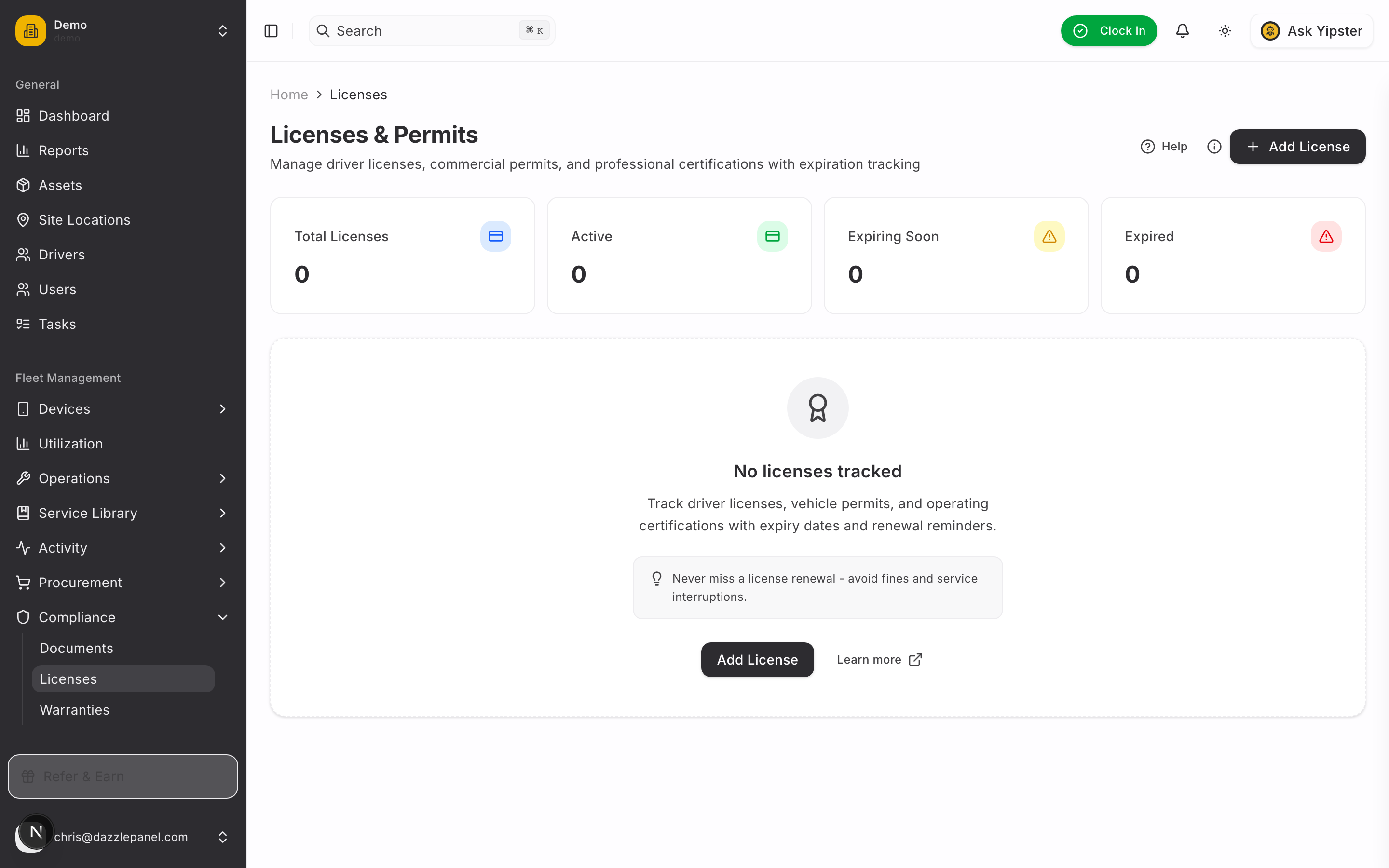
Accessing Licenses
Navigate to Fleet Management > Compliance > Licenses in the sidebar. The licenses page displays every licence and permit in the system alongside status, class, and holder information.
List View
The main licences page shows:
| Column | Description |
|---|---|
| License Number | Official licence or permit number (links to the detail page) |
| Type | Category badge (Commercial Driver, Driver, Registration, etc.) |
| Holder | User who holds the licence (links to their profile) |
| Class | Licence class (A, B, C, D, or E) where applicable |
| Expiry Date | Date with a countdown indicator |
| Status | Active, Expired, Suspended, or Revoked badge |
Filtering and Search
- Search -- Find licences by number or holder name
- Filter by Type -- Narrow to a specific licence category
- Filter by Status -- Active, Expired, Suspended, or Revoked
- Refresh -- Reload the latest data
Stats Cards
Summary cards at the top show:
- Total Licenses -- All licences and permits in the system
- Active -- Licences currently valid
- Expiring Soon -- Expiry within the next 30 days
- Expired -- Past expiry
Creating a License
-
Click Add License in the top right corner of the Licenses page.
-
Fill in the licence details:
- License Number (text, required) -- The official licence or permit number
- Type (select, required):
- Commercial Driver
- Driver
- Vehicle Registration
- Operating Permit
- Hazmat
- Medical
- Other
- Class (select, driver licences only) -- A, B, C, D, or E
- Holder / User (select, optional) -- Link the licence to a driver. Leave blank for company-held permits such as vehicle registrations or operating permits.
- Issuing Authority (text) -- The body that issued the licence, for example "Transport Malta", "DMV California", or "Department for Transport"
- Issue Date (date) -- When the licence was issued
- Expiry Date (date) -- When the licence expires
- Status (select) -- Active, Expired, Suspended, or Revoked (defaults to Active)
- Description (textarea, optional) -- Notes, restrictions, or endorsements
-
Click Create to save the licence.
License Status
Four status values drive compliance behaviour:
| Status | Meaning | Indicator |
|---|---|---|
| Active | Currently valid with no issues | Green badge |
| Expired | Expiry date has passed | Red badge |
| Suspended | Temporarily suspended by the issuing authority | Orange badge |
| Revoked | Permanently revoked | Red badge |
Expired, Suspended, and Revoked licences cause the linked driver to be flagged on the compliance matrix and on their profile.
Viewing License Details
Click any licence number to open the detail page, which shows:
- Complete licence information
- Holder profile link (for driver licences)
- Issue and expiry timeline
- Renewal history -- every prior version tracked
- Attached documents (scans and evidence)
- Compliance warnings if the licence is expired, suspended, or revoked
Renewal Tracking
Licences drive renewals in three ways.
Dashboard Alerts
Every licence within 30 days of expiry surfaces on the main dashboard in the Licenses Expiring widget. Expired licences stay pinned to the dashboard until renewed.
Renewal Workflow
Click Create Renewal on any licence detail page to start a renewal task. The workflow:
- Duplicates the existing licence record as a draft
- Prompts you to enter the new issue and expiry dates and upload the renewed licence scan
- Archives the previous version into the renewal history
- Updates the holder's compliance matrix the moment the renewal is saved
History
Every past version of a licence is preserved. From the detail page, expand Renewal History to view prior expiry dates, issue dates, and uploaded scans. Useful for audits and insurance inquiries.
Compliance Matrix
The per-driver compliance matrix shows every licence a driver holds alongside status and expiry. Access it from the driver's profile or from Compliance > Licenses > Compliance Matrix.
The matrix surfaces three classes of problems:
- Expired licences -- The driver should not be operating vehicles that require this class of licence
- Missing licences -- A driver assigned to a vehicle class they are not licensed for
- Upcoming expiries -- Licences within 30 days of expiry
The dashboard highlights any driver with an expired or missing licence so dispatchers and fleet managers can take the driver off schedule until the licence is renewed.
Document Attachments
Every licence can have supporting files attached -- a scan of the physical licence, a medical clearance certificate, or endorsement paperwork. Uploaded attachments live under the licence detail page and respect the same expiry and reminder behaviour as the parent licence.
Permissions
| Role | Permissions |
|---|---|
| Admin | Full CRUD -- create, view, edit, delete any licence |
| Fleet Manager | Full CRUD -- create, view, edit, delete any licence |
| Office Staff | Create and update licences |
| Mechanic | View licences; update status when completing related work |
| Inspector | View licences |
| Driver | View their own licences and any attached to assets they're assigned to |
| Reports Only | View licences |
Best Practices
- Add licences the moment a driver is onboarded -- do not wait until first dispatch
- Always set expiry dates so reminders work
- Link every licence to a user so the compliance matrix stays accurate
- Upload a scan of every licence for evidence during inspections or insurance claims
- Run the Compliance Matrix weekly to catch drivers who should be taken off the road
- Use Suspended rather than deleting a licence when the issuing authority suspends it -- keep the history
- Track hazmat and medical certificates separately from the base driver licence
FAQ
What's the difference between a Document and a License? Documents are general files (insurance certificates, registrations, contracts). Licences are licence-specific records with a number, class, issuing authority, holder, and status -- they drive the compliance matrix and "who can drive what" logic. Use both together: the Licence record holds the metadata, the Document attached to it holds the scan.
Can drivers update their own licences? Drivers can view their licences but cannot create or edit them. Office Staff or higher must update licence records when a driver renews.
What happens if a driver's licence expires while they're assigned to an asset? The driver is flagged on the compliance matrix and the dashboard highlights an expired-licence warning. The asset is not automatically unassigned -- a fleet manager must reassign or pull the driver from the schedule.
Can I track licences for contractors or temporary drivers? Yes. Add them as users with the Driver role, then link their licence to their profile. Mark the licence as Revoked when the contract ends if you want to preserve the record.
How do I track endorsements such as hazmat or passenger transport? Create a separate licence entry with Type set to Hazmat (or Other for anything bespoke) linked to the same holder. The compliance matrix will show both the base driver licence and the endorsement.
Are reminders sent before expiry? Yes, email reminders go to Fleet Managers and Admins at 90, 60, 30, and 7 days before expiry, same as Documents.
What about vehicle registrations -- should those be Documents or Licences? Use Licences (Type: Vehicle Registration) if you want compliance-matrix style tracking and a structured issuing authority. Use Documents (Type: Registration) if you only need file storage and expiry reminders. Most customers use Licences for registrations.
Related Links
- Documents -- Upload licence scans and other fleet files
- Drivers -- Manage driver profiles and assignments
- Warranties -- Track warranty coverage
- Recalls -- Manage manufacturer safety recalls
- Roles and Permissions -- Understand access levels
- Automations -- Build custom licence-related notification rules