

Assets & Equipment
Manage your organization's assets and track equipment inventory
Assets & Equipment
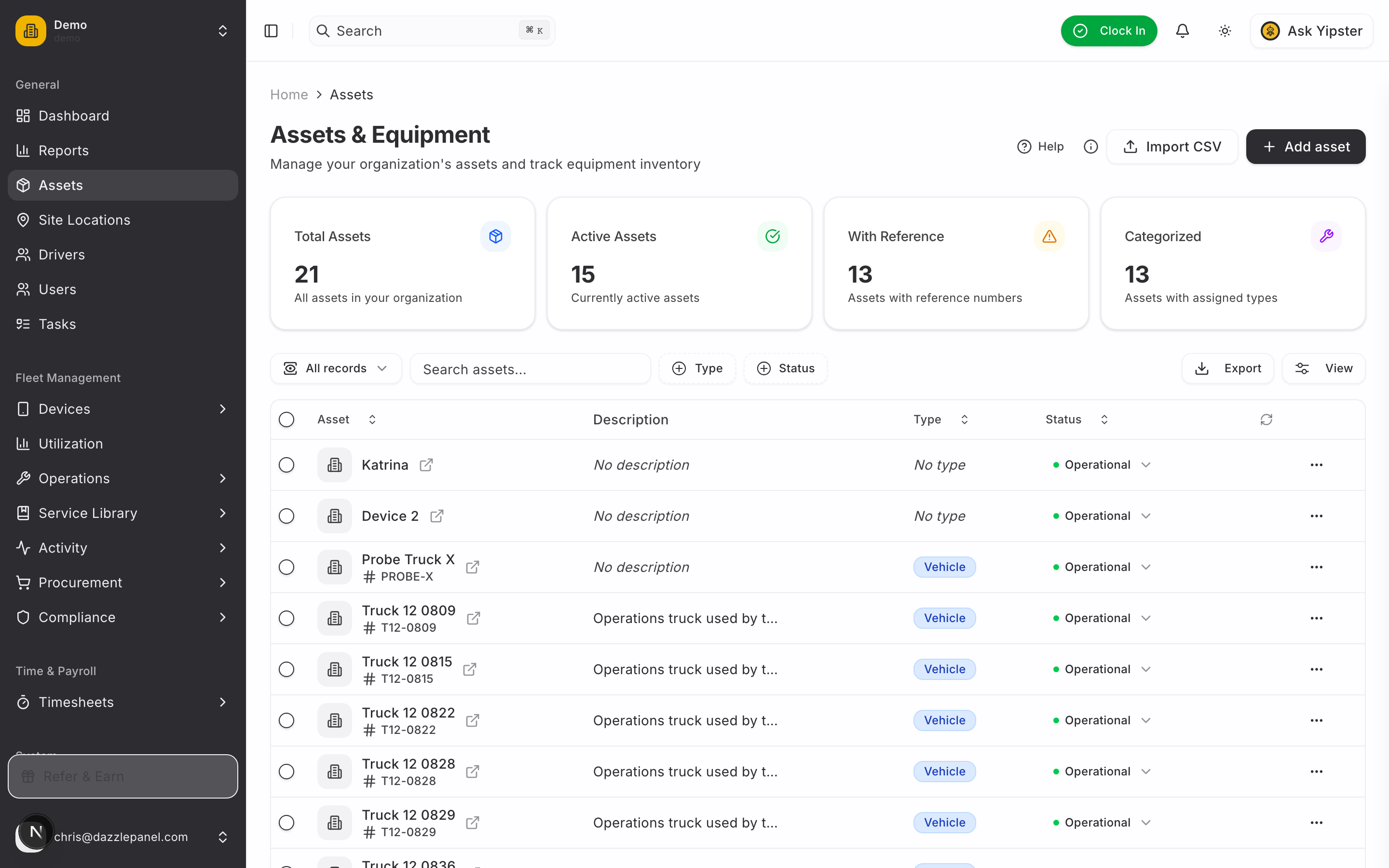
Assets are the core of Yipii Mobility -- vehicles, equipment, trailers, buildings, and any other items you need to track and maintain. The Assets page gives you a complete overview of your fleet with quick stats, powerful filtering, inline actions, and deep integration with the IoT tracking platform.
Access
Navigate to Sidebar > General > Assets to open the Assets & Equipment page. You can also press g then a from anywhere (when not typing in a field) to jump directly to the list.
Page Layout
The Assets page header displays the title Assets & Equipment with the subtitle "Manage your organization's assets and track equipment inventory". A Help button and a prominent + Add asset button appear in the header area.
Stats Cards
Four summary cards appear at the top of the page:
| Card | Value | Description |
|---|---|---|
| Total Assets | Count | All assets in your organization |
| Active Assets | Count | Assets currently active (not archived or out of service) |
| With Reference | Count | Assets that have a reference or fleet number assigned |
| Categorized | Count | Assets with an assigned asset type |
Toolbar
Below the stats cards, the toolbar provides:
- Search bar -- Find assets by name, VIN, license plate, reference number, or custom field values
- Type filter button -- Filter by asset type
- Status filter button -- Filter by current status
- Export button -- Export the filtered list as CSV
- View toggle -- Switch between list view and grid view
- Checkboxes -- Select one or more assets for bulk actions
Asset Table
The table displays the following columns:
| Column | Details |
|---|---|
| Asset | Asset name with a photo thumbnail on the left. An external link icon appears next to assets linked to an IoT tracking device -- click to jump to the IoT app for that asset. |
| Description | Short description of the asset |
| Type | The asset type category |
| Status | Current status badge. For assets without a status, an inline "Set status" clickable text appears -- click to open a dropdown and assign a status without leaving the list. |
| ... | Actions menu (edit, archive, delete, assign device, etc.) |
Pagination controls appear at the bottom of the table. A floating + button in the bottom-right corner provides quick asset creation from anywhere on the page.
Photo Thumbnails
Photo thumbnails show the asset's default photo (set in the IoT app) next to the asset name. If no photo is available, a generic asset-type icon is shown. Photos are shared between the Mobility and IoT apps -- a photo uploaded in one appears in the other.
IoT Link Indicator
An external link icon (↗) next to an asset's name indicates that the asset is linked to an IoT tracking device. Click the icon to jump directly to that asset in the IoT app, where you can view live location, trip history, sensors, and tracker configuration.
Inline Status Setting
If an asset does not have a status assigned, the Status column shows "Set status" as clickable text. Click it to open an inline dropdown and pick a status (Active, Inactive, In Maintenance, Out of Service, etc.) -- no need to open the asset detail page.
Creating an Asset
Click + Add asset in the top-right corner or the floating + button to open the create form.
Form Fields
| Field | Type | Required | Notes |
|---|---|---|---|
| Name | Text | Yes | Friendly name, e.g., "Delivery Van #1" or the license plate |
| Reference / Fleet Number | Text | Yes | Internal ID unique to your organization |
| Asset Type | Searchable select | Yes | Vehicle, Equipment, Trailer, Building, Other |
| Asset Subtype | Searchable select | Optional | Car, Truck, Van, Excavator, Forklift, etc. |
| Description | Textarea | Optional | Free-text description |
| VIN | Text (max 17 chars) | Optional | Triggers NHTSA VIN decode |
| Make | Text with autocomplete | Optional | NHTSA-powered autocomplete suggestions |
| Model | Text with autocomplete | Optional | NHTSA-powered autocomplete, scoped to the selected Make |
| Year | Select | Optional | Range from 1980 to current year + 1 |
| Fuel Type | Select | Optional | Gasoline, Diesel, Electric, Hybrid, LPG, CNG, Other |
| Photos | Upload | Optional | Upload after creation on the Photos tab |
VIN Decode
Enter a 17-character VIN and click the Decode button next to the field. Yipii Mobility calls the NHTSA vPIC API and auto-populates:
- Make
- Model
- Year
- Body style (used as a hint for Asset Subtype)
- Fuel type
- Engine configuration and displacement
Decoded values are editable -- you can override any field before saving.
NHTSA Autocomplete
Even without a VIN, the Make and Model fields autocomplete against the NHTSA database. Start typing a manufacturer name (e.g., "Ford") and select from the dropdown. The Model field then suggests models for the selected Make.
Asset Types and Subtypes
Organizing assets by type and subtype helps with filtering, reporting, and custom field management.
Default Asset Types
| Type | Typical Subtypes |
|---|---|
| Vehicle | Sedan, SUV, Pickup, Van, Heavy Duty, Motorcycle |
| Equipment | Forklift, Generator, Compressor, Tool Kit, Excavator |
| Trailer | Enclosed, Flatbed, Refrigerated, Utility |
| Building | Office, Warehouse, Shop, Garage |
| Other | Custom categories |
Configuring Custom Types and Subtypes
Administrators can create custom asset types and subtypes:
- Go to Settings > Asset Types to add or edit types.
- Go to Settings > Asset Subtypes to add subtypes and link them to a parent type.
- Define custom fields specific to a type or subtype (e.g., refrigeration capacity for a refrigerated trailer).
Custom types and subtypes appear immediately in the Add Asset form's selectors.
Asset Detail View
Click any asset row to open the detail view. The header shows the asset's Name, Type, and a Status badge. Below the header, the detail view is organized into tabs:
Overview Tab
- All metadata (name, reference, type/subtype, VIN, make, model, year, fuel type, description)
- Hero photo (the default photo set in the IoT app)
- Quick stats: open work orders, upcoming services, recent fuel logs, inspection status
- Current status with a quick toggle
Photos Tab
- Full photo gallery shared with the IoT app
- Upload new photos (camera, gallery, or file picker)
- Set the default photo (propagates to the IoT app)
- Captions and timestamps per photo
Maintenance Tab
- Open and completed work orders scoped to this asset
- Service schedules assigned to this asset (with overdue/upcoming indicators)
- Maintenance history and total cost summary
Documents Tab
- Linked documents (registration, insurance, manuals, certificates)
- Upload new documents with expiry dates
- Expiry alerts surface on the dashboard's Attention Required section
Timeline Tab
- Complete activity log: work orders, inspections, fuel logs, expenses, odometer entries, status changes
- Filter by date range or event type
Utilization Tab
Available when an IoT tracker is connected. Shows:
- Utilization gauge (idle vs. in use)
- Utilization trend over 7, 30, and 90 days
- Distance traveled, engine hours, and movement summary
Assigning Tracking Devices
Connect GPS trackers and IoT devices to assets for real-time monitoring.
- Navigate to Fleet Management > Devices > Devices in the sidebar.
- Locate your tracker by IMEI, serial number, or model.
- Click the device and use Assign to Asset.
- Select the asset from the dropdown.
- Save the assignment.
The asset immediately gains the IoT link indicator in the list view, and the Utilization tab becomes available on its detail page. Live location, ignition state, speed, trip history, and sensor data are viewable in the IoT app (reachable via the link icon).
Bulk Actions
Select multiple assets via the row checkboxes (or the header checkbox to select all on the current page), then choose an action from the toolbar or Actions dropdown:
- Assign device -- Bulk assign devices
- Update asset type -- Change type/subtype for selected assets
- Assign to group -- Add to an asset group
- Export as CSV -- Download the selected rows
- Archive -- Archive selected assets (preserves history)
- Delete -- Permanently delete (if permitted and no linked history)
A confirmation dialog appears before any destructive action.
Filtering and Search
Find assets quickly using the toolbar controls:
- Search -- Searches across name, VIN, license plate, reference number, and custom field values
- Type -- Filter by one or more asset types
- Status -- Filter by Active, Inactive, In Maintenance, Out of Service, Archived
- Device Assignment -- Filter by assets with or without an assigned tracker
- Custom Fields -- Filter by any custom field value (if configured)
- Saved filters -- Coming soon -- save commonly used filter combinations for one-click recall
Best Practices
- Use consistent naming conventions -- the license plate often works well as the asset name
- Always set a reference or fleet number for unambiguous identification
- Upload photos at the point of adding an asset -- thumbnails in the list make identification faster
- Keep VIN, serial numbers, and license plates up to date so NHTSA data stays accurate
- Use asset groups (in Settings) to organize by depot, region, or cost center
- Assign devices as soon as trackers are installed so the IoT link icon confirms the connection
- Review and update asset information quarterly
- Archive rather than delete decommissioned assets -- deletion removes history, archiving preserves it
Related Features
- Work Orders -- Track maintenance for your assets
- Inspections -- Conduct regular asset inspections
- Service Schedules -- Set up recurring maintenance
- Utilization -- Monitor how effectively your fleet is used
Need Help?
Contact your organization administrator or reach out to our support team for assistance with asset management.