

Drivers
Manage driver profiles, assignments, documents, and safety scorecards
Drivers
The Drivers page is where you manage the people who operate your fleet. Create driver profiles, assign them to vehicles, track assignment history, store compliance documents, manage beacons and tags for automatic identification, and monitor driving behavior through safety scorecards.
Access: Sidebar > General > Drivers
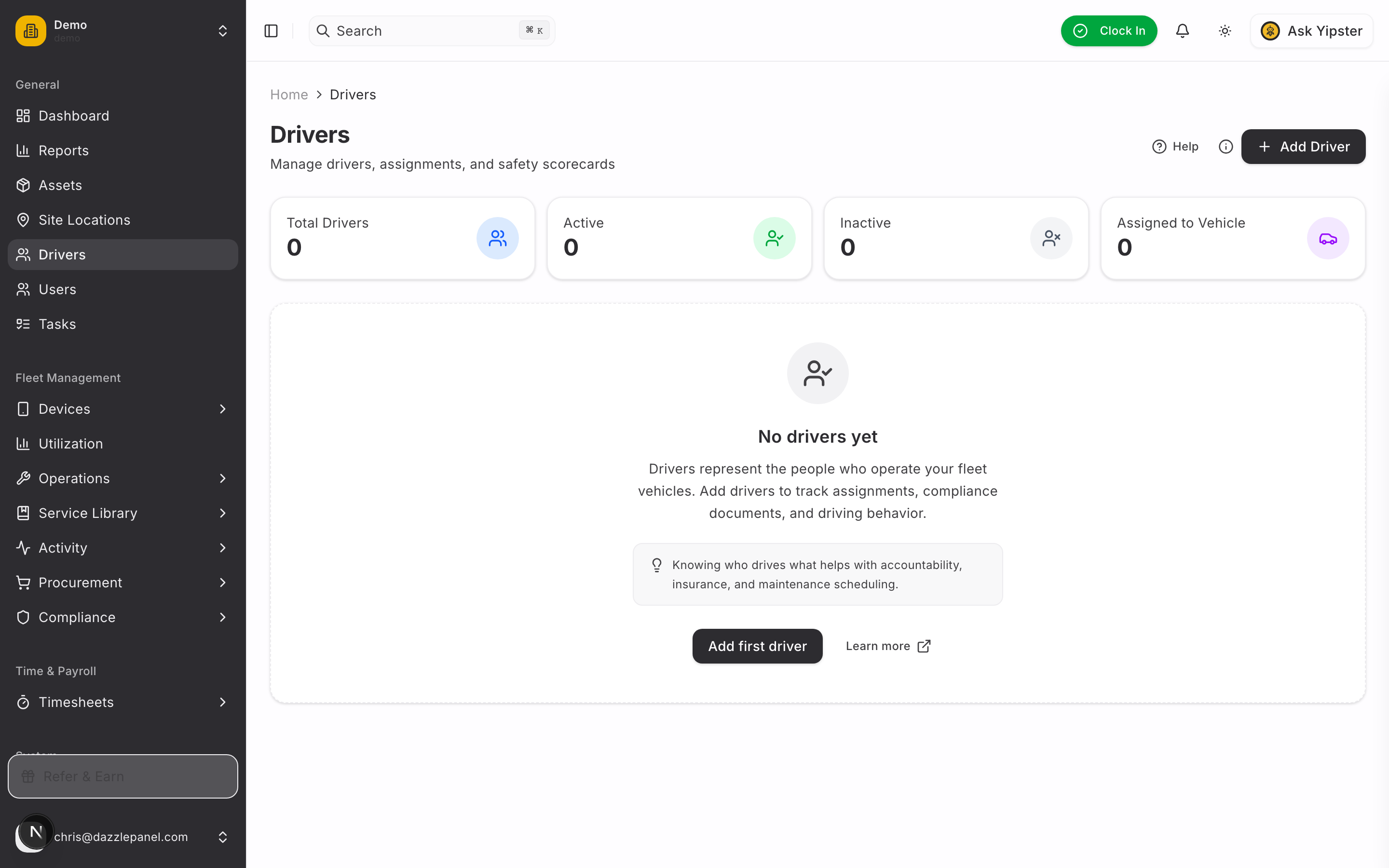
Page Header
The top of the Drivers page includes:
- Help button -- Access contextual help and links to this documentation
- "+ Add Driver" button -- Opens the tabbed driver creation form
Stats Cards
Four summary cards are displayed at the top of the page:
| Card | Description |
|---|---|
| Total Drivers | Total number of driver profiles in the system |
| Active | Drivers with an Active status |
| Inactive | Drivers with an Inactive status |
| Assigned to Vehicle | Drivers currently assigned to a vehicle |
These counts update in real time as drivers are added, edited, or reassigned.
Driver List
When drivers exist, the page displays a table with the following columns:
- Name -- Full name of the driver
- Email -- Contact email address
- Assigned Vehicle -- The vehicle the driver is currently assigned to, if any
- Tags -- iButton or beacon identifiers associated with the driver
- Status -- Current status (Active, Inactive, Suspended, Terminated)
The table supports search by name and filtering by status. Click any row to open the driver detail page.
Empty State
When no drivers have been created, the page shows a helpful onboarding prompt:
- Heading: "No drivers yet"
- Description: "Drivers represent the people who operate your fleet vehicles. Add drivers to track assignments, compliance documents, and driving behavior."
- Tip: "Knowing who drives what helps with accountability, insurance, and maintenance scheduling."
- "Add first driver" button to begin creating a driver profile
- "Learn more" link pointing to this documentation page
- "Enable Notifications" banner at the bottom of the page for setting up driver-related alerts
Adding a Driver
Click "+ Add Driver" in the page header to open a tabbed form. The form is organized into three tabs so you can focus on one area at a time without scrolling a long page.
Tab 1 -- Personal Info
| Field | Required | Notes |
|---|---|---|
| First Name | Yes | Given name |
| Last Name | Yes | Family name |
| No | Contact email, also used for login if driver access is enabled | |
| Phone | No | Primary phone number |
| Employee ID | No | Internal reference number, useful for payroll or HR integration |
Tab 2 -- Employment
| Field | Notes |
|---|---|
| Date of Birth | Used for age-restricted vehicle assignments and insurance reporting |
| Hire Date | Anniversary tracking, tenure reports |
| Status | Active, Inactive, Suspended, or Terminated |
Status values affect filtering, assignment eligibility, and reporting:
- Active -- Can be assigned to vehicles, eligible for automations
- Inactive -- Excluded from active assignments but profile is preserved
- Suspended -- Temporarily blocked from driving (e.g., pending investigation)
- Terminated -- Former driver, kept for historical records
Tab 3 -- Address
The Address tab captures the driver's home address — used for HR records, payroll mailing, and document delivery. All fields are optional.
| Field | Notes |
|---|---|
| Address Line 1 | Street number and name |
| Address Line 2 | Apt / suite / unit (optional) |
| City | Locality |
| State / Region | State or region |
| Postal Code | ZIP / postcode |
| Country | Country (free-text; defaults to your tenant's country) |
The full address is composed back together for display on the driver detail page and for export.
Tab 4 -- Emergency Contact
| Field | Notes |
|---|---|
| Contact Name | Full name of the emergency contact |
| Contact Phone | Phone number to reach in case of accident or incident |
| Relationship | Spouse, Parent, Sibling, Child, Friend, or Other |
| Notes | Free-text field for medical conditions, allergies, or special instructions |
Click Create to save the profile. The new driver appears immediately in the list and stats cards update to reflect the change.
Converting Users to Drivers
Existing platform users (mechanics, office staff, inspectors) can be converted to driver profiles without re-entering their information. This is useful when someone who already has a login occasionally drives a company vehicle.
Single Conversion
- Navigate to Users in the sidebar
- Open the user's profile
- Click "Convert to Driver"
- Review and complete any missing driver-specific fields (date of birth, emergency contact, etc.)
- Save
Bulk Conversion
- Navigate to Users and select multiple users using the row checkboxes
- Use the bulk action menu and choose "Convert to Driver"
- All selected users get driver profiles created in one action
Converting a user to a driver creates a linked driver profile -- the user keeps their existing login, permissions, and account. They now also appear in the driver list and can be assigned to vehicles, included in scorecards, and attached to work orders or fuel logs.
Driver Access (Login Credentials)
Driver access is managed separately from the driver profile. A driver can exist in the system without login credentials, which is common for:
- Paper-only drivers (no smartphone)
- Contractors or temporary drivers
- Historical records of former drivers
To give a driver access to the mobile app, enable the Driver Access toggle on their profile and send them an invite email. Disable access without deleting the profile if a driver leaves or is suspended.
Driver Detail Page
Click any driver in the table to open their detail page. The detail view uses a tabbed layout to keep information organized.
Driver Info
Displays the full driver profile:
- Personal information (name, email, phone, employee ID)
- Employment details (date of birth, hire date, status)
- Emergency contact details
- Driver access status (enabled/disabled)
Click Edit to update any field in place.
Assignments
A complete history of vehicle assignments for this driver:
| Column | Description |
|---|---|
| Vehicle | The asset the driver was assigned to |
| Start Date | When the assignment began |
| End Date | When the assignment ended (blank if current) |
| Source | How the assignment was created -- Manual (a user selected the driver on the asset, or the asset on the driver) or IoT Identified (the driver's beacon was detected by the vehicle tracker on trip start) |
Assignment history is permanent -- even after a driver is reassigned or a vehicle is retired, you can see who drove what and when. This supports accident investigation, fuel consumption analysis, and accountability reporting.
Documents
Manage driver-specific documents such as:
- Driver's license copies
- Certifications (forklift, HGV, hazmat, etc.)
- Training records
- Medical clearance forms
- Background checks
- Any other compliance files
Documents support expiry tracking, so you receive alerts ahead of license or certification lapses. See the Documents and Licenses pages for details.
Tags & Beacons
A read-only view of iButton tags and Bluetooth beacons associated with the driver. These identifiers are used for automatic driver detection when the driver enters a vehicle equipped with a compatible reader.
The tab shows:
- Tag/beacon type (iButton, BLE beacon, RFID)
- Identifier (serial number or MAC address)
- Date assigned
- Status (active/inactive)
Tags and beacons are configured at the device level on the IoT platform. This tab provides visibility into which identifiers are linked to the driver but does not allow editing. To assign or remove a tag, use the IoT platform's driver identification settings.
Safety Scorecard
The Safety Scorecard requires the Driver add-on subscription and at least one trip with a connected GPS tracker.
The scorecard surfaces driving behavior metrics derived from IoT telemetry:
- Weekly and monthly score for the driver
- Letter grade (A through F) with the fleet average shown alongside for comparison
- Event breakdown -- counts of harsh braking, rapid acceleration, hard cornering, and speeding events
- Trend chart -- score movement over time, highlighting improvements or regressions
- Component scores -- individual ratings for:
- Acceleration
- Braking
- Cornering
- Eco (fuel-efficient driving)
- Speed (compliance with limits)
Use scorecards for driver coaching, insurance premium negotiations, and recognition programs.
Assignment Workflow
Manual Assignment
Two ways to assign a driver to a vehicle:
- From the asset detail page -- Open a vehicle, go to the assignments section, select a driver from the dropdown
- From the driver detail page -- Open a driver, go to the Assignments tab, select a vehicle
Automatic Assignment (IoT)
When a driver carries an assigned iButton tag or BLE beacon and enters a vehicle with a compatible tracker:
- The tracker detects the identifier on trip start
- The system automatically marks the driver as assigned for that trip
- The assignment history records the source as IoT Identified
This is useful for shared pool vehicles where different drivers may use the same vehicle throughout the day.
Both manual and automatic assignments coexist. History is preserved regardless of source, so you can always see who drove what and when.
Permissions
Driver management requires elevated roles:
| Role | Permissions |
|---|---|
| Admin | Full CRUD, assign/unassign vehicles, manage documents, manage driver access |
| Manager | Full CRUD, assign/unassign vehicles, manage documents, manage driver access |
| Other roles | No access to driver management |
Safety scorecards are visible to Admins and Managers. Individual drivers with app access can see their own scorecard.
Best Practices
- Keep license expiry dates current and set up automation reminders for renewals
- Update driver status promptly when availability changes (suspensions, terminations)
- Assign drivers to their primary vehicle for accurate reporting and accountability
- Use the bulk Convert to Driver feature when onboarding multiple users at once
- Review assignment history periodically to understand vehicle utilization per driver
- Associate iButton tags with drivers for automatic identification in shared-pool vehicles
- Fill out emergency contact information for every active driver -- this information is critical during incidents
- Use the scorecard weekly for driver coaching rather than only monthly for disciplinary reviews
Related Links
- Licenses -- Detailed license management and renewal tracking
- Managing Assets -- Assign drivers to assets
- Users -- Manage user accounts (different from driver profiles)
- Documents -- Store and track driver compliance documents
- Automations -- Automate license expiry reminders and driver alerts