

Fuel Logs
Track fuel purchases, consumption, and costs across your fleet with manual and IoT-detected entries
Fuel Logs
Fuel Logs let you record every fuel purchase for your fleet — manually from receipts or automatically from IoT trackers that detect refueling events. Each entry captures the fuel type, volume, cost, odometer, and vendor, feeding directly into per-asset cost analysis, consumption tracking, and efficiency reporting.
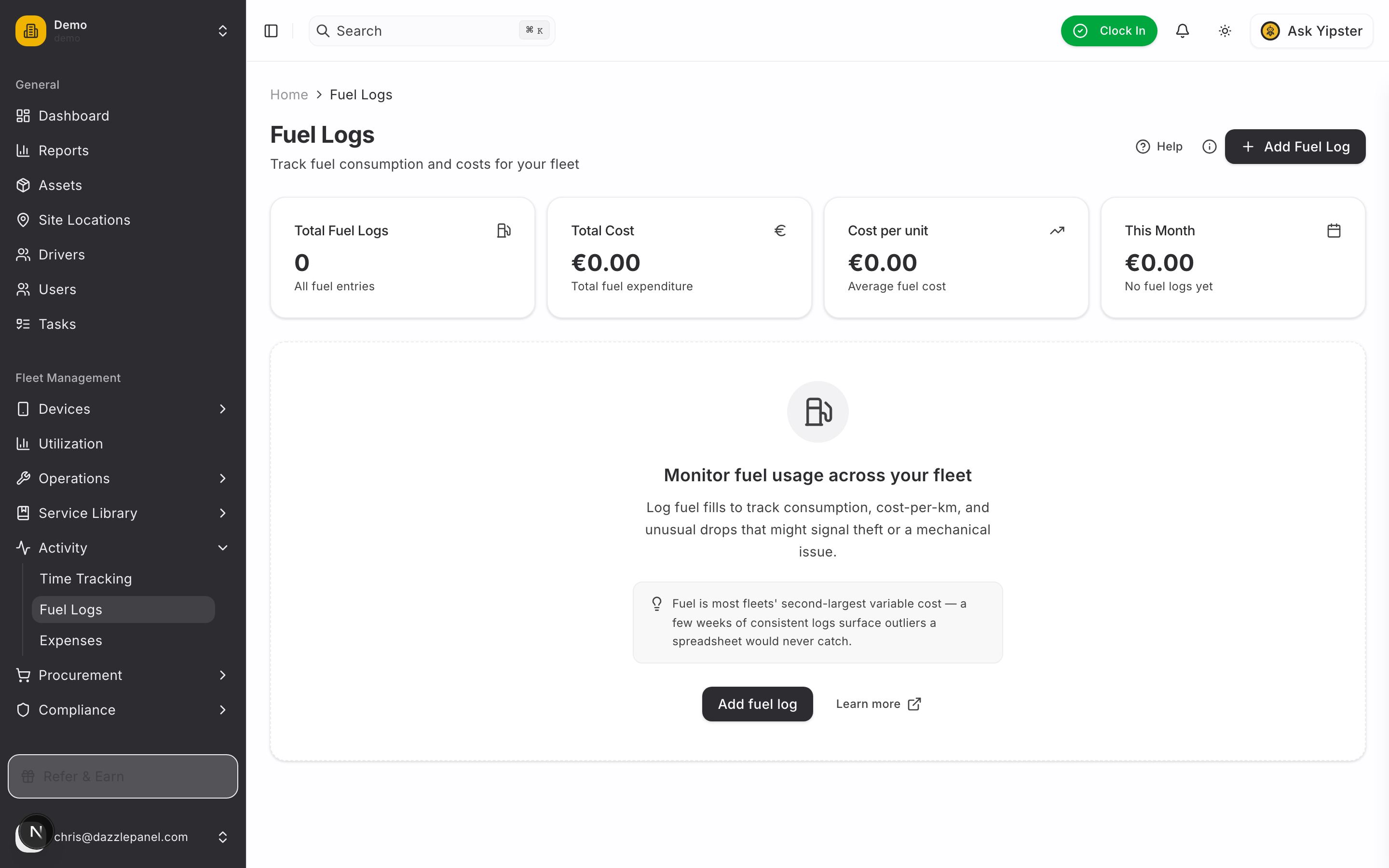
Accessing Fuel Logs
Navigate to Fleet Management > Activity > Fuel Logs in the sidebar. The page opens to a searchable, filterable list of every fuel entry recorded against your fleet.
List View
The fuel logs table displays the following columns:
| Column | Description |
|---|---|
| Date | When the fueling event occurred |
| Asset | Vehicle or equipment that was fueled (click to open the asset page) |
| Fuel Type | Gasoline, Diesel, Electric, Hybrid, LPG, CNG, or Other |
| Volume | Amount of fuel added (liters or gallons based on tenant configuration) |
| Cost | Total cost of the fill-up. AVL entries without cost show a "Needs completion" indicator. |
| Price Per Unit | Automatically calculated (cost / volume) |
| Status / Source | Color-coded badge showing how the entry was created |
Source Badges
Each fuel log displays a source badge so you can distinguish manual entries from automatic ones:
| Badge | Meaning |
|---|---|
| Manual | The entry was added by a user through the fuel log form |
| AVL | The entry was automatically detected by an IoT tracker |
| Migrated | The entry was imported from a previous system during onboarding |
AVL entries missing a cost value display a "Needs completion" indicator in the cost column — a prompt for a user to finish the entry by adding the receipt amount, vendor, and reference number.
Stats Cards
Above the table, three summary cards show the aggregated totals for the current filtered period:
- Total Volume — Sum of all fuel dispensed (liters or gallons)
- Average Price — Mean price per unit across all entries
- Total Cost — Sum of all recorded costs
Creating a Fuel Log
Click Create Fuel Log in the top right. The form opens as a tabbed dialog to keep fields organized by purpose.
Tab 1: Entry
Core details about what was dispensed and when.
- Fuel Type — Select from Gasoline, Diesel, Electric, Hybrid, LPG, CNG, or Other. When an IoT tracker provides OBD data, this may be pre-populated from the vehicle's static information.
- Volume — Amount of fuel added. The unit (liters or gallons) is determined by your tenant configuration.
- Fill Date — Date the fueling occurred.
Click Create to save. The entry appears in the list immediately with a Manual source badge.
Automatic Fuel Entries from IoT
When a vehicle is fitted with an IoT tracker that reports fuel level data, Yipii Mobility automatically creates fuel log entries when it detects a refueling event.
How it works:
- The AVL server monitors fuel level sensor data and detects a rapid fuel level increase (a top-up event).
- The system calculates the volume of fuel added from the level change.
- A new fuel log entry is created automatically, tagged with source = AVL.
- The entry captures everything the tracker can observe; the rest is left for a user to complete.
What Gets Recorded Automatically
- Volume of fuel added (calculated from the fuel level change)
- Date and time of the refueling event
- Odometer reading at the time of refueling
- Trip ID reference (if the event occurred during or between tracked trips)
- Fuel Type (when available from OBD data via the tracker's static information)
What You Need to Add Manually
Trackers cannot detect what you paid, where you filled up, or what receipt the transaction corresponds to. Edit the AVL entry to add these after the fact.
- Total Cost and price per unit
- Vendor (fuel station)
- Reference / receipt number
- Personal Use flag (if applicable)
AVL entries missing cost show a "Needs completion" indicator in the list so they are easy to spot and finish.
Viewing and Editing a Fuel Log
Click any row in the table to open its detail page. The detail page is split into three tabs:
- Overview — primary fields (asset, fuel type, volume, cost, fill date, notes)
- Details — cost breakdown, odometer linkage, user, computed price-per-unit
- Receipt — upload, replace, view, or remove the receipt photo / PDF
From the detail page you can also:
- Edit any field — useful for correcting quantities, completing AVL entries, or updating the vendor
- Delete the entry if it was recorded in error
- Navigate to the linked asset to see its full fuel history
Receipts
Every fuel log supports an attached receipt — typically a photo of the pump receipt or a PDF invoice from a fuel-card provider. Receipts live on a private storage disk and are served back through short-lived signed URLs (15 min) so they're never publicly exposed.
Supported Formats
JPG, PNG, PDF, WebP, or HEIC up to 10 MB.
Uploading
On the fuel log detail page, switch to the Receipt tab:
- No receipt yet — click Upload receipt to pick a file
- Receipt attached — click View to open in a new tab via signed URL, Replace to swap, or the trash icon to remove
Uploads happen synchronously. The original blob is deleted server-side as soon as a replacement is saved.
Privacy
Receipt files are stored on a private bucket. Only authenticated tenant users can request a signed URL, and each URL expires after 15 minutes — useful for tab-handoffs but not viable as a public-share link.
Why upload receipts at all?
Compliance, audit trail, and fuel-card reconciliation. When a finance team queries a £/€ figure six months later, the receipt is the trail back to the actual transaction. Pair this with the Reference field for full traceability.
Filtering and Search
The fuel logs table supports:
- Search — Find entries by asset name, notes, reference, or vendor
- Date range — Narrow results to a specific period
- Refresh — Pull the latest entries (including new AVL detections)
Analytics
Fuel log data feeds into fleet analytics and dashboard reporting. Over time you can analyze:
- Cost per km by asset — Identify the most and least expensive vehicles to operate
- Average fuel price trend — Track price changes month over month
- Consumption pattern by driver — Compare efficiency across operators of the same vehicle
- Efficiency ranking — Rank assets by km/l (or mpg) across the fleet
- Manual vs. automatic comparison — Reconcile driver-reported entries against tracker-detected events to verify accuracy and detect unreported fills
Permissions
| Role | Permissions |
|---|---|
| Admin | Full CRUD |
| Fleet Manager | Full CRUD |
| Mechanic | View all, create and edit |
| Driver | Create and view own entries |
| Office Staff / Inspector / Reports Only | View only |
Best Practices
- Record manual fuel entries immediately after each fill-up to minimize reconciliation work
- Always include the odometer reading to enable fuel efficiency calculations
- Mark full tank fills correctly so consumption between full fills calculates accurately
- Use the Vendor field consistently so per-station spending can be compared
- Enter the receipt number in the Reference field for audit purposes
- Review AVL-detected entries weekly and complete the cost information promptly
- Use the Personal Use toggle to separate company and personal fuel purchases for reimbursement
- Compare AVL entries to driver-reported entries monthly to detect unreported refills or errors
Related Features
- Expenses — Track non-fuel fleet expenses
- Assets — View fuel history per asset
- Dashboard — Monitor fleet-wide fuel cost trends
- Work Orders — Track maintenance driven by fuel efficiency issues