

Vendors
Maintain a central directory of suppliers and service providers, with contact details, payment terms, and performance history
Vendors
The Vendors directory is the single source of truth for every supplier and service provider your fleet depends on — parts suppliers, service shops, fuel stations, car washes, tow companies, insurers, inspection stations, manufacturers, and dealers. Every PO, work order, part, and fuel log that references a vendor pulls from here, so keeping this list clean and up to date pays dividends across the whole platform.
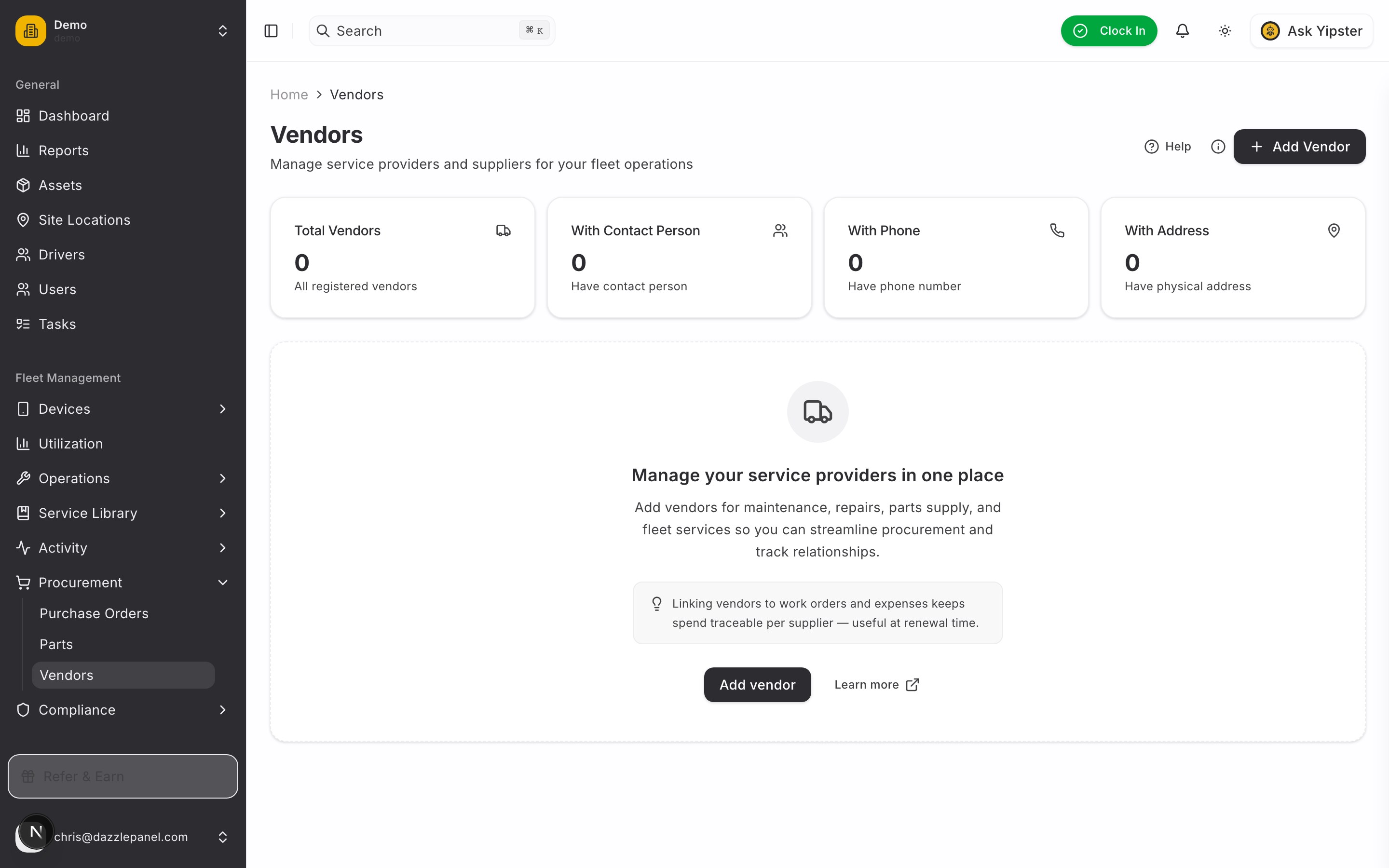
Accessing Vendors
Navigate to Fleet Management > Procurement > Vendors in the sidebar.
List View
Columns
| Column | Description |
|---|---|
| Name | Company or provider name |
| Type | Category of service the vendor provides |
| Contact Info | Primary phone and email |
| Created Date | When the vendor record was first added |
Stats Cards
Summary cards at the top break the directory down by vendor type, so you can see at a glance how many parts suppliers, service shops, fuel stations, etc. are on file.
Filtering and Search
- Search — by name
- Filter by type — Parts Supplier, Service Shop, Fuel Station, and so on
- Sort columns — click any column header to sort ascending or descending
- Preferred first — preferred vendors are pinned to the top of selection dropdowns throughout the app
- Refresh — reload the latest data
Creating a Vendor
Click Add Vendor in the top right. The form is split across four tabs so you can fill in what you know now and come back to the rest later.
Tab 1 — Basics
| Field | Type | Notes |
|---|---|---|
| Vendor Name | Text, required | Company or individual name |
| Type | Select | Parts Supplier, Service Shop, Fuel Station, Car Wash, Tow Service, Insurance, Inspection Station, Manufacturer, Dealer, Other |
| Classification | Select | Preferred, Approved, Conditional, Unapproved — drives ordering in vendor pickers |
| Status | Select | Active, Inactive, Suspended — Inactive / Suspended vendors are hidden from new POs and WOs |
| Website | URL | Link to the vendor's website or portal |
| Notes | Textarea | Free-form notes — negotiated rates, account numbers, SLAs, contact people |
Tab 2 — Contact
| Field | Type | Notes |
|---|---|---|
| Contact Name | Text | Primary contact person |
| Contact Email | Default email for POs and notifications | |
| Contact Phone | Text | Phone number shown throughout the app |
| Address Line 1 / 2 | Text | Street address |
| City / State / Postal Code | Text | Locality |
| Country | Text | Country (defaults to your tenant's country) |
Tab 3 — Billing
| Field | Type | Notes |
|---|---|---|
| Tax ID / VAT Number | Text | Required for EU invoices |
| Bank Name | Text | For wire transfers |
| Account Number / IBAN | Text | For wire transfers |
| Payment Terms | Select | Default payment terms used when creating POs for this vendor (Due on Receipt, Net 15/30/45/60, Prepaid) |
| Currency | EUR | Yipii currently operates in EUR — multi-currency support is deferred |
Tab 4 — Categories
| Field | Type | Notes |
|---|---|---|
| Categories | Multi-select | Tag the vendor with one or more service categories — used for cross-vendor reports and filtering |
Click Create Vendor to save. To discard, click Cancel.
Vendor Types
| Type | Typical use |
|---|---|
| Parts Supplier | Sells replacement parts, fluids, filters, tools |
| Service Shop | External garages performing maintenance or repairs |
| Fuel Station | Fuel providers and card networks |
| Car Wash | Washing and detailing services |
| Tow Service | Towing and roadside assistance |
| Insurance | Fleet and vehicle insurance |
| Inspection Station | Government or certified inspection facilities |
| Manufacturer | OEMs for vehicles or major components |
| Dealer | Authorised vehicle dealerships |
| Other | Anything that does not fit the categories above |
Vendor Detail Page
Click any vendor in the table to open its detail page. The page aggregates every interaction your fleet has had with that vendor in one view.
Sections
- Contact Information — name, type, phone, email, address, website
- Purchase Orders — every PO ever sent to this vendor, with status and total
- Parts — every part sourced from this vendor, with current stock and unit price
- Work Orders — external work orders where this vendor was the service provider
- Performance Metrics —
- Average delivery time — how long between PO confirmed and PO received
- Price trends — how the unit price for common parts has moved over time
- On-time rate — percentage of POs received on or before the expected delivery date
Actions
- Edit Vendor — update any field
- Delete Vendor — remove the vendor. Vendors referenced on historical records are archived rather than deleted
Editing a Vendor
- Open the vendor detail page
- Click Edit Vendor in the top right
- Update the fields
- Click Save
Deleting a Vendor
- From the vendor table, click the actions menu on the relevant row
- Select Delete vendor
- Confirm in the dialog
If the vendor has historical POs, parts, or work orders, the record is archived (hidden from new selections) rather than hard-deleted — this preserves historical data.
Vendor Search and Selection
Vendor selectors appear throughout Mobility:
- Creating a Part — preferred supplier
- Creating a Purchase Order — required
- Creating a Work Order — for external service jobs
- Creating a Fuel Log — fuel station
In every selector, preferred vendors float to the top, followed by recently used vendors, then the rest alphabetically.
Exporting Vendors
Click Export CSV from the list toolbar to download the full vendor list. The export includes name, type, contact name, email, phone, address, website, payment terms, preferred flag, notes, and created date — suitable for importing into accounting systems or sharing with finance.
Permissions
| Role | Permissions |
|---|---|
| Admin | Full CRUD, including delete and archive |
| Fleet Manager | Full CRUD |
| Office Staff | Create and update |
| Mechanic | View, select in work orders |
| Reports Only | View |
Best Practices
- Add vendors as soon as you establish the relationship — empty POs or work orders with no vendor are hard to audit later
- Always include at least one contact method (phone or email) so anyone on the team can reach the vendor without hunting
- Use the Preferred flag sparingly — if everything is preferred, nothing is
- Keep Payment Terms accurate — they feed into PO defaults and cashflow reporting
- Use the Notes field to record account numbers, negotiated discount levels, and SLA commitments
- Review performance metrics quarterly and reassign preferred status based on actual delivery and price trends
- Consolidate duplicate vendor records whenever you spot them — duplicates split history and weaken the metrics
FAQ
What happens to historical POs and work orders if I delete a vendor? They remain intact. The vendor record is archived, so it no longer appears in new selection dropdowns, but all historical references continue to display the vendor name and details.
Can the same company be both a Parts Supplier and a Service Shop? Create one vendor record and pick the primary type. Use the Notes field to record that they also provide the secondary service. If you need strict separation (e.g. for reporting), create two vendors with distinct names.
Where do the performance metrics come from? Average delivery time and on-time rate are calculated from PO confirmed and received dates. Price trends come from PO line items and the parts catalogue unit price history. The metrics need at least three POs to be meaningful.
Can I import vendors in bulk? Yes. Use the CSV import option from the list toolbar. Headers should match the export format — name, type, contact info, address, website, notes, payment terms, preferred.
How do preferred vendors affect PO approval workflows? Preferred status does not bypass approval thresholds. It only changes where the vendor appears in selectors. All approval rules still apply.
Can a vendor see the POs we have sent them? Not from within Mobility. POs must be exported as PDF and emailed or shared externally. Vendor self-service portals are on the roadmap.
Related Links
- Purchase Orders — every PO is sent to a vendor from this directory
- Parts & Inventory — parts are sourced from preferred vendors
- Work Orders — external service work is linked to a vendor
- Fuel Logs — fuel stations are tracked as vendors
- Expenses — link expenses to vendors for cost reporting