

Devices, Models & SIMs
Manage GPS trackers, OBD dongles, beacons, device models, and SIM cards that power your fleet
Devices, Models & SIMs
The Devices section is where you manage all IoT hardware in Yipii Mobility -- GPS trackers, OBD dongles, asset trackers, personal trackers, and Bluetooth beacons -- along with the device models that define the hardware catalogue and the SIM cards that connect devices to the cellular network.
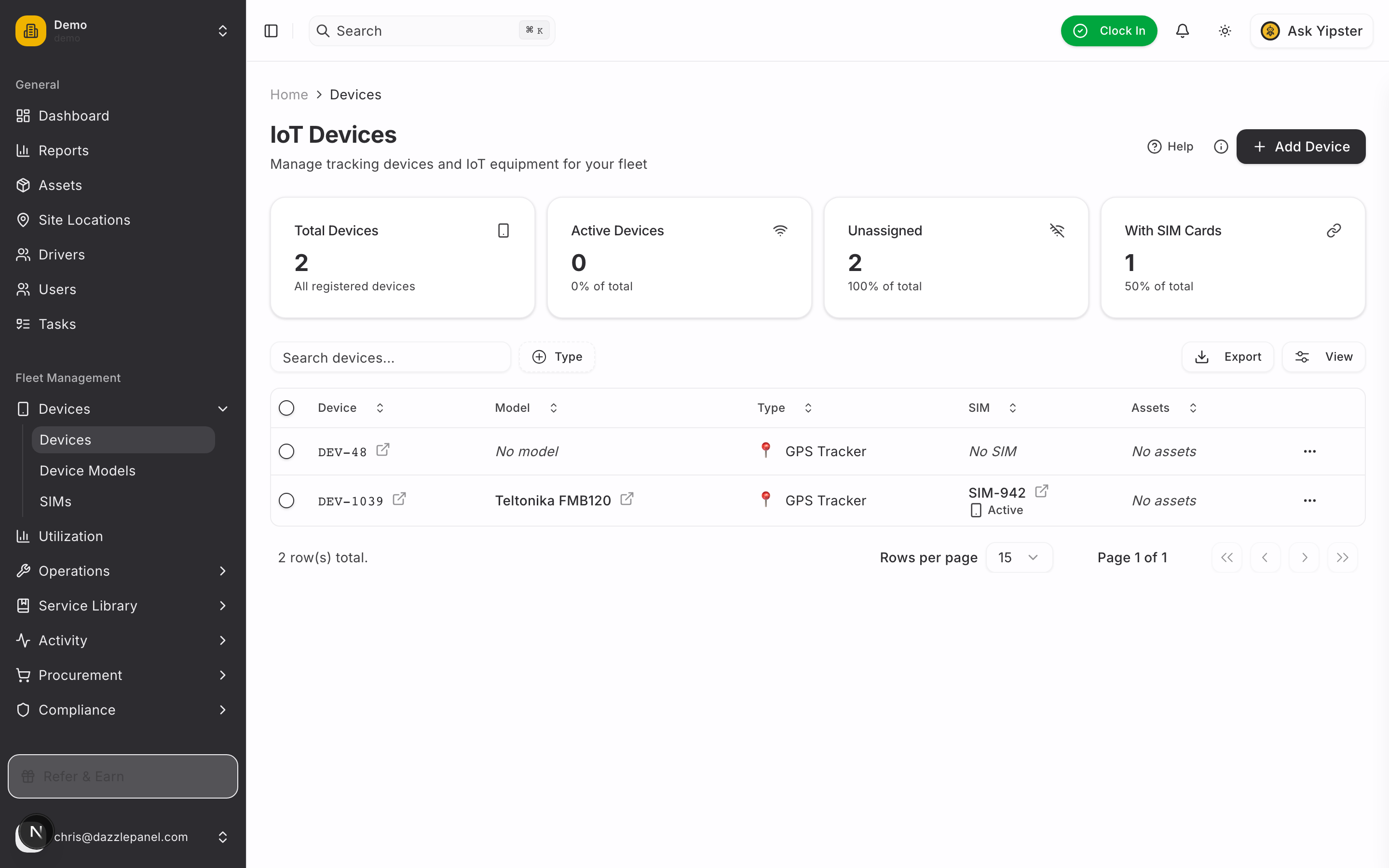
Accessing Devices
Navigate to Fleet Management > Devices in the sidebar. The section expands into three sub-pages:
- Devices -- Individual physical device records
- Device Models -- The hardware catalogue (make, model, type)
- SIMs -- The SIM card inventory used to connect devices
This section is available to Admin and Fleet Manager roles.
Devices
The Devices sub-page lists every IoT device registered to your organization, regardless of type. This includes GPS trackers, OBD dongles, asset trackers, personal trackers, and Bluetooth beacons.
List View
Devices are displayed in a searchable, filterable data table with the following columns:
- IMEI -- Unique 15-digit hardware identifier (primary identifier for the device)
- Model -- The device model (from the Device Models catalogue)
- Type -- Device category (GPS Tracker, OBD, Asset Tracker, Personal Tracker, Beacon)
- SIM -- Linked SIM card (ICCID or phone number), if applicable
- Assigned Asset -- The vehicle or asset this device is installed on
- Status -- Online, Offline, or Inactive
Filters
Narrow the list with the built-in filters:
- Model -- Show only devices of a specific make/model
- Type -- Show only one device category (GPS Tracker, OBD, Beacon, etc.)
- Status -- Show only Online, Offline, or Inactive devices
Use the search bar to find a device by IMEI, model, or asset name.
Adding a Device
-
Click "Add Device" in the top right corner of the Devices page.
-
Fill in the device form:
- IMEI (required) -- The 15-digit IMEI printed on the device label or packaging
- Model (required) -- Select the device model from the dropdown. Models must be registered first in the Device Models catalogue.
- Type (required) -- Select the device category:
- GPS Tracker -- Primary location tracking (typically Teltonika or Cellocator)
- OBD -- Diagnostic trouble codes and engine data via the OBD-II port
- Asset Tracker -- Simplified tracker for non-vehicle assets (trailers, containers, equipment)
- Personal Tracker -- Worn by drivers or field workers
- Beacon -- Short-range BLE device for driver identification or asset presence
- SIM (optional) -- Link a SIM card from your SIM inventory. Required for GPS trackers and OBD devices that use cellular data. Not required for Bluetooth beacons.
-
Click "Create" to register the device.
Tip: Always copy the IMEI directly from the device label or Teltonika/manufacturer packaging. Mistyping the IMEI will prevent the device from appearing in the tracking feed.
Assigning a Device to an Asset
Once a device is registered, link it to an asset so that its telemetry appears on the vehicle:
- From the device detail page -- Click "Assign to Asset" and search for the target asset.
- From the asset detail page -- Use the "Attach Device" dialog on the asset record.
After assignment, the asset begins receiving real-time GPS position, ignition state, and telemetry from the device.
Editing a Device
Click any row in the Devices table to open the device detail page. From there, click Edit to update:
- IMEI
- Model
- Type
- SIM assignment
- Asset assignment
- Status
Removing a Device
Use the row actions menu to remove a device. Removing a device unassigns it from its asset and its SIM, but preserves historical telemetry for audit and reporting purposes.
Device Models
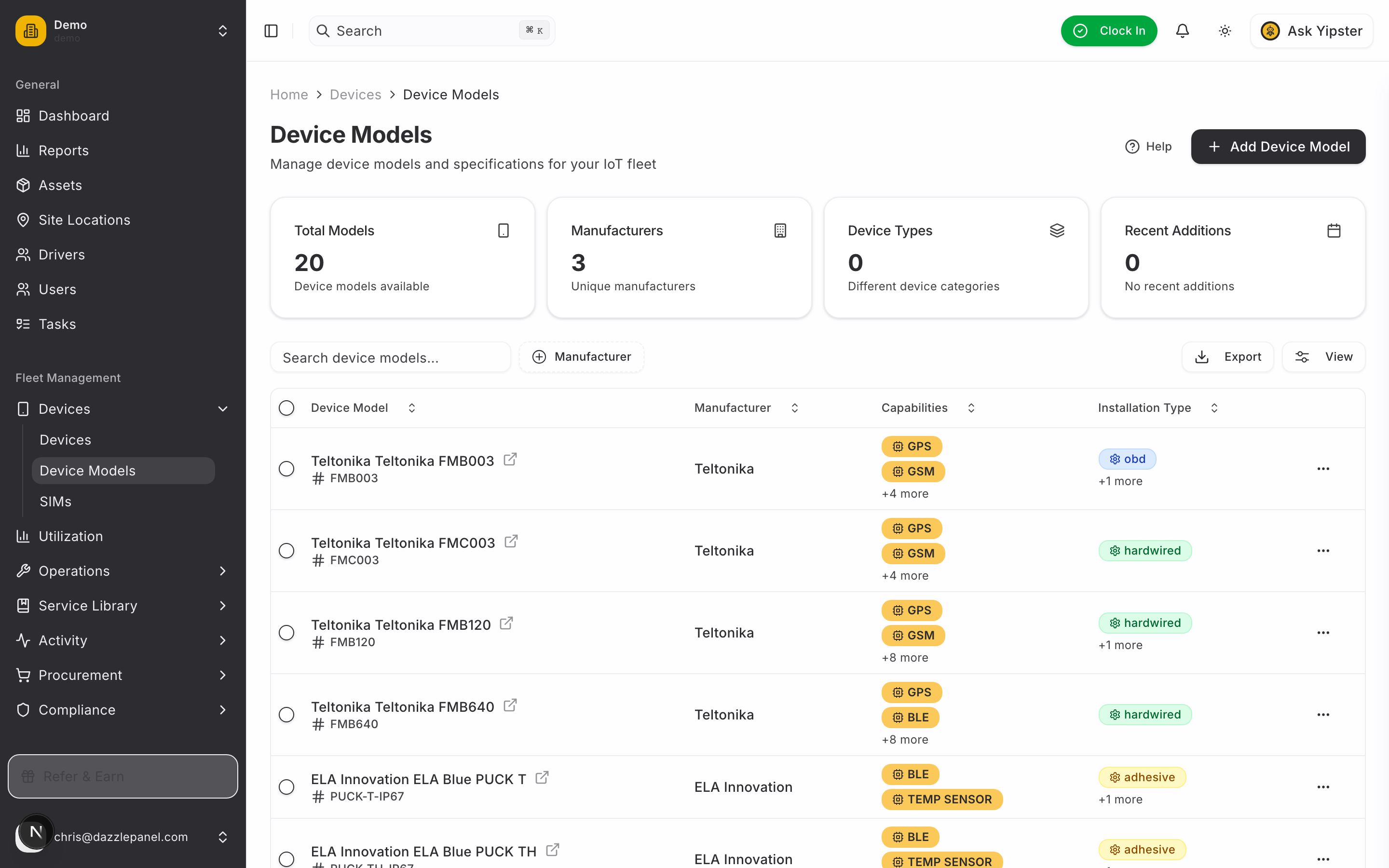
The Device Models sub-page is the hardware catalogue -- a reusable list of the makes and models of IoT hardware in your fleet. Registering a model once lets you add multiple physical devices of the same type without re-entering the manufacturer, description, and category each time.
List View
Device models are displayed with:
- Name -- Model name (e.g., "Teltonika FMB920", "Queclink GV500", "Cellocator CR300B")
- Manufacturer -- The hardware vendor (Teltonika, Queclink, Cellocator, etc.)
- Type -- Device category (GPS Tracker, OBD, Asset Tracker, Personal Tracker, Beacon)
- Description -- Notes on capabilities, SKU, or configuration
Creating a Device Model
-
Click "Add Model" in the top right corner.
-
Fill in the model form:
- Name (required) -- e.g., "Teltonika FMB920"
- Manufacturer (required) -- e.g., "Teltonika"
- Type (required) -- Select the device category this model belongs to
- Description (optional) -- Short notes on capabilities, power source, sensor inputs, or configuration quirks -- helpful for procurement and inventory tracking
-
Click "Create" to add the model to the catalogue.
Best practice: Register every make/model you plan to use before adding individual devices. Keeping the catalogue accurate makes reporting, procurement, and inventory planning much easier.
SIMs
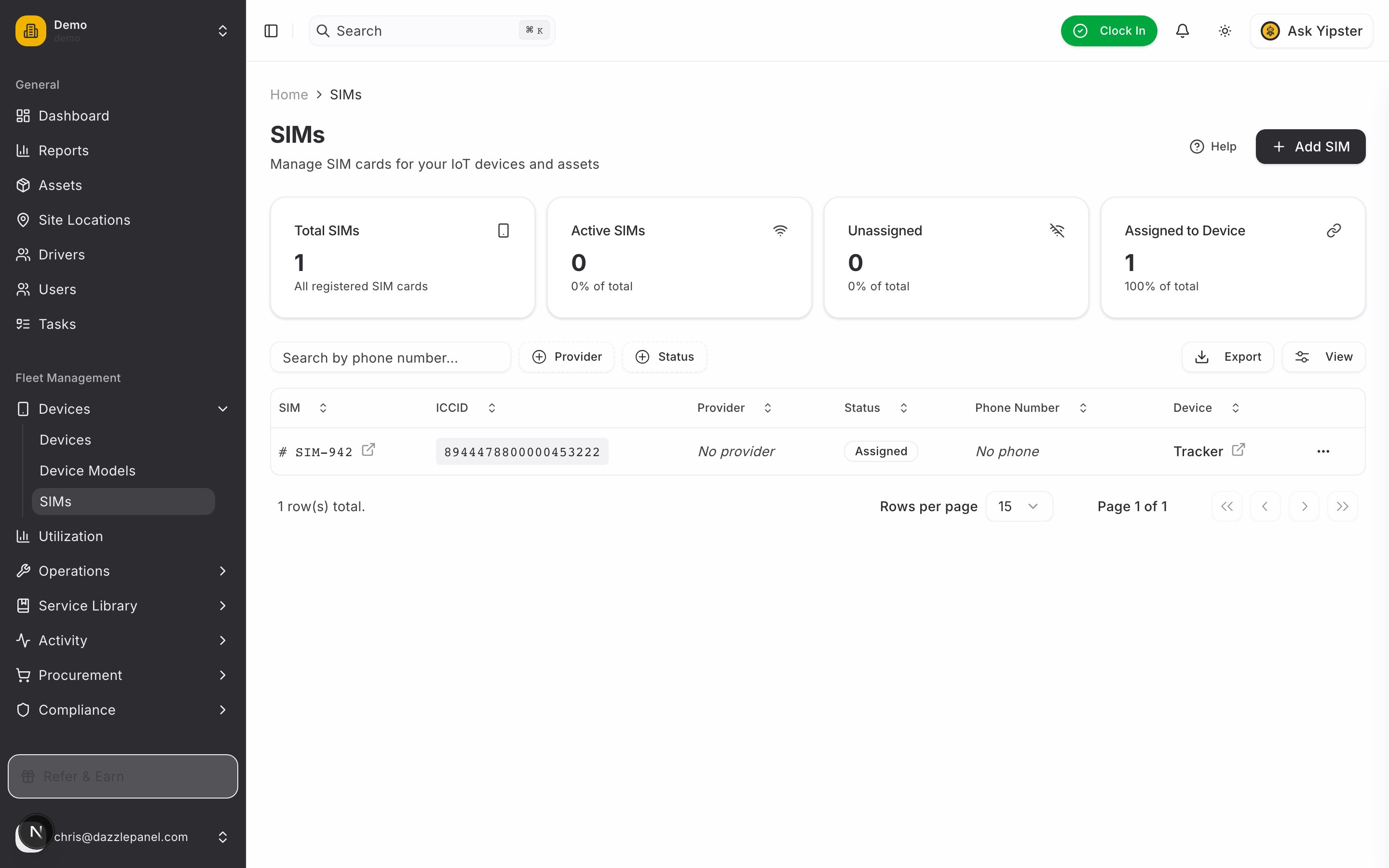
The SIMs sub-page tracks your SIM card inventory. SIMs provide the cellular connectivity that lets GPS and OBD devices transmit tracking data.
List View
SIMs are displayed with:
- ICCID -- The unique SIM card identifier (printed on the SIM)
- Phone Number -- MSISDN associated with the SIM, if applicable
- Provider -- Carrier (Truphone, Go Mobile, Epic, etc.)
- Data Plan -- Description of the data allowance or tariff
- Status -- Active or Suspended
Creating a SIM
-
Click "Add SIM" in the top right corner.
-
Fill in the SIM form:
- ICCID (required) -- The 19- or 20-digit number printed on the SIM card
- Phone Number (optional) -- MSISDN associated with the SIM
- Provider (optional) -- Carrier (Truphone, Go Mobile, Epic, Vodafone, etc.)
- Data Plan (optional) -- Plan name or data allowance for cost tracking
- Status -- Active or Suspended
-
Click "Create" to register the SIM.
Assigning SIMs to Devices
SIMs are linked to devices during device creation or editing. Each device can carry one SIM at a time. When you edit a device, picking a SIM from the SIMs dropdown binds it to the device record.
Managing SIM Status
Keep SIM statuses up-to-date to reflect reality:
- Active -- SIM is provisioned, paid, and transmitting data
- Suspended -- SIM is paused (out-of-contract, damaged, or temporarily disabled by the carrier)
Accurate statuses help with billing reconciliation and highlight devices that may have gone offline due to SIM issues.
Device Types Reference
| Type | Description | Typical Use |
|---|---|---|
| GPS Tracker | Primary location tracking device, hardwired or plug-and-play | Fleet vehicles (Teltonika FMB/FMC, Cellocator) |
| OBD | OBD-II port device for diagnostic trouble codes and engine data | Diagnostics, engine health, DTCs |
| Asset Tracker | Battery-powered simplified tracker for non-powered assets | Trailers, containers, skips, plant equipment |
| Personal Tracker | Wearable or pocket tracker for personnel | Lone workers, field engineers, drivers |
| Beacon | Short-range BLE device for proximity detection | Driver ID, asset presence, zone detection |
Filtering, Search, and Refresh
All three sub-pages (Devices, Device Models, SIMs) include:
- Search -- Find records by IMEI, ICCID, name, or identifier
- Filters -- Filter by status, type, manufacturer, or provider
- Refresh -- Reload the latest data without leaving the page
Permissions
| Role | Devices | Device Models | SIMs |
|---|---|---|---|
| Admin | Full CRUD | Full CRUD | Full CRUD |
| Fleet Manager | Full CRUD | Full CRUD | Full CRUD |
| Office Staff | No access | No access | No access |
| Reports Only | No access | No access | No access |
| Mechanic | No access | No access | No access |
| Inspector | No access | No access | No access |
| Driver | No access | No access | No access |
Best Practices
- Register device models first. Build out the Device Models catalogue before adding individual devices so the model dropdown is populated.
- Add SIMs before assigning them to devices. Populate your SIM inventory in one pass, then bind SIMs to devices as you register them.
- Use the correct IMEI. The IMEI is almost always printed on the device label or packaging -- copy it directly to avoid typos.
- Keep SIM statuses up-to-date. Suspend SIMs that are out of contract or removed from service to keep billing and connectivity reports accurate.
- Assign devices to assets immediately after installation so telemetry is attributed to the correct vehicle from day one.
- Monitor device status. Devices that slip from Online to Offline for long periods usually indicate a SIM, power, or installation issue.
- Use descriptive model descriptions. Include sensor inputs, power source, or firmware quirks to help procurement and field teams later.
- Track providers and plans on SIM records to support cost analysis across carriers.
Related Links
- Managing Assets -- Attach devices to vehicles and equipment
- Fleet Utilisation -- Monitor telemetry coming from devices
- Diagnostics -- View OBD device trouble codes
- Settings > Plans -- View device and SIM usage against your subscription limits