

Warranties
Track asset and part warranties with coverage limits, contact details, and claim workflows linked to work orders
Warranties
The Warranties feature tracks every warranty, service contract, and extended coverage agreement across your fleet -- both at the asset level (the whole vehicle) and the part level (individual components like engines, transmissions, or tyres). Record coverage limits and deductibles, capture provider contacts, and turn repairs into warranty claims without leaving the work-order flow.
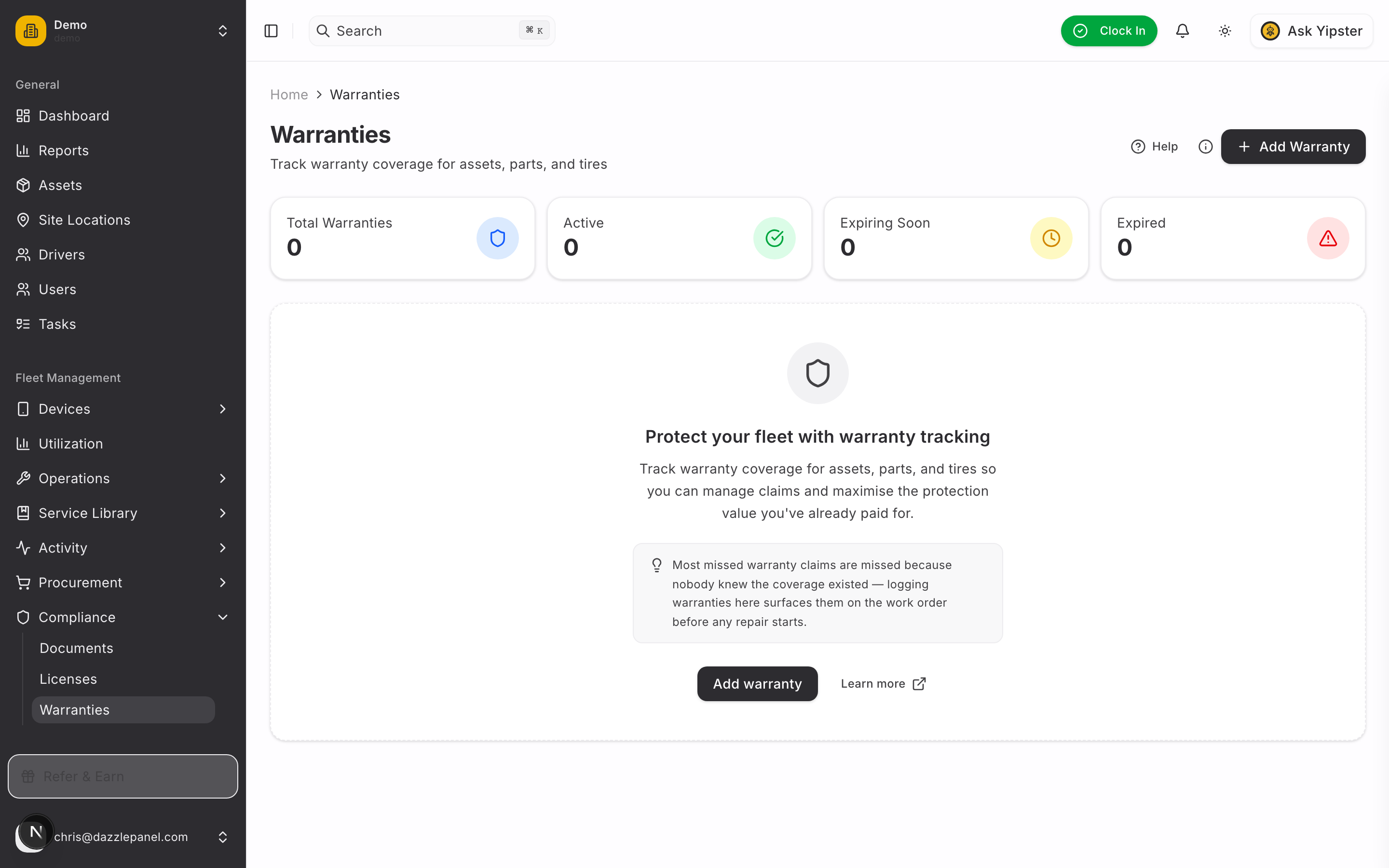
Accessing Warranties
Navigate to Fleet Management > Compliance > Warranties in the sidebar. The warranties page displays every warranty with status indicators and coverage information.
List View
The main warranties page shows:
| Column | Description |
|---|---|
| Item | The asset or part covered by the warranty |
| Type | Warranty category (Manufacturer, Extended, Dealer, Third Party, Service Contract) |
| Provider | Name of the warranty provider |
| Start Date | When coverage begins |
| Expiry Date | When coverage ends |
| Status | Active, Expired, Claimed, or Void |
Filtering and Search
- Search -- Find warranties by policy number, provider, or item
- Filter by Status -- Active, Expired, Claimed, or Void
- Filter by Type -- Manufacturer, Extended, Dealer, Third Party, or Service Contract
- Filter by Warrantable Type -- Asset or Part
- Refresh -- Reload the latest data
Stats Cards
Summary cards at the top of the page show:
- Total Warranties -- Every warranty on record
- Active -- Warranties currently in effect
- Expiring Soon -- Expiry within the next 30 days
- Expired or Void -- Warranties no longer valid
Creating a Warranty
Click Add Warranty to open the tabbed form.
Tab 1: Coverage
Define what the warranty covers and who issued it:
- Warrantable Type (select, required) -- Asset or Part
- Warrantable Item (searchable select, required) -- The specific asset or part the warranty covers. The picker is filtered based on the warrantable type chosen above.
- Warranty Type (select, required):
- Manufacturer -- Original equipment manufacturer warranty
- Extended -- Extended warranty purchased separately
- Dealer -- Warranty provided by the selling dealership
- Third Party -- Coverage from an independent provider
- Service Contract -- Ongoing service agreement
- Provider (text) -- The company issuing the warranty, for example "Ford Motor Company" or "AAA Warranty Services"
- Policy Number (text) -- Provider's reference or policy number
- Name (text) -- A friendly identifier for internal use, for example "Powertrain 5yr/100k km"
Tab 2: Details
Capture the coverage terms:
- Start Date (required) -- When coverage begins
- Expiry Date (required) -- When coverage ends
- Mileage Limit (numeric, optional) -- Maximum mileage covered, for example 100,000 km. Coverage ends at whichever comes first -- expiry date or mileage limit.
- Max Coverage Amount (numeric, optional) -- Maximum claimable amount across the life of the warranty, for example EUR 5,000
- Deductible (numeric, optional) -- Amount the fleet pays per claim before coverage applies
- Coverage Description (textarea) -- Detailed description of what is and is not covered
Tab 3: Contact
Keep claim-handling details at your fingertips:
- Contact Name -- Primary contact at the provider
- Contact Phone -- Phone number for claims
- Contact Email -- Email for claims correspondence
- Status -- Active, Expired, Claimed, or Void
- Notes -- Any internal notes about terms, handling, or history
Click Create Warranty to save.
Warranty Status
| Status | Meaning | Indicator |
|---|---|---|
| Active | Coverage is in effect and available for claims | Green badge |
| Expired | End date has passed or mileage limit exceeded | Grey badge |
| Claimed | A claim has been filed and is using coverage | Blue badge |
| Void | Voided due to non-compliance, transfer, or cancellation | Red badge |
Status transitions automatically from Active to Expired when the end date passes. Mileage-based expiry updates daily from the asset's current odometer reading.
Claim Workflow
Warranties are connected directly to the work order flow so you never pay for a covered repair by mistake.
- Create a work order for the affected asset or part
- Warranty auto-detection -- If the asset or part has an active warranty, the work order surfaces it automatically with a "Covered by warranty" banner
- Claim amount tracking -- Enter the claim amount on the work order. It is tallied against the warranty's Max Coverage Amount so you always know how much coverage remains.
- Update warranty status to Claimed when the claim is filed
- Attach documentation -- Upload claim paperwork, approval letters, and invoices to the work order or warranty detail page
Claims show on the warranty detail page as a history list, each linked back to the originating work order.
Coverage Tracking
The warranty detail page shows a live summary:
- Days Remaining -- Time until expiry
- Mileage Remaining -- Kilometres remaining until the mileage limit, calculated from the asset's current odometer
- Coverage Used -- Total claim amount filed against this warranty
- Coverage Remaining -- Max Coverage Amount minus Coverage Used
If Coverage Used exceeds Max Coverage Amount, the warranty is flagged as exhausted and the status moves to Expired.
Expiry Alerts
Warranties follow the same reminder pattern as Documents and Licenses:
- Dashboard widget -- Warranties expiring in the next 30 days appear on the main dashboard
- Email reminders -- 90, 60, 30, and 7 days before expiry. Reminders also fire if mileage usage is within 10% of the mileage limit.
- Overdue indicators -- Expired warranties stay visible on the linked asset's profile
Permissions
| Role | Permissions |
|---|---|
| Admin | Full CRUD -- create, view, edit, delete any warranty |
| Fleet Manager | Full CRUD -- create, view, edit, delete any warranty |
| Office Staff | Create and update warranties |
| Mechanic | View warranties; update status when completing covered work |
| Inspector | View warranties |
| Driver | View warranties on assets they are assigned to |
| Reports Only | View warranties |
Best Practices
- Record warranties the moment an asset or part is acquired -- coverage starts on day one
- Always capture both date and mileage limits -- coverage ends at whichever comes first
- Enter the Max Coverage Amount and Deductible so work orders show accurate claim totals
- Attach the full policy document so terms are available during claims
- Set Warranty Type accurately -- Manufacturer and Extended warranties often have different claim procedures
- Use the Dealer type for dealer-specific coverage so you can aggregate claims by dealership for negotiation leverage
- Before authorising any repair, check the asset's active warranties to avoid paying out of pocket for covered work
- Keep Void and Expired warranties in the system for historical and audit purposes
FAQ
What's the difference between a Manufacturer warranty and an Extended warranty? Manufacturer warranties come with the vehicle or part from the OEM and cover defects in materials or workmanship. Extended warranties are purchased separately (typically before the manufacturer warranty expires) and extend or enhance coverage. Tracking them separately helps you know which provider to call for which claim.
Can one asset have multiple active warranties? Yes. It's common for an asset to have a Manufacturer warranty (powertrain), an Extended warranty (bumper-to-bumper), and a Service Contract (maintenance) all at once. Each is a separate entry.
Can I track warranties on tyres or individual parts? Yes. Set Warrantable Type to Part and pick the specific part from your parts inventory. Useful for tyres, batteries, and other consumables with their own coverage terms.
What happens when a warranty's mileage limit is reached before the expiry date? The warranty automatically moves to Expired status. You'll see this reflected in the Coverage Tracking section as Mileage Remaining hits zero.
How do I handle a warranty transfer (e.g., asset sold)? Mark the current warranty as Void with a note explaining the transfer. If the new owner keeps coverage, they should create a fresh warranty record in their own system.
Can I set up custom reminder timings? The standard 90/60/30/7 day reminders are fixed. For custom schedules, use the Automations feature to build a rule on the warranty's expiry date.
How do claims against the Max Coverage Amount work? Every work order linked to the warranty contributes its claim amount to the total. When the sum reaches Max Coverage Amount, further claims cannot be filed and the warranty is flagged as exhausted. The system warns you before submitting a claim that would exceed the remaining coverage.
Related Links
- Work Orders -- Link warranty claims to repair work
- Documents -- Upload warranty certificates and claim paperwork
- Licenses -- Track driver licences and operating permits
- Recalls -- Manage manufacturer safety recalls
- Managing Assets -- View warranties for specific assets
- Automations -- Build custom warranty-related notification rules