

Documents
Centralized storage for fleet documents with expiry tracking, version history, and automated reminders
Documents
The Documents feature provides centralized storage for every document that matters to your fleet -- registrations, insurance certificates, inspection reports, maintenance records, warranties, titles, permits, service contracts, and more. Upload files once, track expiry dates automatically, and receive reminders well before anything lapses.
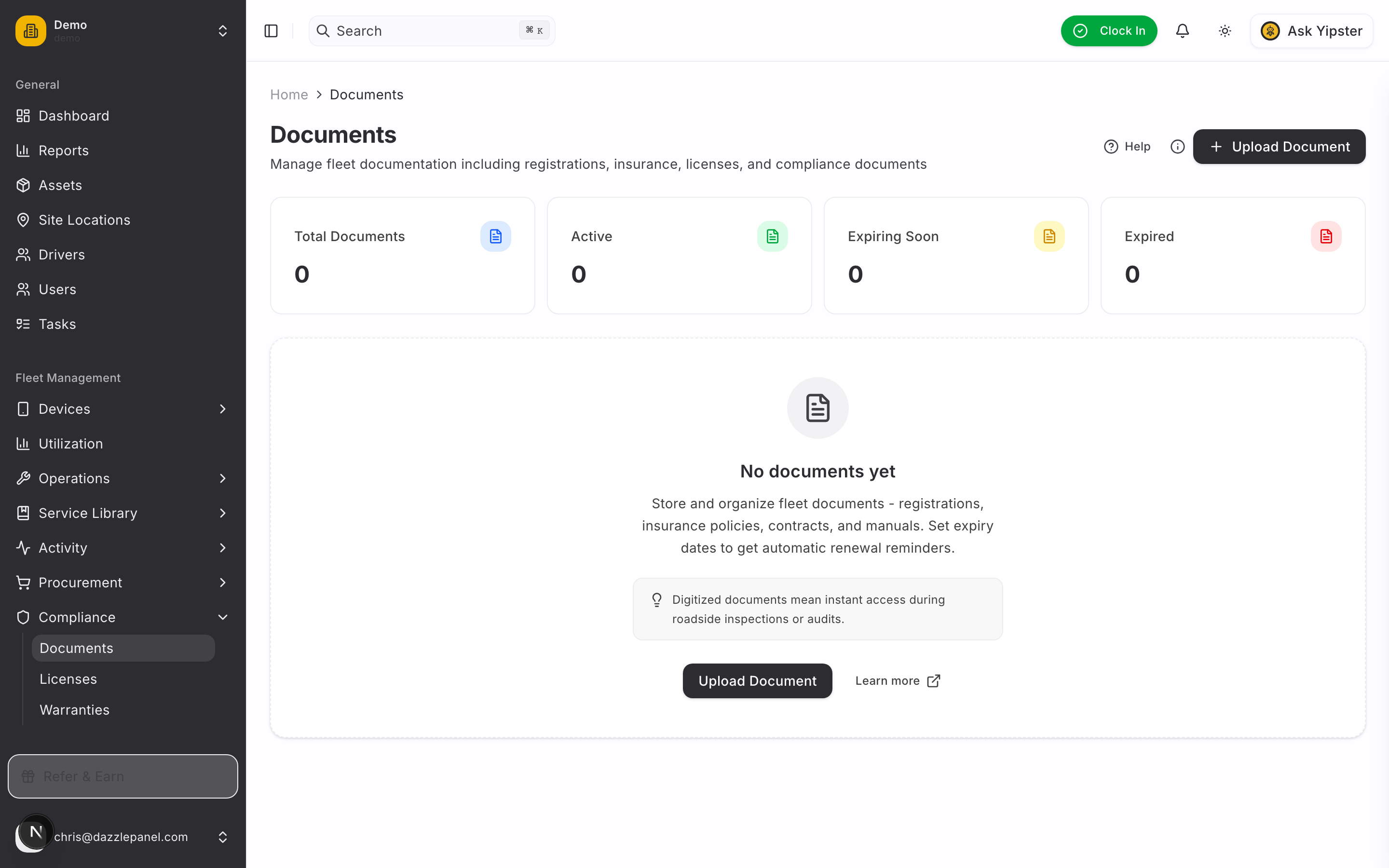
Accessing Documents
Navigate to Fleet Management > Compliance > Documents in the sidebar. The documents page displays every uploaded document with status indicators, expiry information, and quick-access file previews.
List View
The main documents page shows:
| Column | Description |
|---|---|
| Name | Document name with a file size indicator |
| Type | Category badge (Registration, Insurance, Inspection, etc.) |
| Asset | Linked asset name, or "Fleet-wide" if not tied to a specific asset |
| Expiry Date | Date with a countdown (e.g., "Expires in 15 days") |
| Status | Valid, Expiring Soon, or Expired badge |
Filtering and Search
Use the table toolbar to narrow the list:
- Search -- Find documents by name
- Filter by Type -- Show only a specific document category
- Filter by Asset -- Show only documents linked to a particular asset
- Filter by Status -- Show only Valid, Expiring Soon, or Expired documents
- Refresh -- Reload the latest data
Stats Cards
Four summary cards at the top of the page give you an at-a-glance compliance snapshot:
- Total Documents -- Count of every document in the system
- Valid -- Documents whose expiry is more than 30 days away (or that have no expiry)
- Expiring Soon -- Documents expiring within the next 30 days
- Expired -- Documents whose expiry has already passed
Creating a Document
-
Click Upload Document in the top right corner of the Documents page.
-
Fill in the document details:
- Document Name (text, required) -- A descriptive name, for example "Vehicle Registration - Van 001" or "General Liability Insurance 2026"
- Type (select, required) -- The document category:
- Registration
- Insurance
- Inspection
- Maintenance
- Warranty
- Title
- Permit
- Contract
- Other
- Asset (searchable select, optional) -- Link the document to a specific asset. Leave blank for fleet-wide documents such as general liability insurance or operator permits.
- Expiry Date (date picker, optional but recommended) -- When the document expires. Skipping this disables expiry tracking and reminders.
- Description (textarea, optional) -- A short summary of what the document is for
- Notes (textarea, optional) -- Additional context, terms, or reminders for your team
-
Upload the file. Supported formats include PDF, images (JPG, PNG), and Microsoft Word or Excel documents.
-
Click Upload to store the document.
Document Status
Status is calculated automatically from the expiry date:
| Status | Condition | Indicator |
|---|---|---|
| Valid | No expiry date set, or expiry is more than 30 days away | Green badge |
| Expiring Soon | Expiry date is within the next 30 days | Yellow badge |
| Expired | Expiry date has passed | Red badge |
Document Viewer
Click any document in the list to open its detail page. The viewer supports:
- Inline preview for PDFs and images -- view without leaving the app
- Download -- save the file to your device
- Share -- generate a shareable link for stakeholders outside the platform
- Asset link -- jump directly to the associated asset's detail page
- Metadata -- upload date, uploader, file size, and type
Version History
When you re-upload a file to an existing document (for example, a renewed insurance certificate), the previous version is retained. Version history shows:
- Every prior file and when it was uploaded
- Who uploaded each version
- A download link for every historical copy
This lets you replace a document with its renewed counterpart while keeping an auditable trail.
Expiry Tracking
Documents drive several automated compliance workflows.
Dashboard Widget
The main dashboard surfaces a Documents Expiring widget showing every document with an expiry date in the next 30 days. Click any row to jump directly to the document.
Email Reminders
Automated email reminders are sent to fleet managers and the admin on a fixed schedule:
- 90 days before expiry
- 60 days before expiry
- 30 days before expiry
- 7 days before expiry
Reminders stop once the document is renewed (a new expiry date that is more than 90 days away) or marked as replaced via re-upload.
Overdue Alerts
Any document past its expiry appears as an overdue alert on the dashboard until it is renewed or archived. Overdue indicators also surface on the linked asset's profile, so drivers and mechanics see the warning in context.
Permissions
| Role | Permissions |
|---|---|
| Admin | Full CRUD -- upload, view, edit, delete any document |
| Fleet Manager | Full CRUD -- upload, view, edit, delete any document |
| Office Staff | Create and update documents |
| Mechanic | View documents; update status when completing related work |
| Inspector | View documents |
| Driver | View documents attached to their assigned assets |
| Reports Only | View documents |
Best Practices
- Upload documents the moment they are received -- waiting means gaps in the record
- Always set an expiry date for time-sensitive documents, even if the date is several years out
- Use consistent naming conventions, such as "Insurance - [Asset Name] - [Year]"
- Link documents to their asset whenever possible so they surface in context
- Re-upload renewed documents rather than creating new entries -- keeps version history intact
- Keep expired documents in the system for historical and audit purposes rather than deleting them
- Review the "Expiring Soon" filter at least once a month
FAQ
Can I upload more than one file per document entry? Each document entry holds a single file. Re-uploading replaces the current file and preserves the old one as a prior version. For separate files (e.g., a registration certificate and its tax receipt), create two document entries.
What happens if I don't set an expiry date? The document is treated as always Valid and no reminders are generated. Use this for reference material such as manuals or historical records.
Can drivers upload documents? No. Drivers can view documents attached to assets they're assigned to but cannot upload or modify them. Use the Office Staff role or higher for upload access.
How do I share a document with someone outside the organisation? Open the document and use the Share action to generate a link. Share links respect document expiry and can be revoked.
Are there file size limits? Individual files are capped at 25 MB. For larger files (video, high-resolution scans), compress the file or split into multiple pages before uploading.
Can I bulk upload documents? Not from the UI today. If you need to migrate historical documents, contact support and we can assist with a bulk import.
Do email reminders go to every user? Reminders are sent to the Admin and every Fleet Manager in the organisation by default. Drivers and mechanics do not receive expiry emails unless they also hold one of those roles.
Related Links
- Licenses -- Track driver licenses and operating permits separately
- Warranties -- Track warranty coverage with claim workflows
- Recalls -- Manage manufacturer safety recalls
- Managing Assets -- View documents attached to specific assets
- Automations -- Build custom document-related notification rules