

Settings
Configure organization preferences, profile, asset types, utilisation benchmarks, billing, plans, integrations, and notifications
Settings
The Settings area is where administrators configure the organization and where every user manages their personal profile. It covers organization branding and defaults, asset taxonomy, fleet utilisation benchmarks, subscription and billing, integrations with third-party tools, and notification preferences.
Accessing Settings
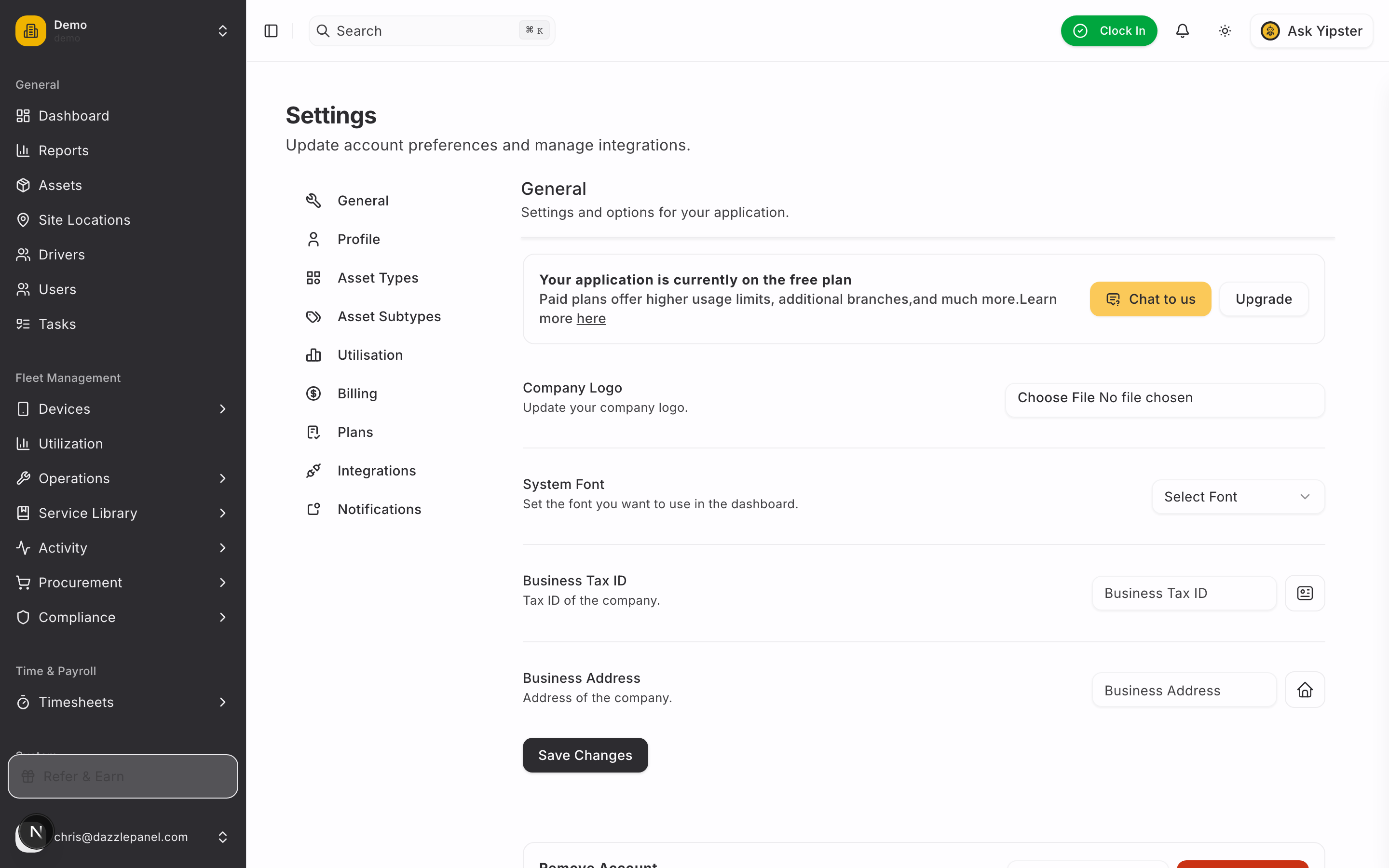
Open Settings from the settings icon in the sidebar or header, or navigate directly to /settings. Settings is organized into tabs along the left, each controlling a different aspect of your organization or personal account.
General
Organization-wide configuration and branding. This is the default tab when you open Settings.
Free Plan Banner
Organizations on the free plan see a banner at the top of the General page with two calls to action:
- Chat to us -- Opens a conversation with the Yipii team to discuss your needs
- Upgrade -- Jumps to the Plans tab to pick a paid tier
The banner is hidden for organizations on paid plans.
Organization Settings
| Setting | Description |
|---|---|
| Company Logo | Upload your organization's logo. Used across the app and on branded exports (PDF reports, invoices). |
| System Font | Choose a font for the interface from the dropdown selector. |
| Business Tax ID | Your organization's tax identification number for invoicing and compliance. |
| Business Address | Registered business address, used on exports and invoices. |
| Organization Name | Your company or team name. |
| Timezone | Default timezone for timestamps shown across the app. |
| Currency | Default currency for expenses, parts, work orders, and billing (EUR, USD, GBP, etc.). |
| Date Format | DD/MM/YYYY, MM/DD/YYYY, or YYYY-MM-DD. |
| Distance Unit | Kilometres or miles -- applied to odometer readings, mileage reports, and utilisation targets. |
Tip: Set timezone, currency, distance unit, and date format before adding assets and logging expenses. Changing them later does not re-convert historical data.
Profile
Personal account settings. Available to every user regardless of role.
| Setting | Description |
|---|---|
| First Name | Your given name |
| Last Name | Your family name |
| Your login email address | |
| Password | Change your password |
| Avatar | Upload a profile picture |
| Language | Interface language preference |
Asset Types
Manage the top-level categories used to classify your fleet assets (e.g., Vehicle, Equipment, Trailer, Building).
List View
Asset types are displayed with:
- Icon -- Visual icon shown on asset cards and lists
- Name -- Type name
- Description -- Short description
- Color -- Color used for badges and map markers
Creating or Editing a Type
- Click Add Asset Type (or click an existing row to edit).
- Enter:
- Name (required)
- Icon -- Choose from the icon library
- Description -- Optional explanatory text
- Color -- Pick a badge color
- Save.
Note: You cannot delete an asset type that is currently assigned to one or more assets. Reassign the affected assets to a different type first.
Asset Subtypes
Manage the subcategories that live under each asset type (e.g., Sedan, Van, or Truck under Vehicle; Forklift or Generator under Equipment). Subtypes enable more granular filtering, reporting, and benchmark assignment.
List View
Subtypes are displayed with:
- Name
- Parent Type -- The asset type this subtype belongs to
- Description
Creating or Editing a Subtype
- Click Add Subtype (or click an existing row to edit).
- Enter:
- Name (required)
- Parent Type (required) -- Select the parent asset type
- Description -- Optional
- Save.
Utilisation
Configure fleet utilisation benchmarks that power underutilised and overutilised recommendations across the Utilisation dashboard and analytics.
Benchmark Concept
Each benchmark defines the expected weekly distance for a group of assets, plus thresholds that mark an asset as underutilised or overutilised. Multiple benchmarks can coexist -- typically one per asset type or subtype -- and a default fleet-wide benchmark acts as a fallback.
List View
Configured benchmarks are shown with:
- Name
- Asset Type / Subtype -- The scope the benchmark applies to
- Weekly Distance Target -- The expected distance per week
- Under / Over Thresholds -- Percentages of the target that mark an asset as under- or overutilised
Creating a Benchmark
- Click Add Benchmark.
- Fill in:
- Name (required) -- A descriptive label, e.g., "Delivery vans -- weekly"
- Asset Type / Subtype -- Scope the benchmark to an asset type or subtype. Leave blank to create a default fleet-wide benchmark.
- Weekly Distance Target -- In km or miles, depending on your distance unit setting
- Underutilised Threshold (default 60%) -- Assets tracking below this percentage of the target are flagged as underutilised
- Overutilised Threshold (default 110%) -- Assets tracking above this percentage of the target are flagged as overutilised
- Save.
How Benchmarks Are Applied
When an asset's weekly distance is evaluated, Yipii Mobility picks the most specific benchmark that matches:
- A benchmark scoped to the asset's subtype, if one exists
- Otherwise, a benchmark scoped to the asset's type
- Otherwise, the default fleet-wide benchmark
If no benchmark matches, utilisation analysis is not applied to the asset.
Best practice: Configure benchmarks before you rely on utilisation dashboards or automated recommendations -- without benchmarks, the system has no definition of "normal" for your fleet.
Billing
Manage payments, invoices, and billing history for your subscription.
- Payment Method -- Update the credit card or payment method on file
- Billing History -- View past charges
- Invoices -- Download invoice PDFs
- Update Payment Details -- Change billing address, VAT number, or payment instrument
Plans
View and manage your subscription plan.
| Section | Description |
|---|---|
| Current Plan Card | Shows the active plan name, price, billing interval, and renewal date. |
| Device Usage | Progress bar showing devices used vs. included in your plan, with overage charges if applicable. |
| SIM Usage | Progress bar showing SIM cards used vs. included, with overage charges if applicable. |
| Overage Alerts | Warnings if you are exceeding plan limits. |
| Plan Comparison | Side-by-side comparison of available plans. |
| Change Plan | Upgrade, downgrade, or switch plans. |
Integrations
Connect Yipii Mobility to third-party tools and services. Configure, enable, or disable each integration individually.
| Integration | Purpose |
|---|---|
| Google Maps | Provides embedded map tiles and geocoding across the app |
| Slack | Sends real-time notifications and alerts into a Slack channel |
| Webhooks | Forwards events to custom HTTP endpoints for automation |
| QuickBooks | Syncs expenses, invoices, and financial data with QuickBooks |
| Microsoft Teams | Posts notifications and alerts into a Teams channel |
Each integration has its own configuration panel where you authorize credentials and pick which events or channels to use.
Notifications
Configure how and when you receive notifications. Notification preferences are per-user, so every team member can tailor their own alerts.
| Preference | Description |
|---|---|
| Email Toggles | Enable or disable email notifications per event type (inspections due, work orders assigned, licences expiring, fuel logs, etc.) |
| Push Notification Toggles | Enable or disable push notifications per event type |
| Digest Preferences | Receive a daily or weekly digest summarizing events instead of individual emails |
| Quiet Hours | Suppress push notifications during specified hours (e.g., 22:00 -- 07:00) |
Permissions
Most settings tabs are restricted to the Admin role. The Profile tab is available to every user.
| Tab | Admin | Fleet Manager | Office Staff | Reports Only | Mechanic | Inspector | Driver |
|---|---|---|---|---|---|---|---|
| General | Yes | No | No | No | No | No | No |
| Profile | Yes | Yes | Yes | Yes | Yes | Yes | Yes |
| Asset Types | Yes | No | No | No | No | No | No |
| Asset Subtypes | Yes | No | No | No | No | No | No |
| Utilisation | Yes | No | No | No | No | No | No |
| Billing | Yes | No | No | No | No | No | No |
| Plans | Yes | No | No | No | No | No | No |
| Integrations | Yes | No | No | No | No | No | No |
| Notifications | Yes | Yes | Yes | Yes | Yes | Yes | Yes |
Best Practices
- Set timezone, currency, and distance unit before adding data. Changing these later does not re-convert existing records.
- Configure asset types and subtypes before creating assets so that categorization is consistent from day one.
- Configure utilisation benchmarks early. Without benchmarks, the Utilisation dashboard has no reference for "normal" and cannot generate accurate recommendations.
- Upload your company logo for branded exports, PDF reports, and invoices.
- Keep payment information up-to-date to avoid service interruptions.
- Monitor the Plans page regularly so that device and SIM overages do not surprise you on the next invoice.
- Use integrations (Slack, Teams, Webhooks) to push alerts into the tools your team already lives in.
- Tune notifications per user -- aggressive email settings can create noise; digests work well for people who do not need real-time alerts.
Related Links
- Quick Start Guide -- Initial setup walkthrough
- Managing Assets -- Use asset types and subtypes when creating assets
- User Management -- Invite team members and assign roles
- Roles and Permissions -- Understand what each role can access
- Fleet Utilisation -- View benchmarks applied across the dashboard