

Expenses
Track and categorize all fleet-related expenses for cost analysis and reporting
Expenses
Expenses let you record any fleet-related cost that is not already captured by a work order. Insurance renewals, vehicle registration, tolls, parking, fines, cleaning services, and ad-hoc repairs all fit here. Entries can be tied to a specific asset or logged as fleet-wide costs, and they feed into dashboard totals and category breakdowns for reporting.
Accessing Expenses
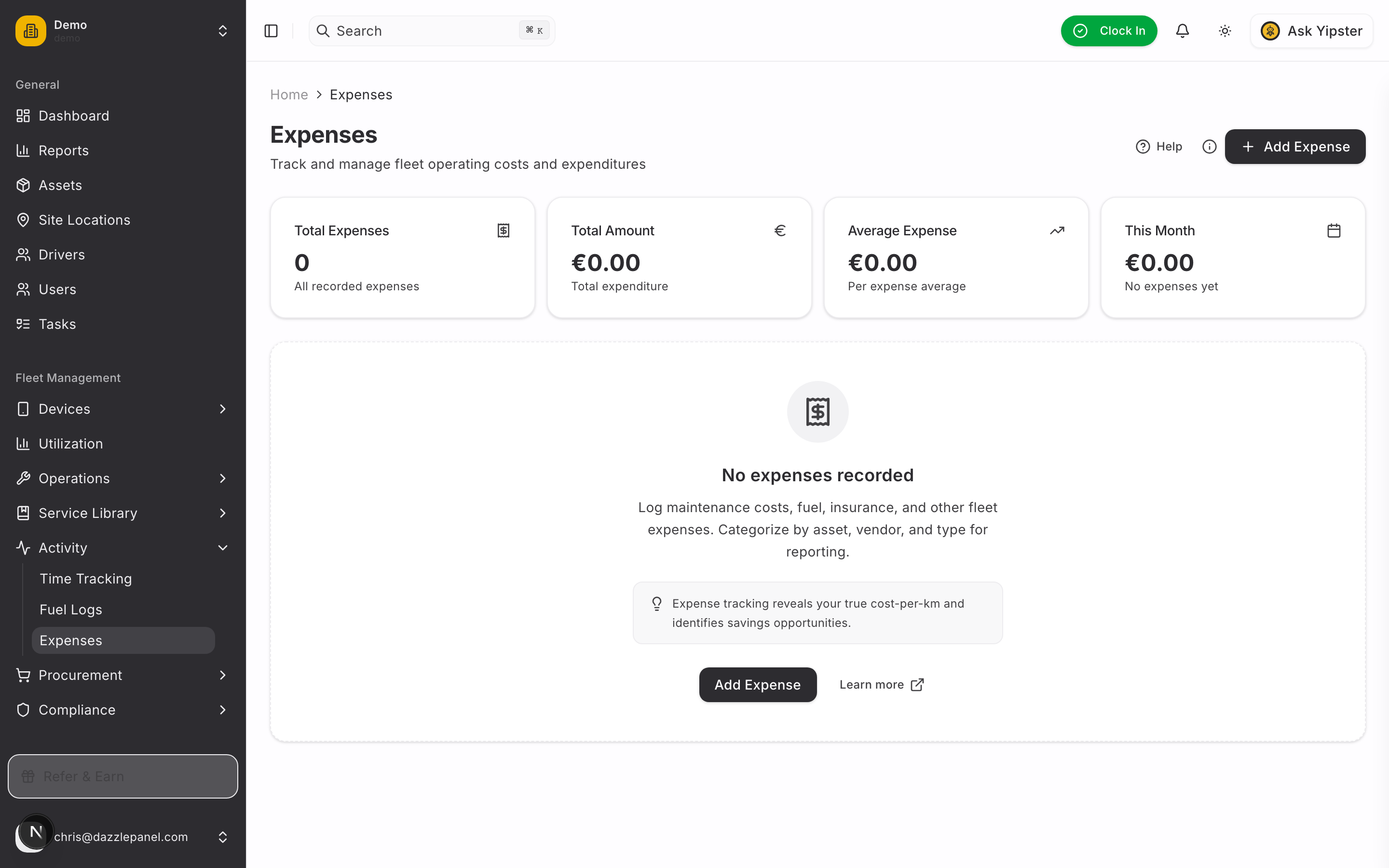
Navigate to Fleet Management > Activity > Expenses in the sidebar. The page shows every recorded expense in a searchable, filterable data table.
List View
| Column | Description |
|---|---|
| Date | When the expense was incurred |
| Asset | The vehicle or equipment the expense is linked to (blank for fleet-wide expenses) |
| Type | Expense category (see the full list below) |
| Amount | Cost in your organization's currency |
| Description | Free-text summary of what the expense covers |
Filters
Above the table you can narrow results by:
- Type — Show only a specific category (Fuel, Maintenance, Insurance, etc.)
- Date range — Filter to a specific period (today, this week, this month, or a custom range)
- Search — Find expenses by description or asset name
Stats Cards
Summary cards above the table show:
- Total by Type — Breakdown of spend per category for the filtered period
- Total Overall — Sum of every expense in the current view
Creating an Expense
Click Create Expense in the top right. The form collects the following fields:
- Type — Select the category that best describes the expense (see the category list below).
- Amount — Numeric value in your organization's currency.
- Description — Textarea describing what the expense covers. Include vendor, reference, or any context useful for audit.
- Asset — Optional. Select a specific vehicle or leave blank for fleet-wide expenses (e.g., an annual insurance policy that covers multiple vehicles).
- Date — Date picker for when the expense was incurred.
Click Create to save. The expense appears in the list immediately and is included in dashboard totals from that point forward.
Expense Categories
Choose the category that best describes the expense. Categories drive reporting breakdowns and make it easy to filter by cost type.
| Category | Typical Use |
|---|---|
| Fuel | Fuel purchases recorded outside of the fuel log (rare — prefer Fuel Logs) |
| Maintenance | General maintenance not already captured in a work order |
| Insurance | Annual or monthly policy renewals |
| Registration | Vehicle registration and licensing fees |
| Repairs | Ad-hoc repairs not tracked via a full work order |
| Parts | Standalone parts purchases outside of inventory |
| Tolls | Highway tolls, bridge fees, congestion charges |
| Parking | Parking lots, garages, meters |
| Fines | Traffic violations, parking tickets, citations |
| Cleaning | Car wash, detailing, interior cleaning services |
| Other | Any expense that does not fit another category |
Category Examples
- Insurance — Annual policy renewal for a commercial fleet of 20 vehicles: one expense against the fleet (no asset), amount = total premium.
- Registration — Renewal for a single vehicle: expense tied to the specific asset, amount = renewal fee.
- Tolls — Monthly toll transponder bill: either per-asset if transponders are assigned to vehicles, or fleet-wide if pooled.
- Cleaning — Monthly detail service: per-asset expense, one entry per vehicle detailed.
- Fines — Traffic ticket issued against a specific vehicle: per-asset expense, description includes citation number and driver.
Linking Expenses to Work Orders
When an expense is related to a maintenance task, link it to the relevant work order so the full repair cost is visible in one place. Work order expenses appear in both:
- The work order's Additional Costs section, contributing to the total WO cost
- The general Expenses list, contributing to category totals
Prefer adding parts and labor inside the work order itself — use the Expenses feature only for ancillary costs that do not belong in the parts or labor tabs (e.g., a mobile mechanic call-out fee, a towing charge, or a disposal fee).
Viewing and Editing an Expense
Click any row to open its detail page. From there you can:
- Edit the amount, type, date, description, or linked asset
- Upload, replace, or remove a receipt photo or PDF
- Run the expense through the approval workflow
- Delete the expense if entered in error
- Navigate to the linked asset to see its full expense history
Receipts
Every expense supports an attached receipt — a photo of the till slip, a PDF invoice, or a scan of the original document. Receipts live on a private storage disk and are served back through short-lived signed URLs (15 min) so they're never publicly exposed.
Supported Formats
JPG, PNG, PDF, WebP, or HEIC up to 10 MB.
Uploading
On the expense detail page, the Receipt card shows the current state:
- No receipt yet — click Upload receipt to pick a file
- Receipt attached — click View to open in a new tab via signed URL, Replace to swap, or the trash icon to remove
Uploads happen synchronously. The original is not kept after a replace — old blobs are deleted server-side as soon as the new one lands.
Privacy
Receipt files are stored on a private bucket. Only authenticated tenant users can request a signed URL, and each URL expires after 15 minutes. Pasting a URL into a browser tab works for that 15-minute window only — after that, it returns a 403.
Approval Workflow
Expenses move through a three-state lifecycle before they're considered final:
When an expense is created it lands in Pending. Only an admin or manager (and not the submitter themselves) can approve or reject it. Approval and rejection are timestamped and recorded with the actor's user ID — you always have an audit trail of who signed off.
Approve
The Approve button on the expense detail page sets approval_status = approved, stamps the approver and timestamp, and (optionally) records approval notes.
Reject
The Reject button requires a rejection reason. Without notes, the action is refused at the API layer. Rejected expenses can be resubmitted by the original submitter or an admin.
Resubmit
A submitter (or admin) can move a rejected expense back to Pending via the Resubmit button. The action clears the previous approver, approved-at, and notes — the next reviewer sees a clean slate.
Submitter cannot self-approve
The server enforces that the submitter and approver are different users. Even if you're an admin and you submitted the expense, you can't be the one who approves it. Reject + resubmit + alternate-approver is the only path through that case.
Roles and Approval
- Submitter — anyone who can create an expense (Admin / Fleet Manager / Office Staff). They cannot approve their own.
- Approver — Admin or Fleet Manager (Manager). Sees Approve / Reject buttons on Pending expenses they didn't submit.
- Read-only — Mechanic / Inspector / Driver / Reports Only. Sees the approval state but no actions.
Reporting and Analysis
Expense data feeds into multiple views:
- Dashboard Overview — The "Total Expenses" card displays the sum of all recorded expenses for the current period.
- Dashboard Analytics — The Expenses Breakdown chart shows spending by category.
- Asset detail page — Each asset's page shows its lifetime expense total and category breakdown.
- Custom reports — Filter expenses by period, asset, or type to build spend summaries for stakeholders.
Permissions
| Role | Permissions |
|---|---|
| Admin | Full CRUD |
| Fleet Manager | Full CRUD |
| Office Staff | Create, view, edit |
| Mechanic | View, create expenses tied to their work orders |
| Driver / Inspector / Reports Only | View only |
Best Practices
- Record expenses as they are incurred — relying on month-end catch-up makes reconciliation harder
- Use consistent categories so per-category reporting is meaningful
- Attach receipt or invoice references in the description for audit trail
- Associate expenses with a specific asset whenever possible — per-asset cost analysis depends on it
- Leave the asset blank only for genuinely fleet-wide costs (e.g., a multi-vehicle insurance policy)
- Link expenses to work orders when the spend is part of a repair
- Review expense reports monthly to spot cost-reduction opportunities
Related Features
- Fuel Logs — Dedicated tracking for fuel purchases
- Work Orders — Capture parts and labor inside repair tasks
- Parts Inventory — Track parts costs at the stock level
- Dashboard — View expense totals and category breakdowns