

Time Tracking
Clock in and out with GPS verification, see your own hours, and understand how your entries become payable.
Time Tracking
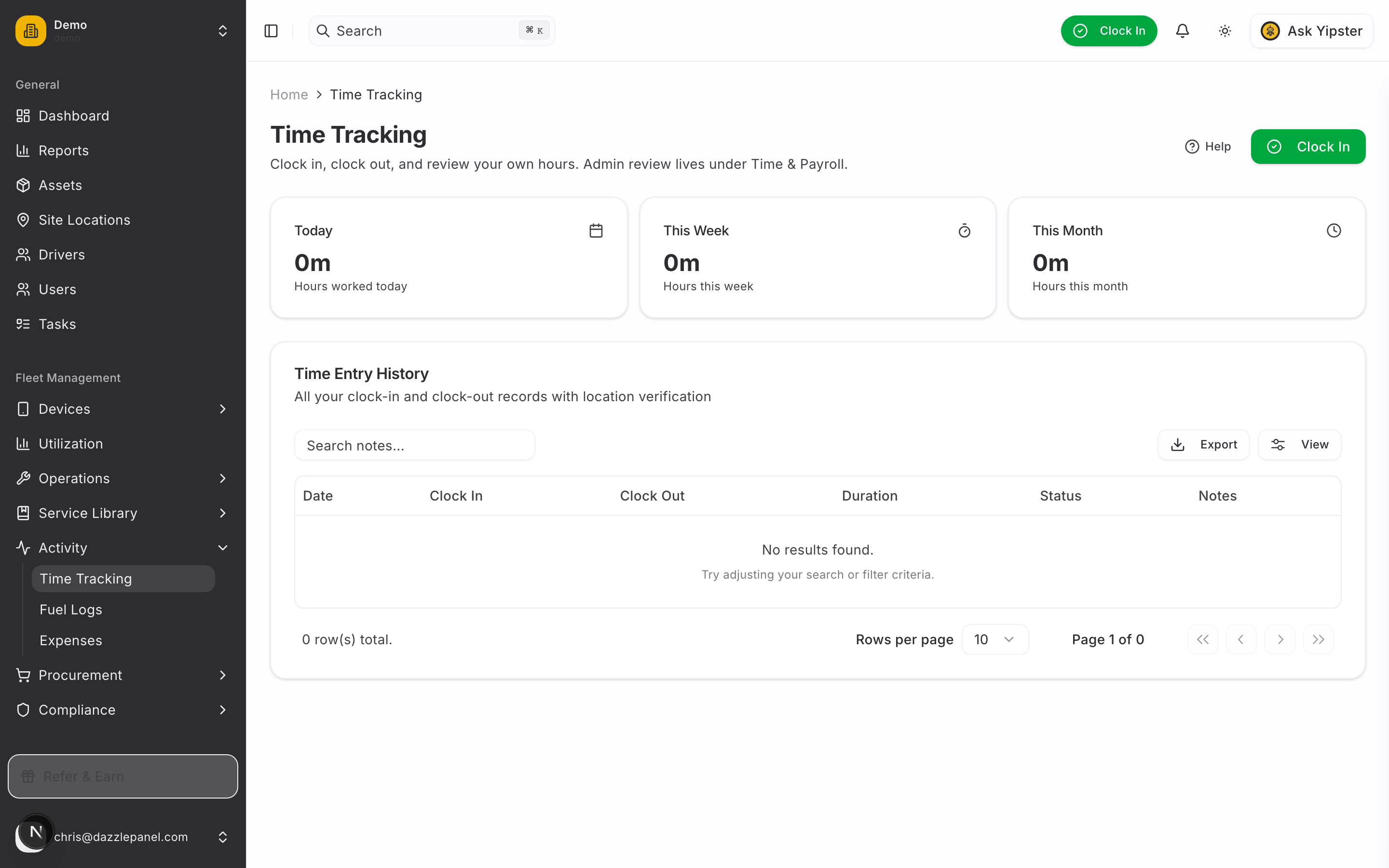
Time Tracking is the employee-facing side of the timesheet system. Drivers, technicians, office staff and anyone clocking hours uses this page to start and stop shifts and to review their own history. Review, approvals, pay periods, and payroll export live under Time & Payroll and are documented separately — see Review Timesheets, Pay Periods, and Pay Profiles.
Accessing Time Tracking
Open General → Time Tracking in the sidebar. Every role sees the same personal page — your own active session, your own weekly and monthly totals, your own history.
If you're an administrator or fleet manager, the admin surfaces are in a separate Time & Payroll sidebar section (see related docs at the bottom).
Clock In / Clock Out
The core of the page is a single large button at the top right.
- When you're not clocked in, it reads Clock In.
- When you are clocked in, it reads Clock Out and a green banner at the top of the page shows a live elapsed timer counting up from your clock-in time.
Tap the button and the browser asks for your location. Grant the permission once and it persists for future sessions. If you deny it, the button stays disabled — we need a GPS fix to create an entry.
Location is captured only at clock-in and clock-out. It isn't tracked continuously during the shift.
What gets recorded on clock-in
| Field | Source |
|---|---|
clock_in_at | Device timestamp at the moment you tap the button |
clock_in_latitude / longitude | Browser geolocation API |
clock_in_accuracy | Reported radius of uncertainty in metres |
site_location_id | Nearest configured site with a geofence — if you're within its radius |
flags | Array of anomaly flags (see Flags below) |
status | active (until you clock out) |
approval_status | pending_approval |
What gets recorded on clock-out
On clock-out the server calculates total_minutes from the two timestamps, applies your pay profile's default break if auto-deduct is enabled, and re-runs the flag checks on the clock-out position. The entry's status flips to completed and it stays pending_approval until a manager reviews it.
Summary cards
Three cards above the history table aggregate your payable minutes:
| Card | Range |
|---|---|
| Today | Midnight-to-midnight for today, including the live session |
| This Week | Monday – Sunday of the current week |
| This Month | Calendar month to date |
History table
Every completed and active entry for the signed-in user, newest first. Columns: date, clock-in time, clock-out time, duration, status badge, notes. Click the CSV icon to export the filtered list.
Flags
If the server detected something unusual at clock-in or clock-out, the entry carries one or more flags. They're visible to your manager in the admin view and may prompt a reject with a note. The flag strings you might see:
| Flag | Meaning |
|---|---|
low_accuracy | Clock-in GPS fix was worse than 100 m — usually indoor, tunnel, or poor sky view |
low_accuracy_out | Same as above but at clock-out |
outside_geofence | The nearest configured site had a geofence radius and you were outside it |
long_shift | Total shift ≥ 16 h (often means a forgotten clock-out) |
manual_entry | Entry was created by an admin on your behalf rather than via the clock button |
Flags are informational. They don't block the entry — they just surface it for review.
Approval lifecycle
Every entry starts as pending approval. A manager can then:
- Approve → becomes payable, eligible to be swept into a pay period
- Reject → excluded from payroll until it's edited and re-approved
- Edit → correct the times or break, which resets the status back to pending
Once a pay period that contains your approved entry is locked, the entry is marked locked and no one (including admins) can edit or delete it. Reopening the pay period unlocks its entries.
Notes
You can capture short notes when clocking in or out — what you worked on, which site, who you saw. Notes are stored as free text and show up on the entry's detail row. If an admin rejects or edits your entry, they may leave a review note separately, which also appears on the detail row.
Geolocation
Time tracking uses the browser's standard geolocation API.
- Mobile browsers — grant location permission when prompted. Keep it on while the app is open (iOS: Ask Next Time Or When I Share works; Safari must have location enabled globally).
- Desktop browsers — Chrome / Firefox / Safari all ask once per site. You can re-grant from the URL bar padlock.
- Accuracy — depends on device GPS hardware, signal strength, and whether you granted precise vs approximate location. Indoor fixes typically come back in the 40–200 m range; a clear outdoor fix is usually under 10 m.
If your entries consistently pick up the low_accuracy flag, check that:
- Precise location is allowed (not just approximate)
- GPS is on in device settings
- You're not inside a deep basement or shielded structure when you clock
Ask your admin to extend the site's geofence radius if you keep getting outside_geofence flags despite being on-site — see Sites & Locations.
Privacy
- Location is captured at the two events only, never between them.
- Coordinates are visible to admins and fleet managers of your tenant, and to you. They're not shared with other employees.
- Location data is retained with the entry as long as the entry itself is kept.
Related
- Review Timesheets — the admin surface for approving, editing, and reporting on entries.
- Pay Periods — group approved entries for payroll, export CSV.
- Pay Profiles — per-employee rates, overtime rules, break defaults.
- Work Orders — link a clock session to a work order for labour-cost tracking.
- Sites & Locations — configure geofenced sites to auto-attach entries.