

Work Orders
Track maintenance, repairs, and service tasks with Yipii Mobility's work order system
Work Orders
Work orders are the central record for every maintenance, repair, or service task performed on your fleet. Each work order links an asset to the work that needs doing, tracks who is responsible, captures parts and labor costs, and preserves a full audit trail from creation to completion.
Access work orders from the sidebar under Fleet Management > Operations > Work Orders.
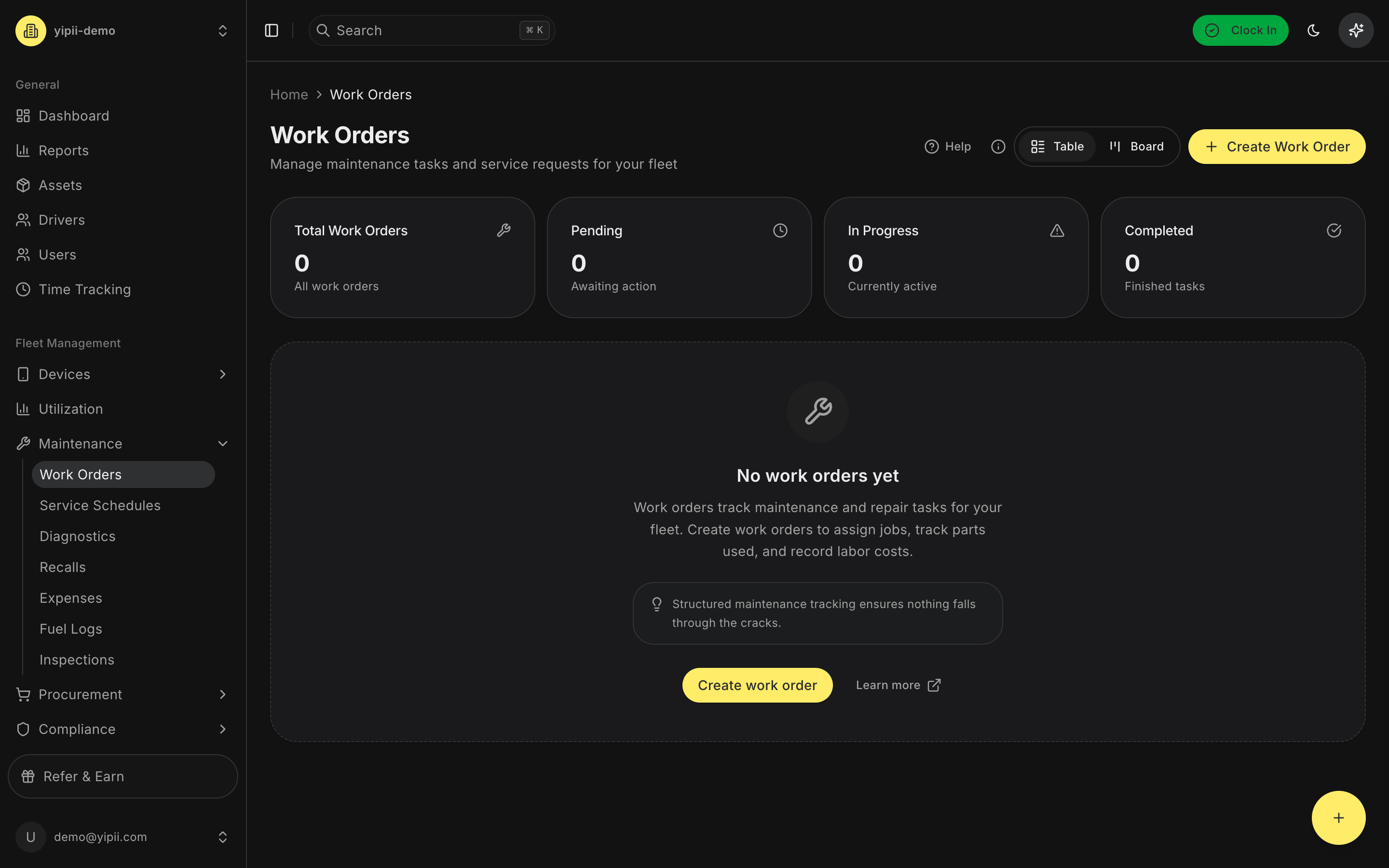
Overview
Use work orders to:
- Plan and schedule preventive maintenance
- Respond to breakdowns and corrective repairs
- Track parts consumed and labor hours logged
- Compare estimated budgets against actual costs
- Document work with before/after photos
- Maintain a defensible history for compliance and warranty claims
List View
The list view is the default landing page. It shows every work order your role is permitted to see, with powerful filtering and two distinct layouts.
Statistics Cards
A row of summary cards across the top of the page breaks down your pipeline at a glance:
- Total — all work orders in the current filter set
- Pending — awaiting action
- In Progress — currently being worked on
- Completed — closed out
- Cancelled — closed without completion
Cards update instantly when filters are applied.
Columns
| Column | Description |
|---|---|
| ID | Unique work order number (e.g., WO-1042) |
| Asset | The vehicle or equipment the work applies to |
| Type | Preventive, Corrective, Emergency, Inspection, etc. |
| Status | Pending, In Progress, Completed, Cancelled, On Hold |
| Assigned User | The technician or staff member responsible |
| Priority | Low, Normal, High, or Urgent |
| Estimated Cost | Budgeted cost entered at creation |
| Actual Cost | Running total of parts, labor, and expenses |
| Scheduled Date | When the work is planned to occur |
Filters and Search
- Status filter — narrow the list to a specific status
- Search — free-text search by ID, asset name, description, or assignee
- Bulk selection — tick multiple rows to perform bulk actions
- View toggle — switch between Table and Kanban layouts from the toolbar
Creating a Work Order from the List
Tap the floating + button (mobile) or the Add Work Order button (desktop) in the top-right corner of the page to open the creation form.
Kanban Board View
Switch the list to a Kanban board when you want a visual, pipeline-style overview of your maintenance workload.

Board Layout
The board is organised into four columns:
| Column | Description |
|---|---|
| Pending | Newly created work orders awaiting action |
| In Progress | Work actively being performed |
| Completed | Finished work orders |
| Cancelled | Work that was never completed |
Each column header shows the status name alongside a count badge indicating how many work orders sit in that column.
Kanban Cards
Each card surfaces the information most relevant to triage at a glance:
- Work order ID (e.g., WO-1042)
- Linked asset name
- Work order type badge
- Priority indicator
- Assigned user avatar
- Scheduled date
Clicking a card opens the full work order detail view.
Drag-and-Drop Status Changes
Move cards between columns by dragging them — the status updates automatically when dropped. This is the fastest way to progress work through the pipeline without opening each record individually.
Empty States
Columns with no work orders show a friendly empty state with a Create new prompt, so you can add a work order directly into the status you need.
Creating a Work Order
The creation form is split into three tabs so you can fill in what you know now and come back to the rest later.
Tab 1 — Details
Capture the core information that defines the work.
- Type — Preventive, Corrective, Emergency, Inspection, Recall, Modification, Installation, or Other
- Status — Pending, In Progress, Completed, Cancelled, or On Hold (defaults to Pending)
- Description — free-text explanation of what needs doing (required)
- Asset — searchable select; start typing the asset name or plate number (required)
- Priority — Low, Normal, High, or Urgent
Click Create to save. You'll be taken straight to the new work order's detail view.
Work Order Detail View
Opening any work order reveals a tabbed detail page with everything about the job.
Overview Tab
The landing tab shows all work order metadata:
- Header with ID, type badge, priority badge, and current status
- Asset details with a link to the asset record
- Assigned user and vendor
- Scheduled date and creation date
- Estimated vs actual cost comparison
- Description
- Timeline — a chronological log of every status change, with timestamp and the user who made the change
Parts & Labor Tab
Track everything used on the job.
- Parts — add parts from your inventory (or enter them manually) with quantity, unit cost, and automatic line-total calculation
- Labor — log labor entries with technician, hours worked, and hourly rate; line totals are calculated automatically
- Total cost — running subtotal of parts + labor is displayed at the bottom of the tab
Expenses Tab
Log any additional costs that don't fit the parts or labor model — diagnostics fees, towing, shop charges, consumables, etc. Each expense has a description, amount, and optional receipt attachment.
Sessions Tab
Record discrete work sessions against the order. Each session captures:
- Clock-in and clock-out times
- The user performing the work
- A description of what was done in the session
- Computed duration
Sessions are useful when multiple people touch the same work order, or when the job spans several days.
Photos Tab
Upload before, during, and after photos to document the state of the asset and the quality of the repair. Photos display in a gallery view with captions and timestamps. Photos support warranty claims, justify work performed, and provide visual evidence for audits.
Status Workflow
Work orders follow a predictable lifecycle:
- Pending → In Progress — set when a technician starts the job
- In Progress → Completed — set once the work is finished and documented
- Any status → Cancelled — if the work is no longer needed
- Any status → On Hold — if the work is blocked (waiting on parts, approval, etc.)
Every transition is written to the timeline with the timestamp and the user who made the change, so you always have an audit trail.
Quick Actions
Several shortcuts speed up common work order tasks:
- Quick Schedule dialog from the dashboard — create a work order without leaving your landing page
- Bulk status updates from the list view — select multiple work orders and move them all at once
- Inline status changes from the detail view — change status from the header without opening a dialog
- Drag-and-drop on the Kanban board — fastest path for single-card status changes
- Create from inspection failure — automations can spawn a work order whenever an inspection item fails
Permissions
Access depends on the fixed role assigned to your user.
| Role | Work Order Access |
|---|---|
| Admin / Fleet Manager | Full create, read, update, delete across all work orders |
| Mechanic | Create work orders, update the ones assigned to them, mark their own work complete |
| Office Staff | Create work orders, view all, update work orders they own |
| Reports Only | Read-only access |
| Inspector | View work orders; create new ones from failed inspections |
| Driver | View work orders assigned to them |
Best Practices
- Use consistent type categories. Pick one convention (e.g., always classify oil changes as Preventive) so reporting stays clean.
- Assign to specific users. Ownership drives accountability — avoid unassigned work orders.
- Log estimated vs actual cost. Over time this reveals which jobs consistently blow their budget and where your shop rates need adjusting.
- Attach photos. Before/after documentation is invaluable for warranty claims, customer disputes, and training.
- Link parts and labor. Manual actual-cost entries are fine in a pinch, but parts and labor line items give you the true cost breakdown.
- Close out promptly. Completed work orders in Pending or In Progress skew your pipeline metrics.
- Review weekly. Scan the Pending column every week to prevent backlog.
FAQ
How do I update multiple work orders at once? Use the checkboxes in the list view to select several work orders, then choose a status from the bulk-actions toolbar. All selected work orders update in one action and their timelines record the change.
Can I convert an inspection failure into a work order automatically? Yes. Configure an automation that triggers on inspection-item failure and spawns a work order with pre-filled type, priority, and assignee. See the Automations documentation for the full setup.
What's the difference between Estimated and Actual Cost? Estimated Cost is your up-front budget, entered when the work order is created. Actual Cost is the real total once work is complete — either calculated from the parts, labor, and expenses you log, or entered as a manual override on the Costs tab. Tracking both lets you measure budget accuracy over time.
How do I see work orders assigned to me? Filter the list view by assigned user, or use the dashboard widget that highlights your open work. Drivers and mechanics see only work orders assigned to them by default.
Can I print a work order? Yes — the detail view has a print option that renders a clean, printable summary including description, parts, labor, expenses, and photos.
Related Features
- Assets — link work orders to specific vehicles and equipment
- Inspections — trigger work orders from failed inspection items
- Service Schedules — automate recurring preventive maintenance
- Automations — spawn work orders from fleet events
Need Help?
Contact your organization administrator or the Yipii support team for assistance with work order configuration, permissions, or automations.