

Shortcuts & Command Palette
Navigate faster with keyboard shortcuts and the command palette
Shortcuts & Command Palette
Yipii Mobility includes a command palette, keyboard shortcuts, and a floating action button to help you navigate and create records without reaching for the mouse.
Command Palette
Press Cmd+K on macOS or Ctrl+K on Windows/Linux to open the command palette from anywhere in the app. You can also press / (when not typing in an input field) to open it.
The palette shows a search box at the top with the placeholder "Type a command or search...". Start typing to filter results across all sections.
Quick Create
The first section in the palette is Quick Create, which lets you open a streamlined form for common tasks without navigating away:
| Command | What it does |
|---|---|
| New Work Order | Opens the work order quick-add sheet |
| Log Expense | Opens the expense quick-add sheet |
| Record Fuel Log | Opens the fuel log quick-add sheet |
| New Inspection | Opens the inspection quick-add sheet |
Selecting any of these closes the palette and opens a slide-out sheet on the right side of the screen with a simplified form.
Navigate
Type any page name to jump there. Examples:
- "go to assets"
- "dashboard"
- "utilization"
- "fuel logs"
- "service schedules"
Fuzzy matching means partial inputs work -- typing "util" highlights Utilization.
Recent Items
If you have recently viewed assets, work orders, inspections, expenses, or vendors, they appear in the Recent section. The palette stores up to 5 recent items in your browser's local storage. Each entry shows the item name and its type. Selecting one navigates you directly to the detail page.
Theme Switching
Type "dark mode", "light mode", or "system theme" -- or scroll to the Theme section -- to switch the app theme instantly.
Keyboard Shortcuts
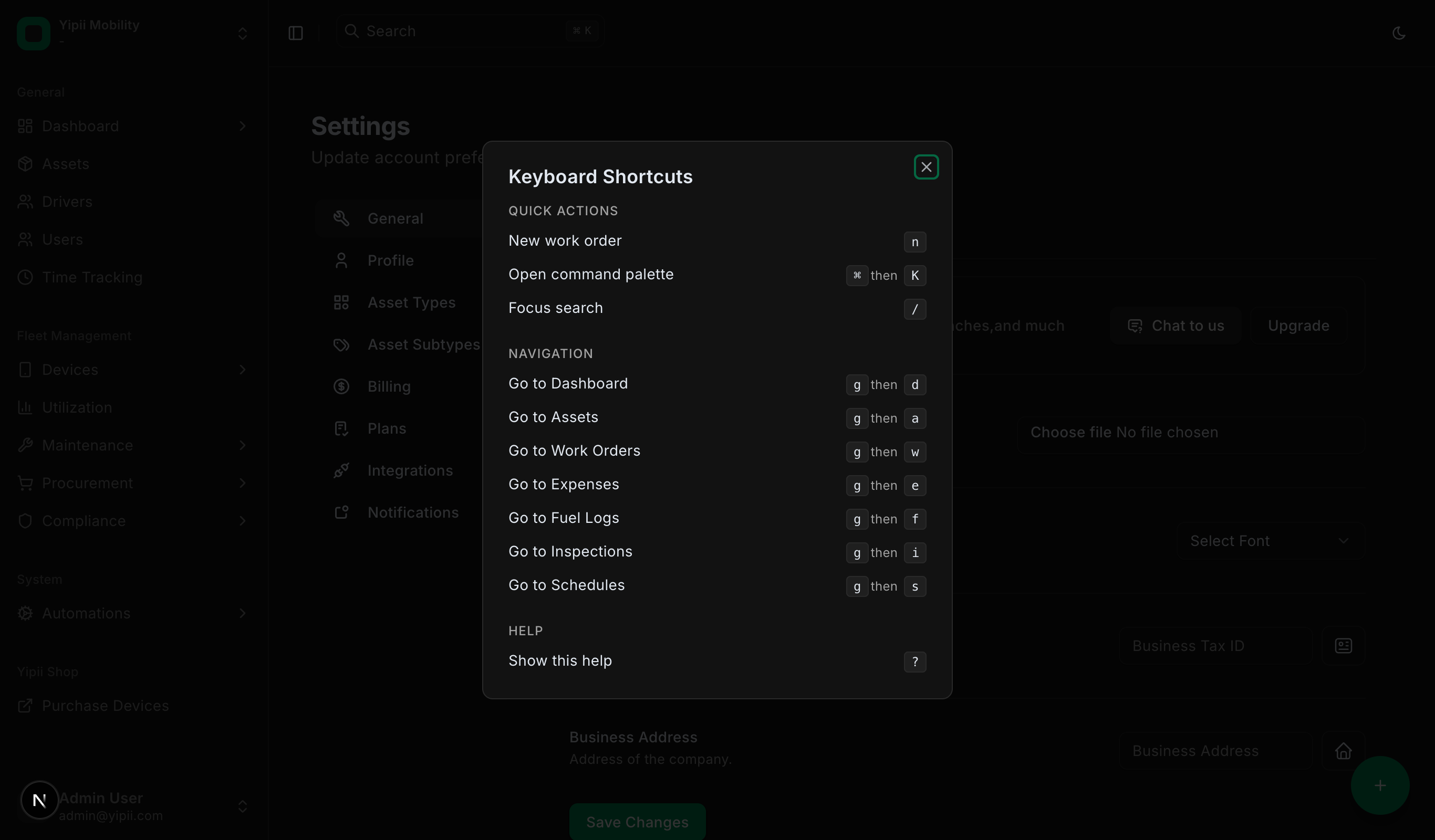
All keyboard shortcuts work when you are not focused on an input, textarea, or select field. Shortcuts are ignored when modifier keys (Cmd, Ctrl, Alt) are held, except for the Cmd+K / Ctrl+K palette shortcut which is handled separately.
Quick Actions
| Shortcut | Action |
|---|---|
Cmd+K / Ctrl+K | Open the command palette |
/ | Focus search / open the command palette |
n | Contextual "New" -- creates a record relevant to the current page (new work order on the Work Orders page, new expense on Expenses, etc.) |
? | Toggle the keyboard shortcuts help overlay |
Go-To Navigation (press g, then letter)
Press g followed by a second key within 500 milliseconds to navigate directly to a page. If you wait longer than half a second after pressing g, the sequence resets.
| Sequence | Destination |
|---|---|
g then d | Dashboard |
g then a | Assets |
g then w | Work Orders |
g then e | Expenses |
g then f | Fuel Logs |
g then i | Inspections |
g then s | Service Schedules |
g then r | Reports |
g then u | Users |
g then t | Time Tracking |
g then v | Vendors |
g then p | Parts |
g then l | Licenses |
g then o | Documents |
Help Overlay
Press ? at any time (outside of a text input) to open a dialog that lists all available shortcuts, organized into groups: Quick Actions, Go-To Navigation, and Help. Press ? again or click outside the dialog (or press Escape) to dismiss it.
Floating Action Button
A round floating action button with a + icon sits in the bottom-right corner of the screen on most pages. It provides the same quick-create functionality as the command palette, designed for mouse and touch users.
How It Works
- Click the + button -- The button expands upward to reveal smaller action buttons, each with a label.
- Choose an action:
- Work Order -- Opens the work order quick-add sheet
- Expense -- Opens the expense quick-add sheet
- Fuel Log -- Opens the fuel log quick-add sheet
- Inspection -- Opens the inspection quick-add sheet
- Fill in the form -- A slide-out sheet appears on the right with a simplified version of the full create form. It includes only the essential fields to capture a record in seconds.
- The button hides while a quick-add sheet is open so it does not overlap the form.
Click the button again (now showing an X icon) to collapse the menu without selecting anything.
Quick-Add Sheets vs. Full Create Pages
Quick-add sheets are designed for speed. They present a minimal set of fields so you can capture a record in seconds. If you need to fill in more details -- such as adding parts and labor to a work order, attaching documents, or specifying complex recurrence -- navigate to the full create page for that feature instead.
| Quick-Add Sheet | Full Create Page |
|---|---|
| Slides in from the right over the current page | Navigates to a dedicated page |
| Minimal essential fields only | All fields, tabs, attachments, and related records |
| Speed-optimized for common use | Comprehensive entry |
| Stays on your current page after saving | Takes you to the new record or list page |
Tips for Efficient Navigation
- Learn the
gsequences first --g d(Dashboard),g a(Assets),g w(Work Orders), andg t(Time Tracking) cover most daily navigation without touching the sidebar. - Press
/instead ofCmd+K-- It is one key instead of two and does the same thing. - Use
nto create on the current page -- Since it is contextual, the same key works across Work Orders, Expenses, Fuel Logs, and Inspections. - Combine the palette with fuzzy typing -- Open the palette and type the first 3-4 letters of a page name; fuzzy search narrows results as you type.
- Recent items save clicks -- The palette remembers the last 5 items you viewed, so revisiting a specific asset or work order is just
Cmd+Kand one click away. - Save common filters (coming soon) on list pages to recall them from the palette.
- On mobile, use the floating button -- Keyboard shortcuts are not available on touch devices, but the floating action button provides the same quick-create access.